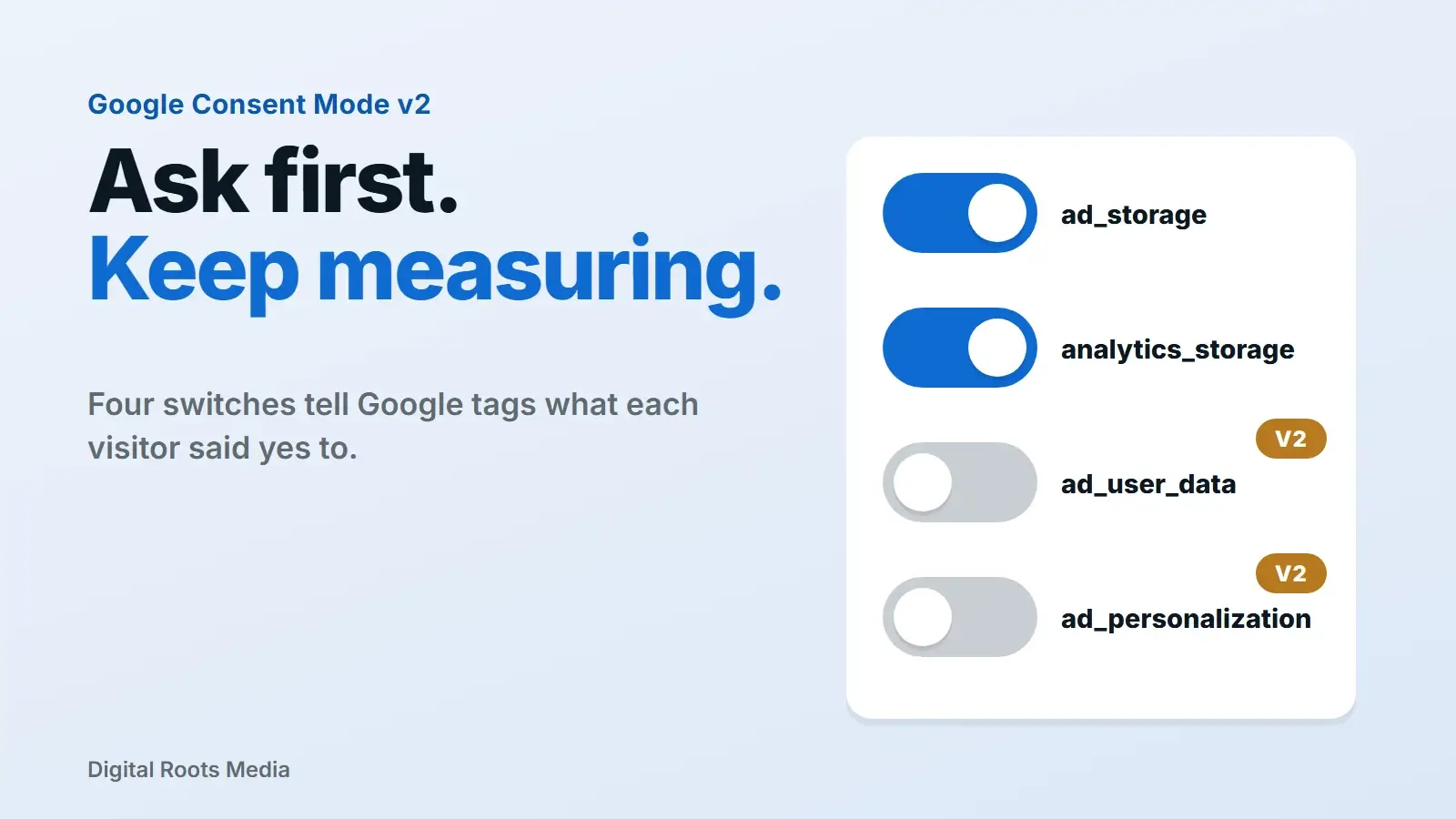
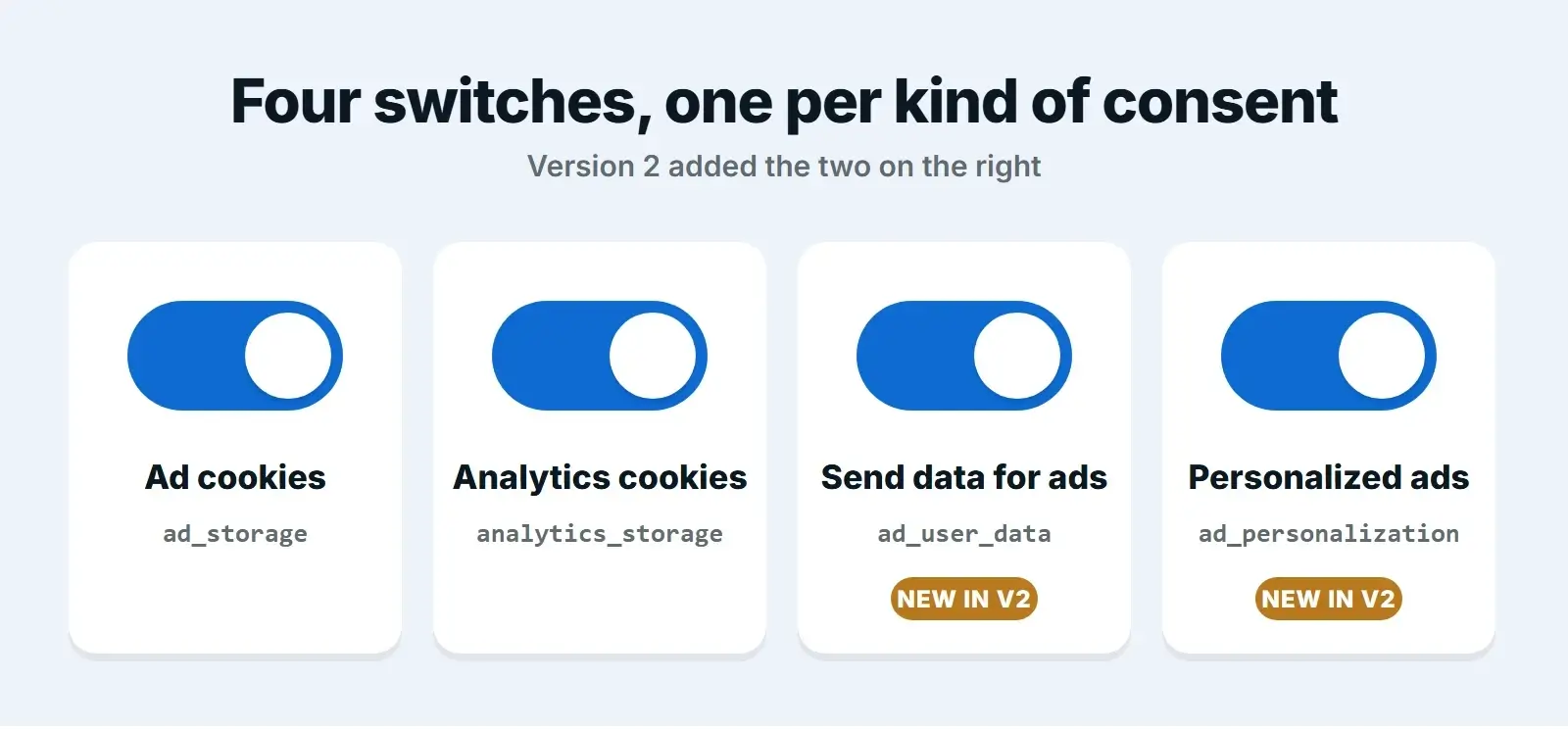
Google Consent Mode v2 is the way your website tells Google tags what a visitor agreed to in your cookie banner. It sends four consent signals: ad_storage, analytics_storage, ad_user_data and ad_personalization. Google Analytics 4 and Google Ads then adjust what they store and use for that visitor. If you advertise to people in the European Economic Area (EEA), the UK or Switzerland, Google requires those signals for measurement, remarketing and personalized ads.
This guide explains what changed in version 2, the difference between basic and advanced consent mode, how to set it up on any site (including WordPress) and how to test that it really works. Everything here comes from Google’s own consent mode documentation and help pages.
- Consent Mode v2 passes a visitor’s cookie choices to GA4 and Google Ads through four signals.
- Version 2 added ad_user_data and ad_personalization to the original two storage signals.
- Google requires consent signals for visitors in the EEA, the UK and Switzerland.
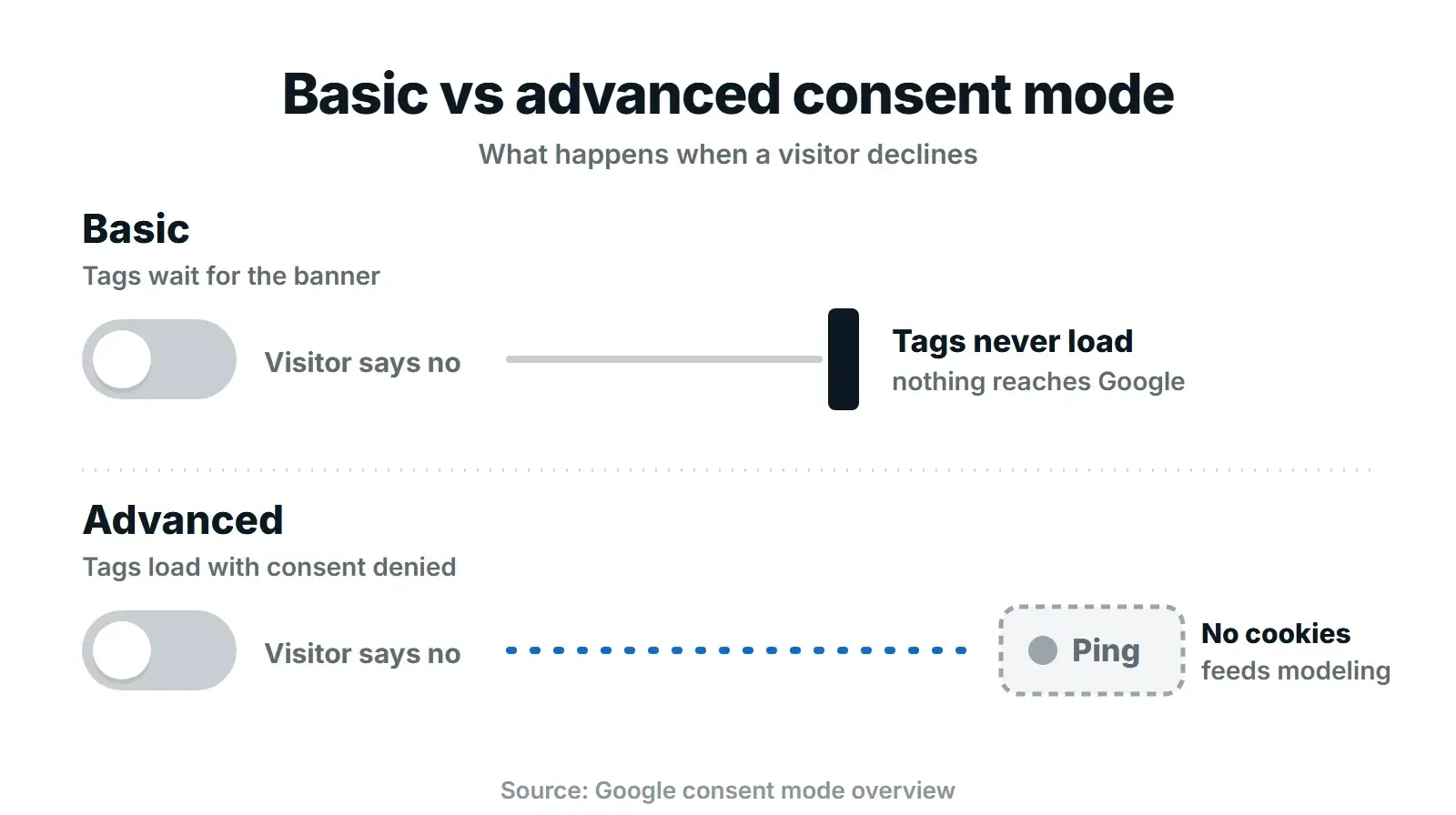
- Basic mode blocks tags until the visitor chooses. Advanced mode sends cookieless pings and unlocks modeling.
- A Google-certified consent platform does most of the work, but you still need to test it.
What is Google Consent Mode v2?
In Google’s words, consent mode lets developers adjust tag and app SDK behavior based on user consent choices. Your cookie banner, or consent management platform (CMP), collects the choice. Consent mode carries that choice to every Google tag on the page, so the tags know whether they may set cookies and whether the data may be used for ads.
| Consent type | What it controls | Added in |
|---|---|---|
| ad_storage | Cookies and device identifiers used for advertising | Version 1 |
| analytics_storage | Cookies and identifiers used for analytics, such as visit duration | Version 1 |
| ad_user_data | Whether user data may be sent to Google for online advertising | Version 2 |
| ad_personalization | Whether the data may be used for personalized ads and remarketing | Version 2 |
Google also lists functionality, personalization and security storage types, but these four are the ones Google Ads and GA4 depend on. One detail catches people out: Google says that if ad_user_data and ad_personalization are set with conflicting values, personalization is disabled.
Who needs Consent Mode v2?
Google’s help pages are clear that consent is required in the EEA, the United Kingdom and Switzerland. Under Google’s EU user consent policy, if you use Google products on your site you must get legally valid consent for cookies and for ad personalization, keep records of that consent, tell visitors how to withdraw it and name every party that uses their data. Google may limit or suspend your use of its products if you do not.
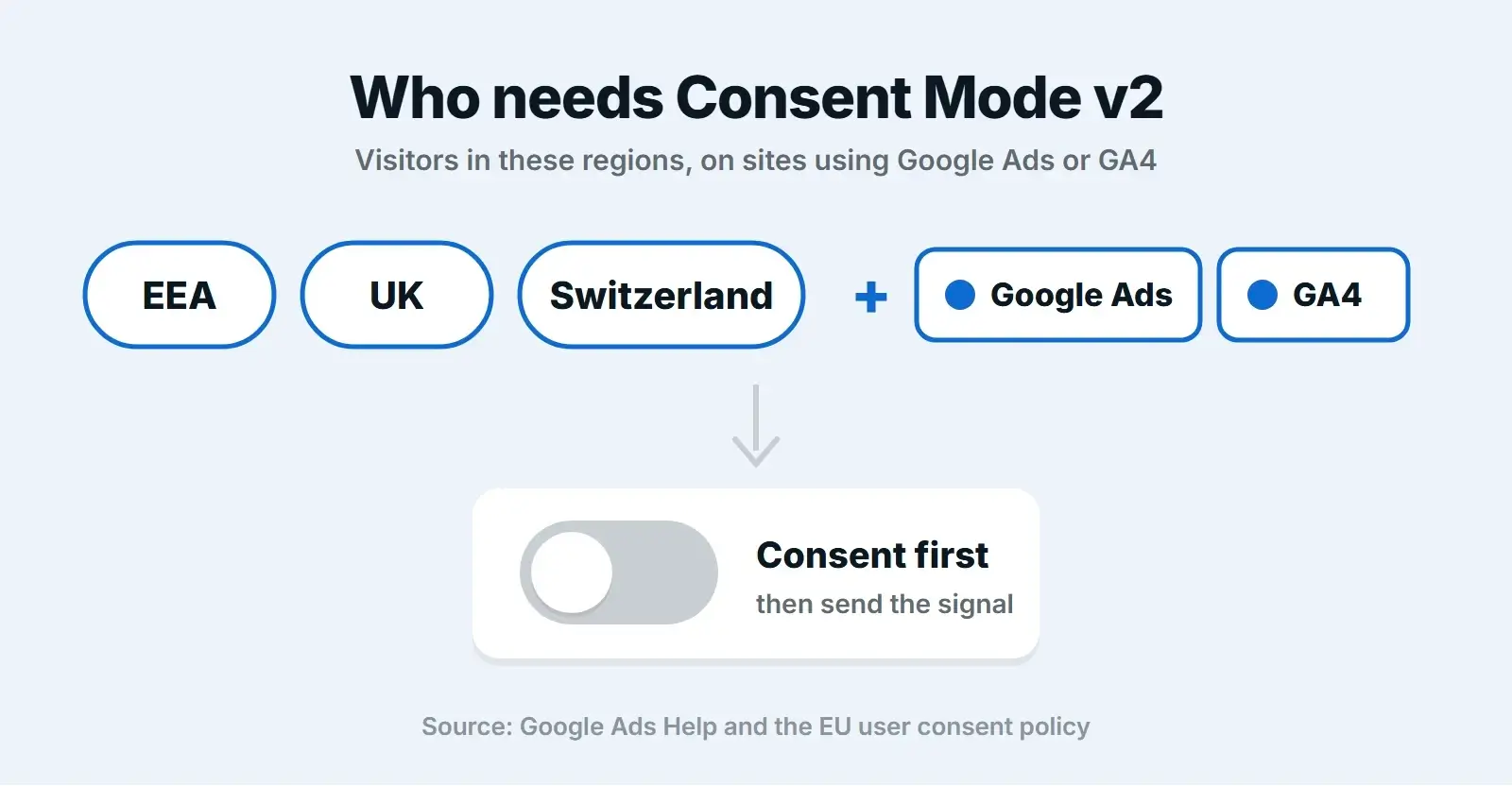
Consent Mode v2 is how you send proof of that consent to Google. Without it, the cost is concrete. Google Analytics Help says that, starting early March 2024, properties that take no action only include users outside the EEA in the audiences shared with linked advertising products. Personalized advertising and remarketing need affirmative consent signals. If you run retargeting ads to European visitors, those audiences stop growing.
What if all your customers are in the US? You do not need Consent Mode v2 for Google’s EEA rules, but US state privacy laws can still require a working cookie banner and opt-out handling. Many sites set consent mode up once for everyone and use region-specific defaults, which Google supports.
Basic vs advanced consent mode
Google offers two ways to implement consent mode, and the choice changes how much data you keep when a visitor says no.
| Basic consent mode | Advanced consent mode | |
|---|---|---|
| When Google tags load | Only after the visitor interacts with the banner | On page load, with consent set to denied by default |
| If the visitor declines | No data is sent to Google, not even the consent status | Tags send cookieless pings, with no cookies set |
| Conversion modeling in Google Ads | General model | Advertiser-specific model |
| Modeled data in GA4 | None | Possible once thresholds are met |
| Setup effort | Simpler | Needs careful default and update setup |
Google’s Ads help notes a catch with basic mode: if tags are blocked until the visitor interacts with the banner, Google cannot verify the visitor’s consent choice, which may lead to data loss. Advanced mode keeps more measurement, but it is a bigger decision, because tags load before the visitor chooses. Talk it through with whoever advises you on privacy before you pick a mode.
How Consent Mode v2 works on a page
Every implementation follows the same order. The page sets a default state first, the banner asks, and the visitor’s choice is sent as an update.
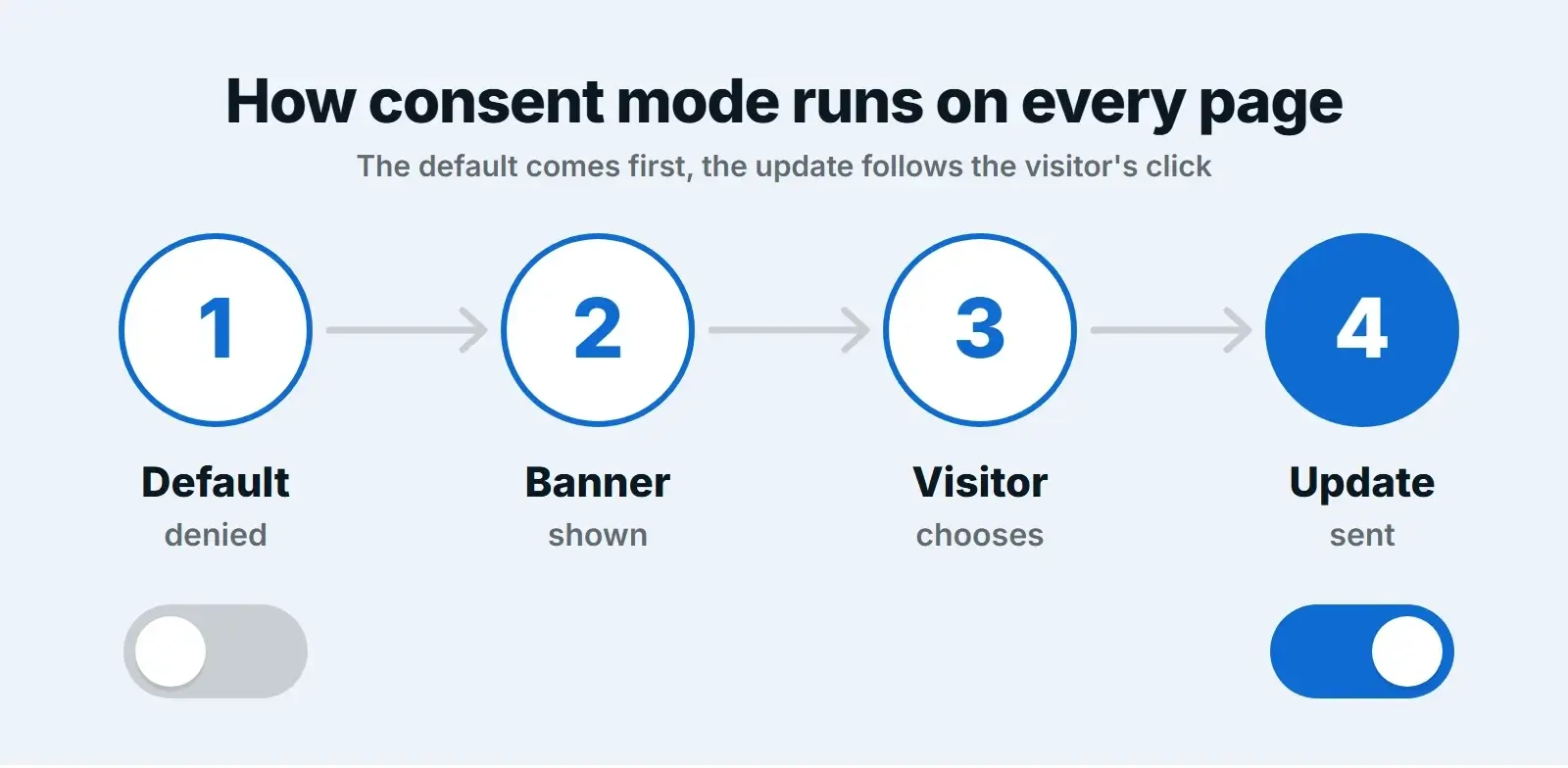
Google’s setup guide shows the default command. It must run before any config or event commands, which means it goes above your Google tag:
<script>
  window.dataLayer = window.dataLayer || [];
  function gtag(){dataLayer.push(arguments);}
  gtag('consent', 'default', {
    'ad_storage': 'denied',
    'analytics_storage': 'denied',
    'ad_user_data': 'denied',
    'ad_personalization': 'denied',
    'wait_for_update': 500
  });
</script>
The wait_for_update value gives an asynchronous CMP 500 milliseconds to load the visitor’s saved choice before tags fire. You can also pass a region parameter with ISO 3166-2 codes to set stricter defaults for some countries. As soon as the visitor makes a choice, the banner sends an update:
gtag('consent', 'update', {
  'ad_storage': 'granted',
  'analytics_storage': 'granted',
  'ad_user_data': 'granted',
  'ad_personalization': 'granted'
});
The choice must be stored and sent again on every later page, so a returning visitor is not asked twice and the tags keep the right state. Google also offers two optional settings: url_passthrough, which helps measure ad clicks without cookies, and ads_data_redaction, which strips ad click identifiers when ad_storage is denied.
How to set up Consent Mode v2, step by step
- Scan your site and list every cookie and tracking tag, not just Google’s.
- Choose a consent management platform, ideally one from Google’s certified CMP list.
- Turn on Consent Mode v2 in the CMP and set the default to denied for regions that need consent.
- Make sure the default runs before the Google tag or Google Tag Manager container loads.
- Block non-Google marketing scripts until the visitor accepts.
- Decide between basic and advanced mode, and document the decision.
- Test every consent type in Tag Assistant, accepting and declining.
- Check the consent status in GA4 and in Google Ads conversion diagnostics.
The CMP is the heart of it. Google runs a CMP Partner Program that lists certified platforms such as Cookiebot by Usercentrics, CookieYes, OneTrust, iubenda and Complianz. Google says certified CMPs update to the newest consent mode version automatically. You can use a CMP that is not on the list, but then you must make sure it sends all four signals yourself.
Google Consent Mode v2 on WordPress
On WordPress, the usual route is a CMP plugin such as Complianz, CookieYes or Cookiebot, with consent mode switched on in its settings. The common mistake is loading Google Analytics twice: once from a plugin and once from a theme setting or Tag Manager. Only one copy should load, after the consent default. If your site was built by several people over the years, a WordPress developer can find every place a tag is added.
Using Google Tag Manager
If your tags live in Google Tag Manager, use your CMP’s Tag Manager template so the default fires on Consent Initialization, before any other tag. Google tags such as GA4 and Google Ads read consent mode on their own. Tags from other vendors need consent checks set in Tag Manager, or they will keep firing.
What you lose and keep: conversion modeling
Advanced mode lets Google fill some of the gaps that declined visitors leave in your reports. It is not automatic for every site. Google Analytics Help lists the behavioral modeling thresholds: the property needs at least 1,000 events a day with analytics_storage denied for at least 7 days, and at least 1,000 daily users with analytics_storage granted on at least 7 of the previous 28 days.
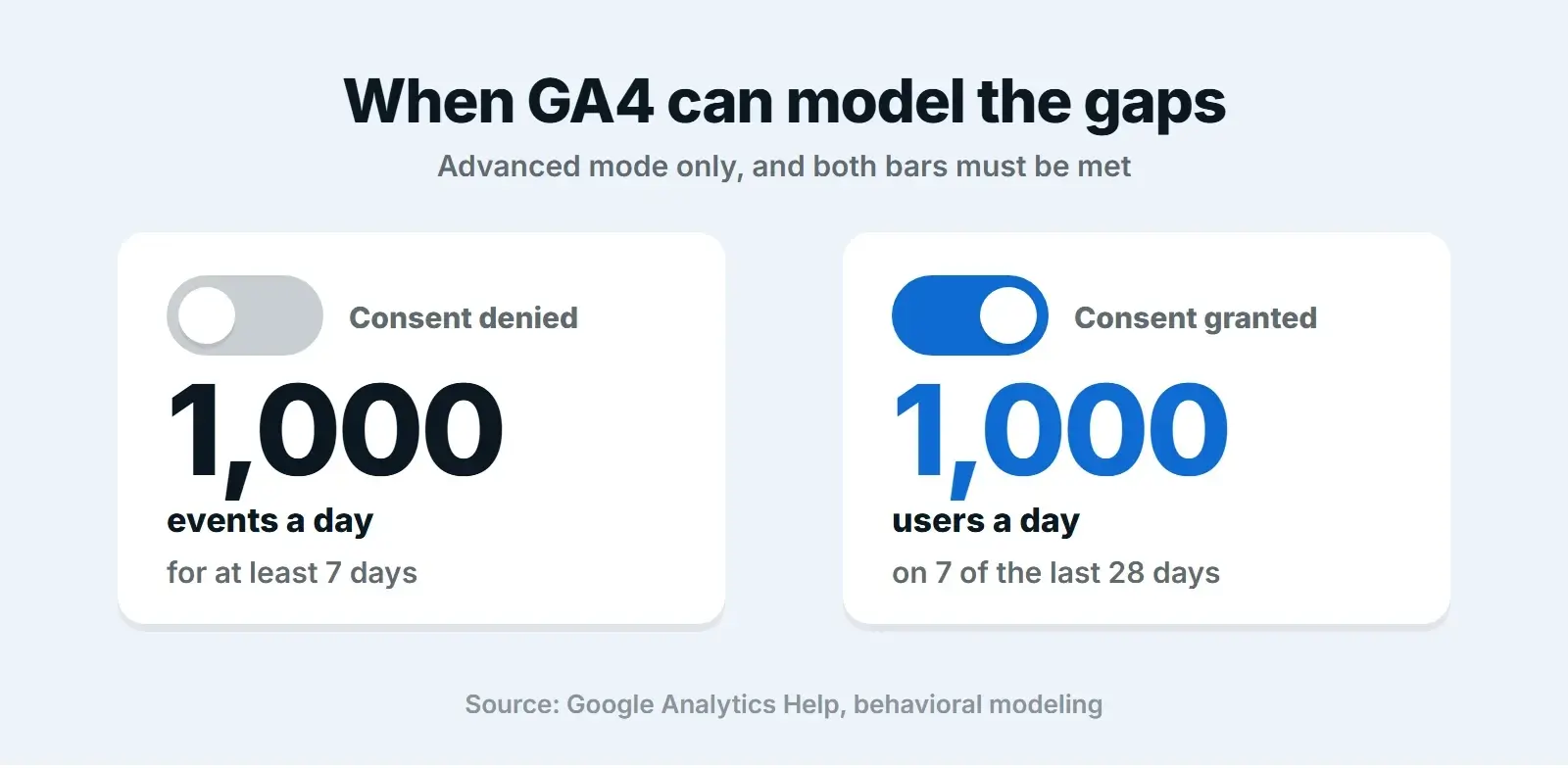
Many small business sites do not reach those numbers, and Google says meeting them still does not guarantee eligibility. So for a smaller site, the main gains from Consent Mode v2 are compliance with Google’s policy and keeping European visitors in your ad audiences, not modeled data. If you are new to GA4, our GA4 guide for beginners explains which reports matter, and UTM parameters keep campaign tracking clean whatever the consent rate.
How to test Google Consent Mode v2
Do not assume the banner works because it appears. Google’s consent debugging guide uses Tag Assistant, and the check takes a few minutes:

- Start a session: open Tag Assistant, enter your site address and load the page.
- Check the default: select the first Consent event and confirm all four types are set before any tag fires. The Consent tab shows them in the On-page Default column.
- Accept and check the update: accept in your banner, select the latest Consent event and confirm the four types changed. They appear in the On-page Update column.
- Decline and repeat: start again, decline and confirm the values stay denied and that non-Google marketing tags did not fire.
- Check Google’s side: in GA4, go to Admin, Data collection and modification, Consent settings. Google says the status can take 48 to 72 hours to refresh. In Google Ads, the consent mode status appears in conversion diagnostics.
If you set region-specific defaults, repeat the test from a location in each region. And test again after any theme, plugin or Tag Manager change, because a new tag added in the wrong place can fire before consent.
Common Consent Mode v2 mistakes
- A banner with no consent mode behind it. The banner looks fine, but Google never receives a signal.
- Only two signals. An old setup that sends ad_storage and analytics_storage but not the two version 2 signals.
- The default fires too late. Tags load first and set cookies before the default is applied.
- Other tracking scripts ignore the choice. Consent mode only changes Google tags. Meta, LinkedIn and other pixels must be blocked separately.
- Conflicting ad signals. Granting ad_user_data but not ad_personalization, or the other way round, switches personalization off.
- No record of consent. Google’s policy asks you to keep records of consent, and most CMPs store them for you once it is turned on.
A clear, readable cookie banner also matters for visitors who use assistive technology. If you are reviewing your banner design, our WCAG 2.2 guide covers contrast, focus and keyboard access, and our website accessibility team can check it for you.
Want Consent Mode v2 set up and tested?
We scan every cookie and tag on your site, set up your CMP, connect Google Consent Mode v2 for GA4 and Google Ads and test it on your live site.
Frequently asked questions
What is the difference between Consent Mode v1 and v2?
Version 1 sent two signals, ad_storage and analytics_storage, which control cookies. Version 2 adds ad_user_data, for sending user data to Google for advertising, and ad_personalization, for personalized ads and remarketing. Google uses the two newer signals for visitors in the EEA, the UK and Switzerland.
Is Google Consent Mode v2 mandatory?
It is required by Google, not by a single law, for sites that use Google Ads or GA4 advertising features with visitors in the EEA, the UK and Switzerland. Without the signals, GA4 leaves EEA users out of audiences shared with ads, and personalized ads and remarketing need consent. Privacy laws such as GDPR set the consent rules themselves.
Should I use basic or advanced consent mode?
Basic mode is simpler and sends nothing to Google until the visitor agrees. Advanced mode loads tags with consent denied and sends cookieless pings, which allows better conversion modeling. Larger sites gain more from advanced mode. Decide with your privacy adviser, because tags load before the visitor chooses.
Does Consent Mode v2 make my website GDPR compliant?
No. Consent mode only passes the visitor’s choice to Google tags. Compliance also depends on your banner, your privacy policy, blocking other trackers and keeping consent records. A lawyer should approve the policy wording. Consent mode is one technical part of the setup.
How do I check if Consent Mode v2 is working?
Use Tag Assistant. Load your site, check that the first Consent event sets all four types, accept in the banner and confirm the update, then repeat with decline. In GA4, open Admin, Data collection and modification, Consent settings, and allow 48 to 72 hours for the status to refresh.
Final thoughts
Google Consent Mode v2 is a small piece of code with a big job. It keeps your Google Ads and GA4 working for European visitors, respects the choice every visitor makes and gives Google a fair signal to model from. Set the default before any tag, send all four signals, choose your mode on purpose and test it in Tag Assistant. If you run Google Ads and want help with the campaigns as well as the tracking, see our PPC management service, or ask us to handle the full Google Consent Mode v2 implementation for you.