Google not indexing my site is a problem you can narrow down with a short list: Google is told not to index the page (a noindex tag or the WordPress visibility setting), Google is blocked from fetching it (robots.txt, a login or a server error), Google picked a different URL as the main version (canonicals and duplicates), Google cannot find it (no sitemap entry and no internal links), or Google fetched it and decided it was not worth adding (thin, duplicate or low-value content). Check them in that order, using Search Console’s URL Inspection tool to confirm each one before you change anything.
This guide gives you 11 checks for a site or new page that will not show up in Google, ordered from the quickest to confirm to the ones that need more thought. The first six are quick look-ups. The last five take longer because they involve judgment as well as settings.
- Confirm the problem with URL Inspection first; a site: search does not show every indexed page.
- A noindex tag or the WordPress “Discourage search engines” box tells Google to stay out, so check both early.
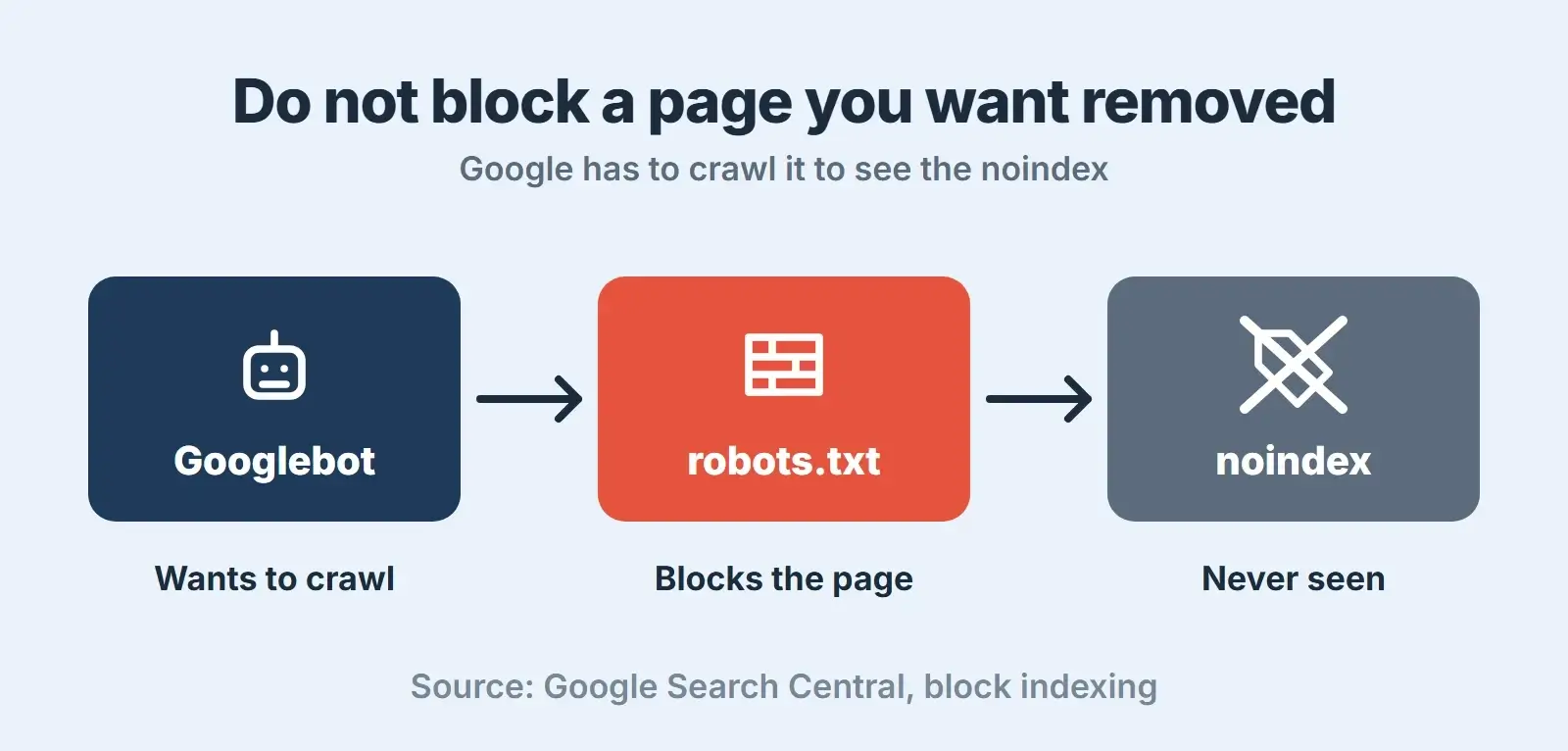
- Never block a page in robots.txt to remove it: Google then cannot see the noindex.
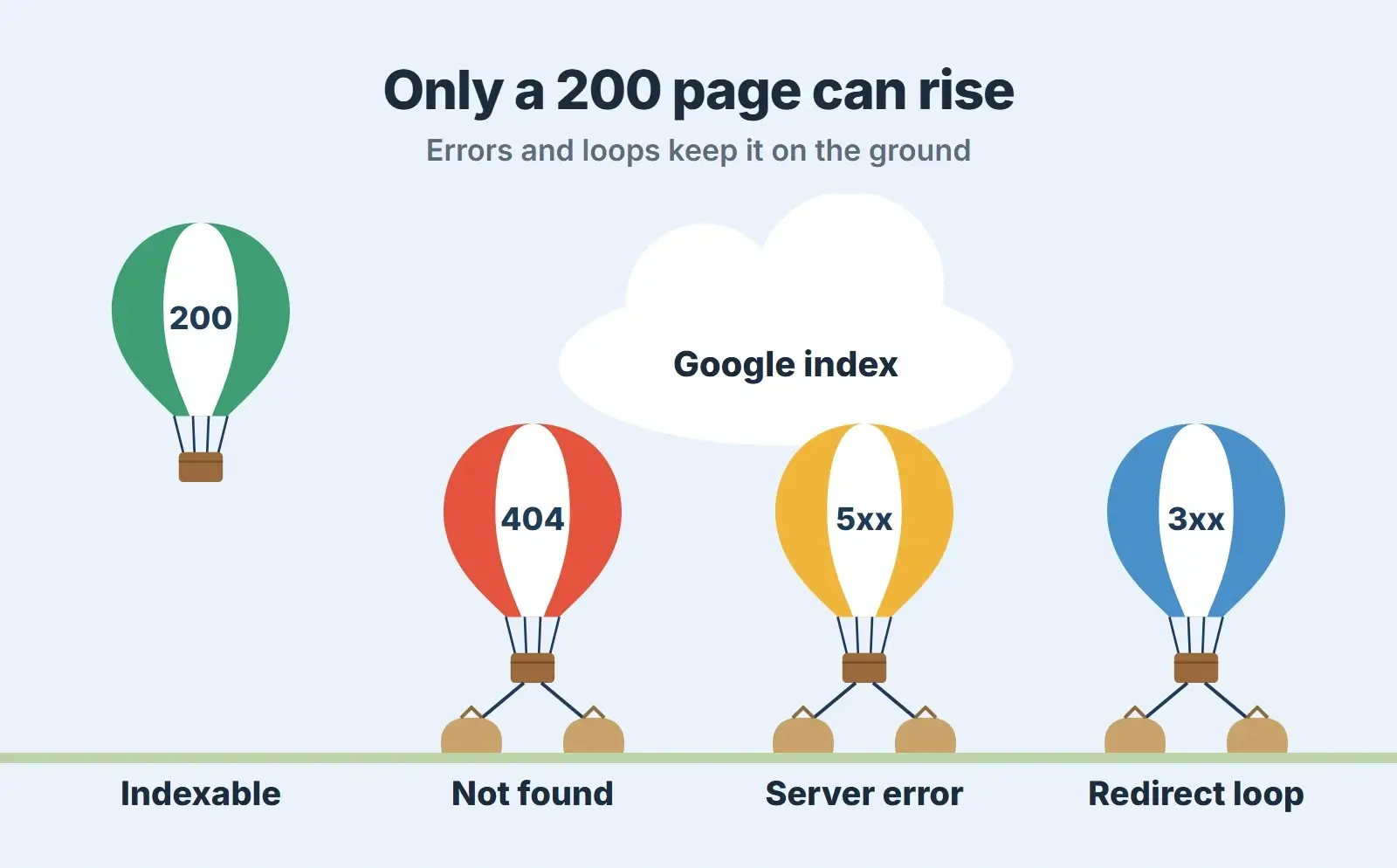
- Only pages that return HTTP 200 and have real content can be indexed, and even then it is not guaranteed.
- Google says a new site can take a few weeks to be noticed; requested pages usually take a day or so.
What Google needs before it will index any page
Google’s Search Essentials technical requirements are short. A page is eligible for indexing when Googlebot is not blocked from it, the page works (the server returns an HTTP 200 success code), and the page has indexable content. Google also says plainly that meeting the requirements does not mean a page will be indexed. They make a page eligible and nothing more.
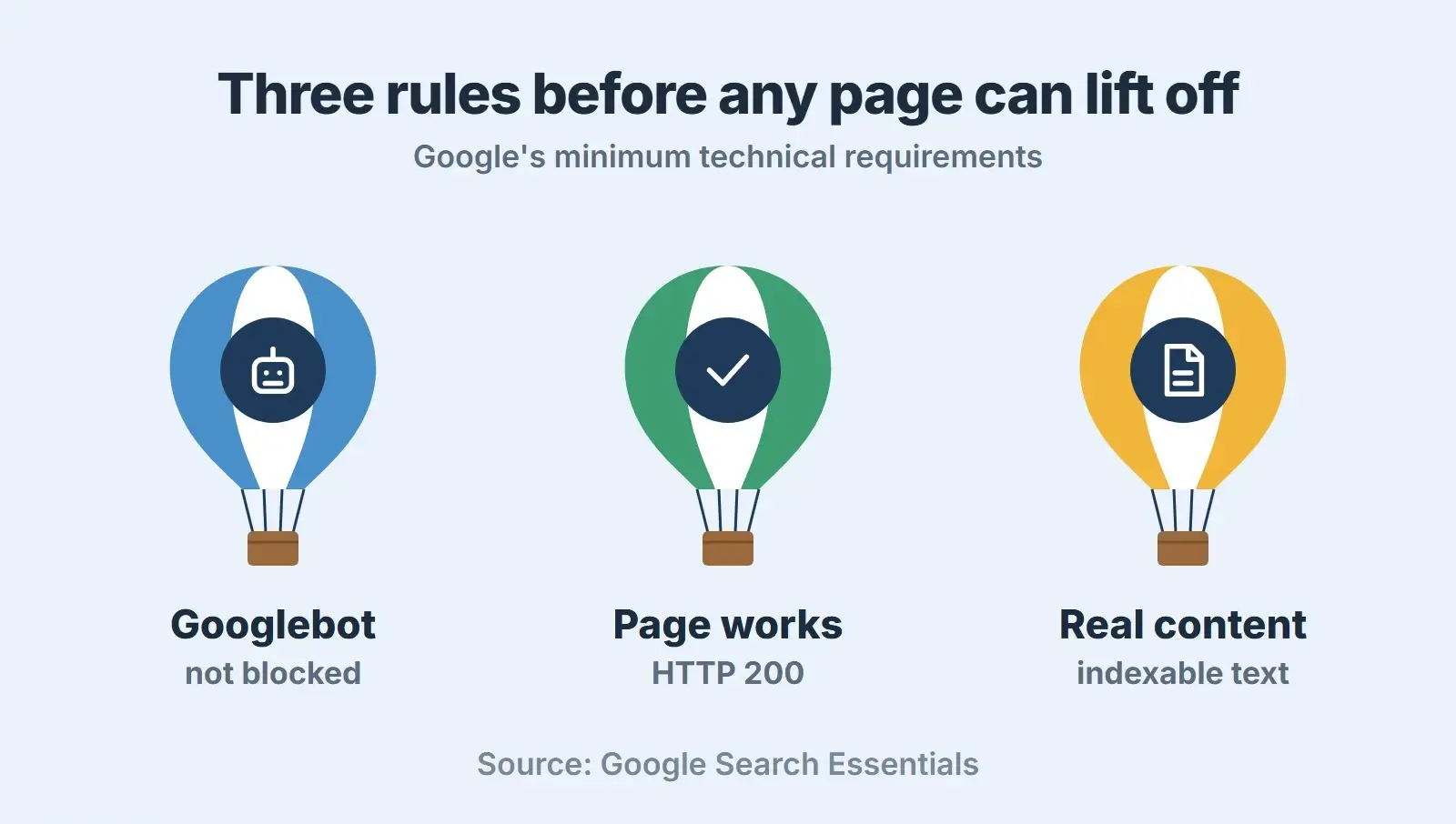
That split is useful when you troubleshoot. Checks 1 to 8 below are about the requirements: is anything technical stopping Google? Checks 9 to 11 are about the decision: has Google found the page, can it see the content, and does it think the page deserves a place in the index?
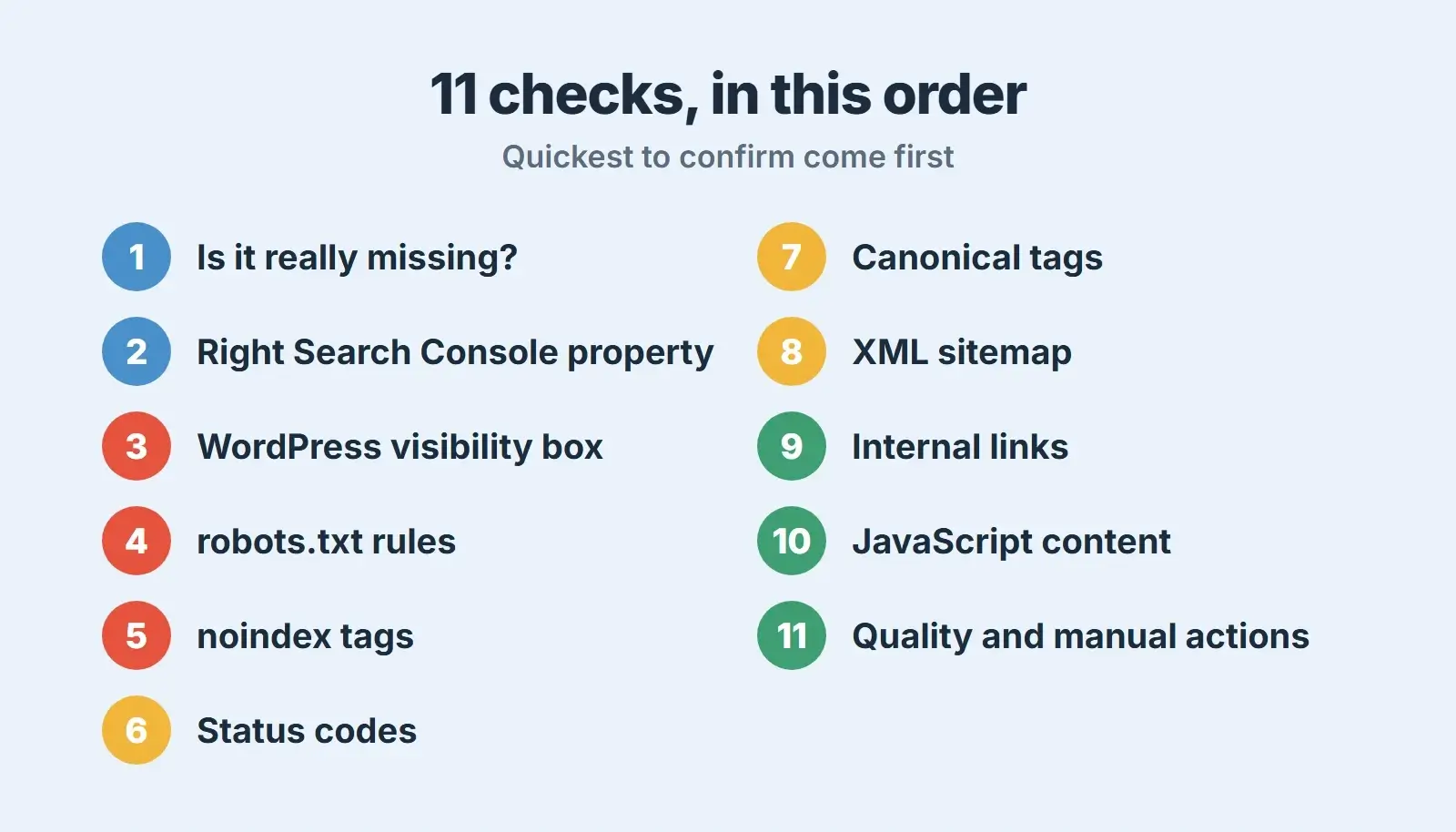
The 11 checks, in order
1. Is the page really missing?
What to look for: A site:yourdomain.com search is a rough guide only. Google’s own getting started guide says the site: operator does not necessarily return every indexed URL. Paste the exact address into the URL Inspection bar at the top of Search Console instead. It tells you whether the URL is on Google and, if not, gives a reason.
How to fix it: If URL Inspection says the page is indexed, the problem is ranking, not indexing, and the rest of this list will not help. If it says the page is not on Google, note the reason it gives and jump to the matching check below.
2. The right Search Console property
What to look for: A site can exist in more than one version: http and https, with and without www. If you verified only one of them, the reports for the version Google actually indexes may be empty, which looks like a site that is not indexed at all.
How to fix it: Add a Domain property, which covers every protocol and subdomain, and make sure every other version redirects to the one you want with a single 301 redirect. Our Google Search Console guide walks through verification.
3. The WordPress search engine visibility box
What to look for: Under Settings, Reading, WordPress has a box called “Discourage search engines from indexing this site”. Since WordPress 5.3, ticking it adds a noindex, nofollow robots tag to every page. If it was ticked on a staging copy, it can carry over when that copy goes live.
How to fix it: Untick it, save, and run URL Inspection’s live test on the home page to confirm the noindex is gone. Then request indexing for your most important pages.
4. robots.txt rules
What to look for: Open yourdomain.com/robots.txt in a browser. A line such as Disallow: / under User-agent: * blocks the whole site. Broader patterns can block a folder you did not mean to, such as /services/ or /blog/. The Page indexing report lists these as “Blocked by robots.txt”.
How to fix it: Remove the rule that blocks the pages you want indexed. robots.txt controls crawling, not indexing, so use it to keep Google out of low-value areas like internal search results, not to hide pages.
5. noindex tags and headers
What to look for: A noindex can sit in a robots meta tag in the page head or in an X-Robots-Tag HTTP header. Google’s noindex documentation explains the trap: if robots.txt blocks the page, Google never sees the noindex, and the page can still appear in results. If you use an SEO plugin, also look at its settings for post types, categories and tags in case a noindex is set there.
How to fix it: Check the page source for noindex, check your SEO plugin’s settings for the post type, and check the response headers if your host or a security plugin adds them. If you want a page out of Google, use noindex and leave it crawlable.
6. Status codes, errors and redirects
What to look for: The Page indexing report groups pages by reason. Server error (5xx), Not found (404), Soft 404, Redirect error, and Blocked due to unauthorized request (401) or access forbidden (403) all mean Google did not get a working page. Soft 404s are pages that look empty or say “not found” but return a 200 code.
How to fix it: Fix server errors with your host first, since they can affect the whole site. Remove redirect chains and loops so each old URL goes to its final address in one step. Give real pages real content, and let pages that are truly gone return 404 or 410.
7. Canonical tags and duplicates
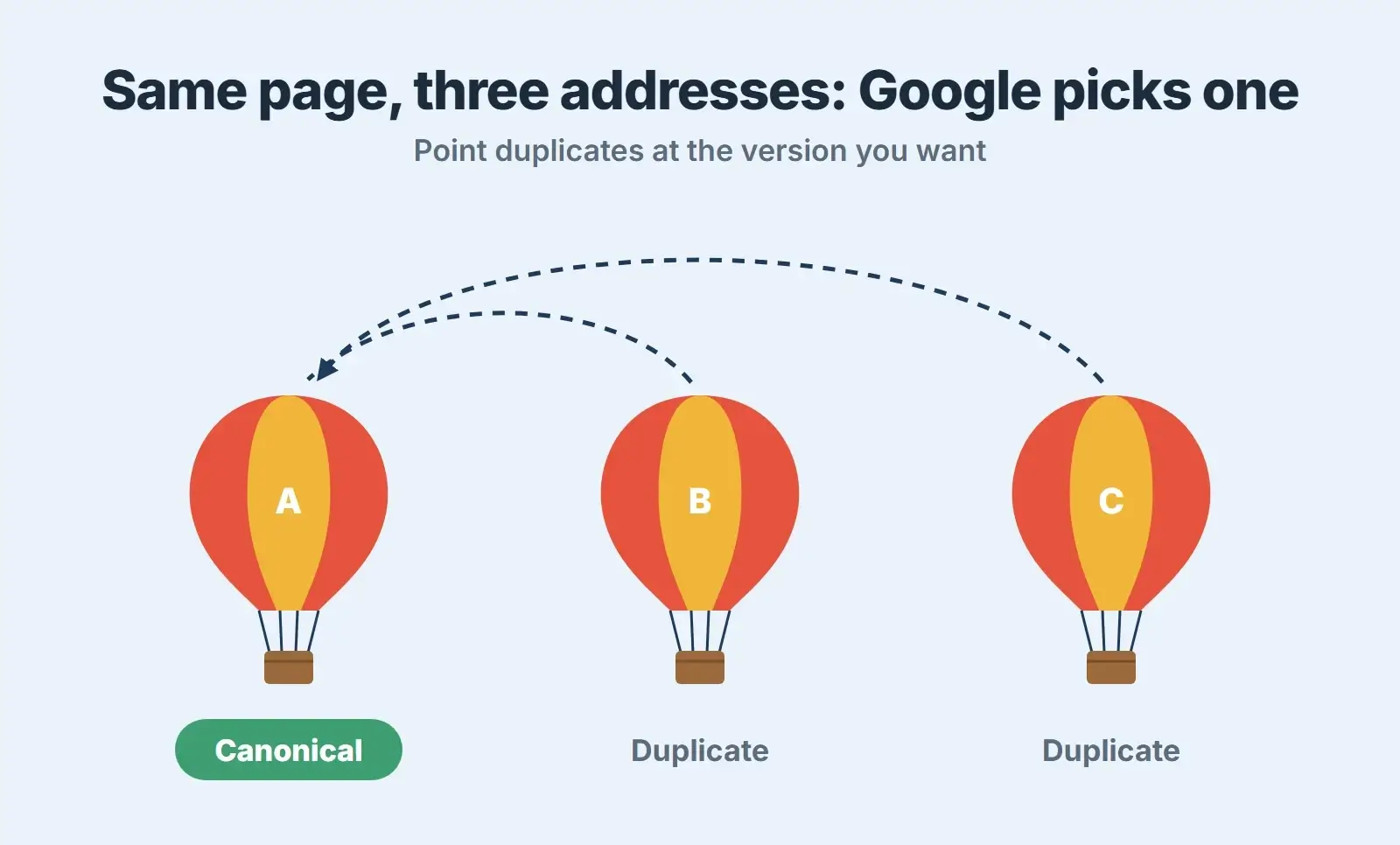
What to look for: When several URLs show the same content, Google chooses one as the canonical and crawls the duplicates less often. In the Page indexing report this shows as “Duplicate without user-selected canonical” or “Alternate page with proper canonical tag”. The second one is fine; it means Google is doing what you asked. Problems start when a canonical tag points to the wrong page, such as every page pointing to the home page.
How to fix it: Make every indexable page point its canonical tag at itself, unless it truly is a copy. Use URL Inspection to compare the “User-declared canonical” with the “Google-selected canonical”. If they differ, make the duplicates more clearly different or consolidate them into one page.
8. Your XML sitemap
What to look for: A sitemap tells Google which URLs you care about. Google’s sitemap guide is clear that it is a hint, not a guarantee, and sets limits of 50,000 URLs or 50 MB uncompressed per file. Sitemaps full of redirected, noindexed or 404 URLs send mixed signals.
How to fix it: Submit the sitemap in Search Console under Sitemaps and add a Sitemap: line to robots.txt. Include only canonical pages that return 200 and that you want indexed, and keep the lastmod dates honest: change them only when the main content changes.
9. Internal links and orphan pages
What to look for: Google primarily finds pages through links from pages it has already crawled. A page with no internal links (an orphan) is easy to miss. Links also need to be real <a href> elements; buttons that only work with JavaScript are not links to Google. If many pages are marked “Discovered, currently not indexed”, internal links are one place to check.
How to fix it: Link to every important page from at least one relevant page, ideally from your main navigation or a hub page. Our guide to Discovered, currently not indexed covers this status in depth.
10. Content that only appears with JavaScript
What to look for: Google processes JavaScript in three phases: crawling, rendering and indexing. Rendering happens when Google’s resources allow, so content and links that only appear after scripts run can be indexed late or missed. Test any tabs, accordions and sliders that depend on scripts.
How to fix it: Run URL Inspection’s live test and open View tested page, then the screenshot and HTML. If your main text is missing there, Google cannot index it. Serve the main content in the HTML, using server-side rendering where possible.
11. Quality signals and manual actions
What to look for: If every technical check passes and a page still shows “Crawled, currently not indexed”, Google has seen it and decided not to add it, for now. Places to look are thin pages, near-duplicate location or service pages and pages that add nothing new. A human reviewer can also apply a manual action.
How to fix it: Open the Manual Actions report in Search Console. If it lists an issue, fix it on every affected page before you request a review, because Google says fixing only some pages will not earn a partial return. For quality, merge thin pages, add real detail only you can provide and link to the page from relevant content. Our post on Crawled, currently not indexed goes further.
Match the Search Console message to the check
When URL Inspection or the Page indexing report gives you a reason, you can skip straight to the right check.
| Message in Search Console | What it means | Check |
|---|---|---|
| URL marked ‘noindex’ | A tag or header says do not index | 3, 5 |
| Blocked by robots.txt | Google is not allowed to fetch the page | 4 |
| Server error (5xx), Not found (404), Soft 404 | Google did not get a working page | 6 |
| Redirect error, Page with redirect | A loop, a long chain, or a URL that just redirects | 6 |
| Duplicate without user-selected canonical | Google chose another URL as the main one | 7 |
| Discovered, currently not indexed | Google knows the URL but has not crawled it yet | 8, 9 |
| Crawled, currently not indexed | Google fetched it and chose not to index it for now | 10, 11 |
How long should you wait?
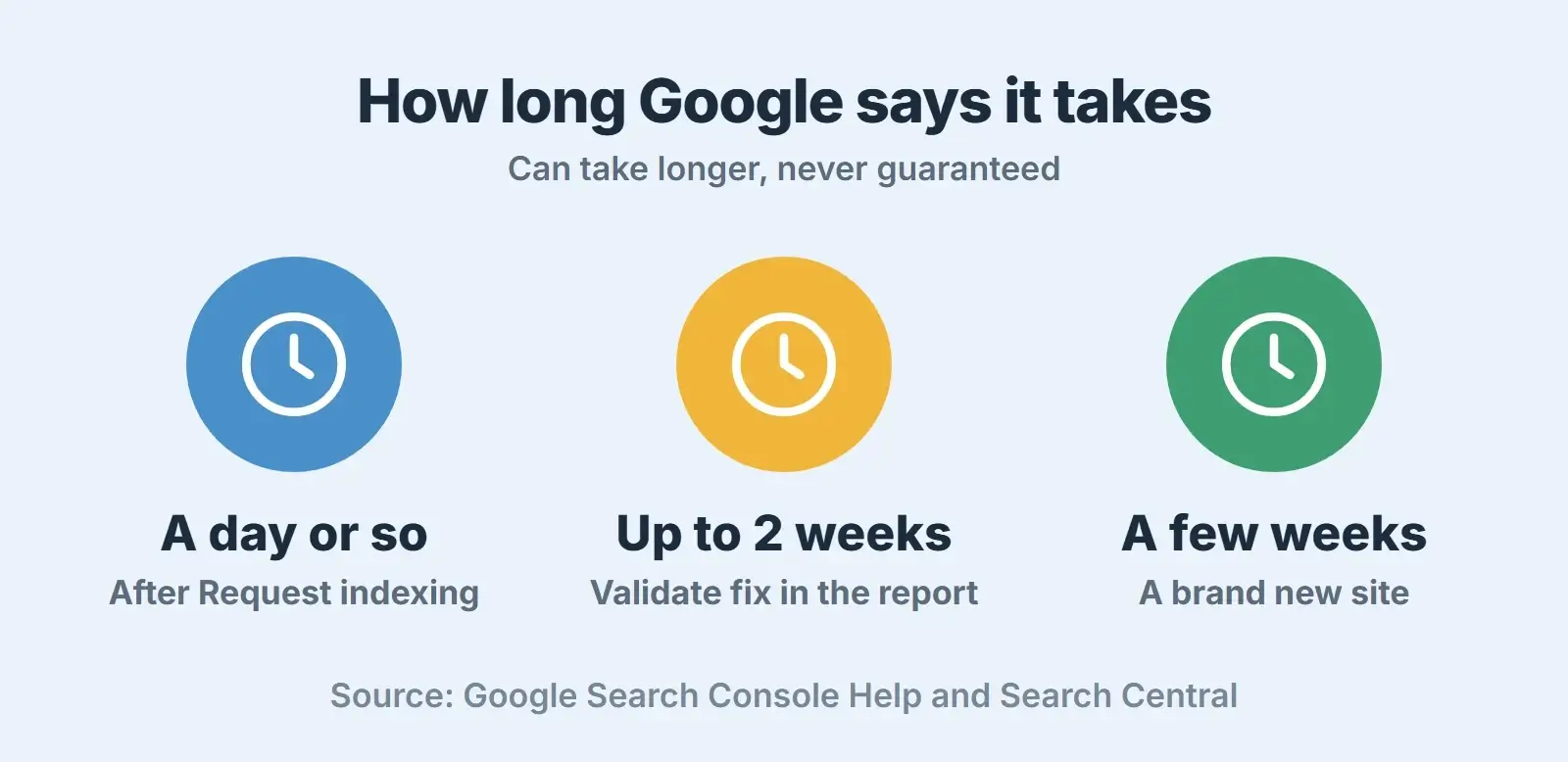
Google’s URL Inspection help says indexing after a request “typically takes only a day or so” but can take much longer, that there is a daily limit on requests, and that requesting does not guarantee the page will be indexed. You also cannot request indexing when the live test says the page is not indexable, so fix the cause first. For many URLs at once, a sitemap is the better route.
After you fix an issue listed in the Page indexing report, click Validate fix. Google says validation typically takes up to about two weeks and asks you not to click it again until it has passed or failed. For a brand new domain, Google’s getting started guide says it can take a few weeks to notice the site at all.
Why Google stopped indexing a site that used to be fine
When indexed pages drop suddenly, look for a recent change first. These are the places to check:
- A redesign or migration that changed URLs without one-to-one redirects, or launched with the staging noindex still in place.
- A plugin or theme update, if it touched canonical tags, robots settings or a post type’s noindex setting.
- Hosting trouble that returned server errors while Google was crawling.
- Security problems, such as a hacked site serving spam. Search Console has a Security issues report for this.
- A burst of thin pages, such as hundreds of near-identical location or tag pages, which Google may not consider worth adding.
Compare the date the drop began in the Page indexing report with your change log to narrow the cause down. Our technical SEO audit guide shows how to run a wider review if several things changed at once.
Quick checklist: get Google to index your site
- Inspect the exact URL in Search Console instead of relying on a site: search.
- Verify a Domain property so every version of the site is covered.
- Untick “Discourage search engines from indexing this site” in WordPress.
- Read robots.txt and remove any Disallow rule covering pages you want indexed.
- Search the page source and headers for noindex, and check your SEO plugin’s post type settings.
- Fix 5xx errors, soft 404s and redirect chains so key pages return 200.
- Make each page’s canonical tag point at itself unless it is a true duplicate.
- Submit a clean sitemap with only canonical, indexable URLs.
- Link to every important page from at least one relevant page with a normal link.
- Check the live test screenshot to make sure your main content is in the rendered HTML.
- Open the Manual Actions report, then improve or merge thin pages.
Not sure which rope is holding your site down?
Our SEO audit checks indexing, crawling, canonicals, sitemaps, internal links and content quality page by page, and gives you a fix list in priority order.
Frequently asked questions
Why does Google not index my site?
The places to check are a noindex tag or the WordPress visibility box, a robots.txt block, server errors, a canonical pointing somewhere else, or no links leading to the page. If all of those are fine, Google may have seen the page and decided it adds too little to index for now. URL Inspection in Search Console tells you which reason applies to each URL.
Why is Google not crawling my site?
Check robots.txt first, then your server: Google’s crawl budget guide says that when a site slows down or returns server errors, Google crawls less. Google also needs a way in, so a new site with no links pointing to it and no sitemap can sit unseen. Submit a sitemap in Search Console, link your key pages from your navigation, and check the Crawl stats report in Settings for server problems.
Google stopped indexing my site. What happened?
Start by assuming something changed. Look at the date the drop began in the Page indexing report and compare it with your recent work: a redesign, new URLs without redirects, a plugin update, a staging noindex left on, hosting outages or a hack. Also open the Manual Actions and Security issues reports. Fix the cause, then validate the fix in the report.
How do I improve Google indexing?
Make it easy and worth it. Keep key pages returning 200, self-canonical and free of noindex, list them in a clean sitemap and link to them from relevant pages. Then make each page clearly useful and different from your other pages, because meeting the technical requirements does not guarantee indexing. Merge or remove thin pages that add nothing.
Does Request indexing make Google index a page faster?
It asks Google to crawl the page, and Google says indexing typically takes a day or so after that, sometimes longer. It does not guarantee indexing, there is a daily limit, and it only works when the live test says the page can be indexed. Use it for a few important pages and rely on your sitemap for the rest.
Final thoughts
When Google is not indexing your site, resist the urge to change everything at once. Inspect the URL, read the reason Google gives you, and work down the 11 checks until you find the rope holding the page down. If you would rather have it found for you, our SEO audit is built for this kind of review, our technical SEO team fixes what it finds, and our SEO services build the content that earns a place in the index. You can also start with a free website audit.