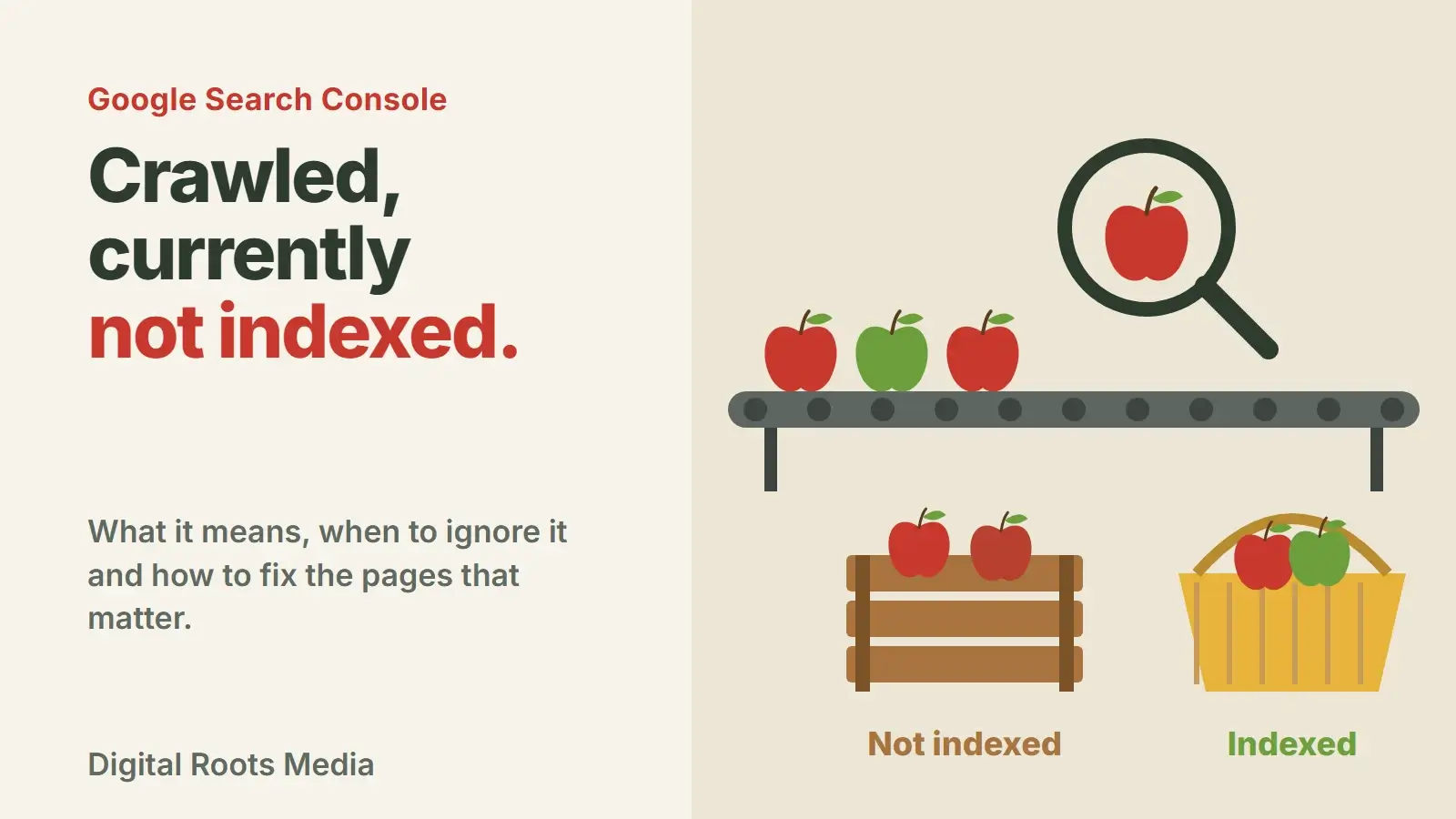
Crawled currently not indexed (shown as Crawled, currently not indexed) is a Google Search Console status that means Google fetched the page but decided not to add it to its index, so it cannot appear in search results yet. Google describes it as a common message. When it affects pages you want to rank, check whether Google may see the page as a duplicate, as too thin to be worth keeping, or as poorly connected to the rest of your site. The fix is to confirm the page should be indexed, check it with URL Inspection, then make it clearly unique and useful, link to it from important pages and ask Google to look again.
This guide explains what the status means, gives you a four-question decision tree for each URL, and lists the fix for each cause. It also covers what Validate Fix does and does not tell you.
- The page was crawled, so Google can reach it. In our view, look at value and duplication before you look for a technical block.
- First ask whether the URL should be in Google at all. Tag pages, variants and feeds can be fine to leave.
- URL Inspection shows the Google-selected canonical and a live test, which help you rule causes in or out.
- Improve or merge thin pages, consolidate duplicates and add internal links from strong pages.
- Validation typically takes up to about two weeks, and Google says not to expect every URL to be indexed.
What “crawled, currently not indexed” means
Google Search works in stages: it discovers a URL, crawls it, decides whether to index it and then decides whether to show it. Google’s guide to how Search works is clear that none of these steps is guaranteed, even for pages that follow every rule. During indexing, Google groups similar pages and picks one as the canonical to show in results.
In the Page indexing report, this status sits under Why pages aren’t indexed. Google’s definition is short: the page was crawled by Google but not indexed. It adds that Google does not index all pages across the web, so the message is common and does not necessarily need attention, and that for important pages you should diagnose with URL Inspection. In other words, Google has already looked, and the question is what it saw.
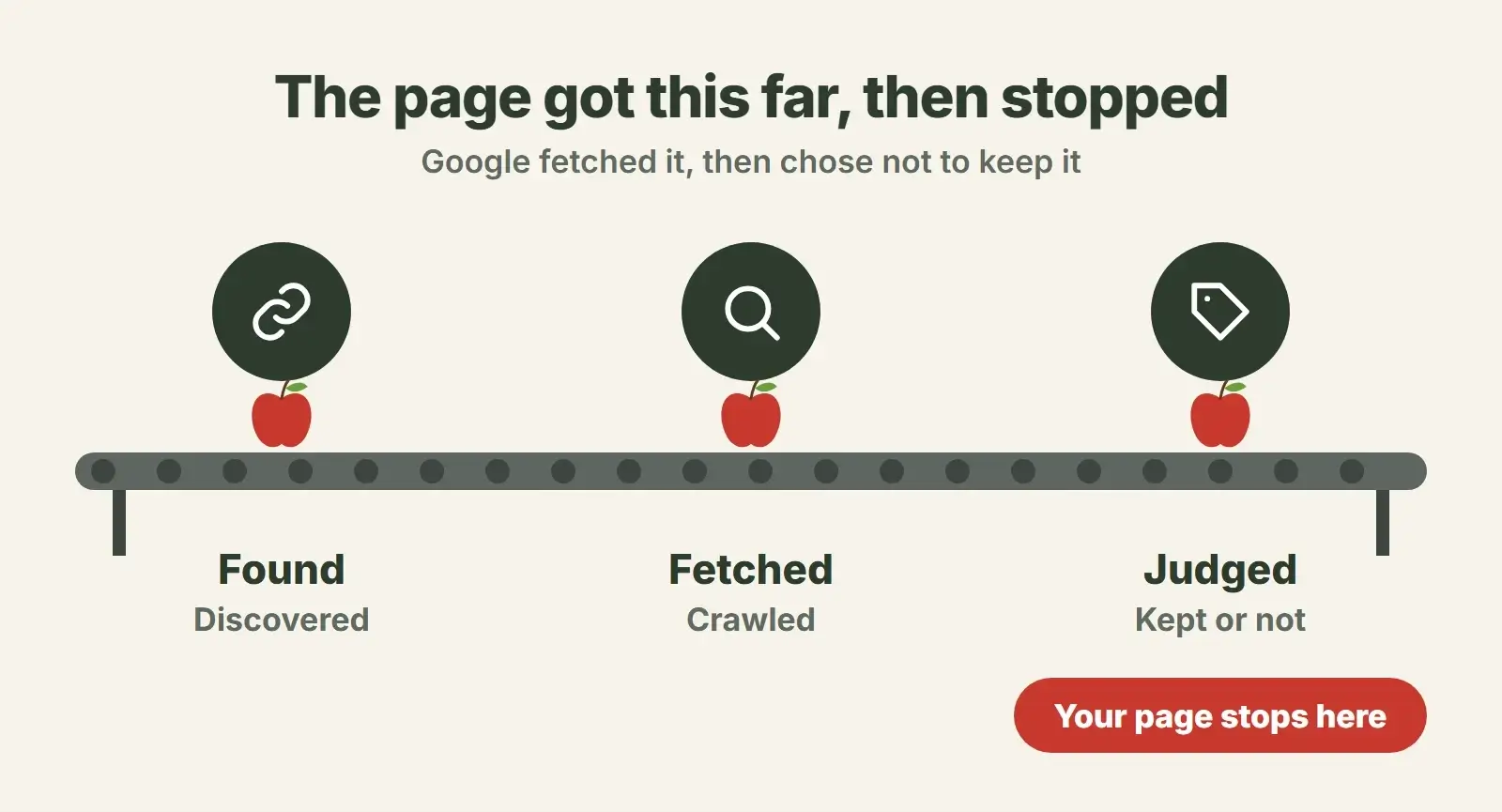
This is different from its close relative, discovered but currently not indexed, where Google knows the URL exists but has not fetched it yet. In our reading, that status points to crawling, and this one points to the page itself.
| Status in Search Console | Has Google fetched the page? | Where we would look |
|---|---|---|
| Crawled, currently not indexed | Yes | Value, duplication or weak signals |
| Discovered, currently not indexed | No | Crawl was postponed; priority or server capacity |
| Duplicate without user-selected canonical | Yes | Google chose another page as the canonical |
| Duplicate, Google chose different canonical than user | Yes | Google disagreed with your canonical tag |
| Soft 404 | Yes | Page looks like a not found page but returns 200 |
Is it a problem? Start with the URL
Open the list and look at what kind of URLs are in it before you change anything. Google’s help page says this status is a common message for many sites. On a WordPress site, check whether the list holds tag pages, author archives, attachment pages, feed URLs, URLs with tracking parameters, filtered product views (see our guide on faceted navigation) and old posts nobody visits.
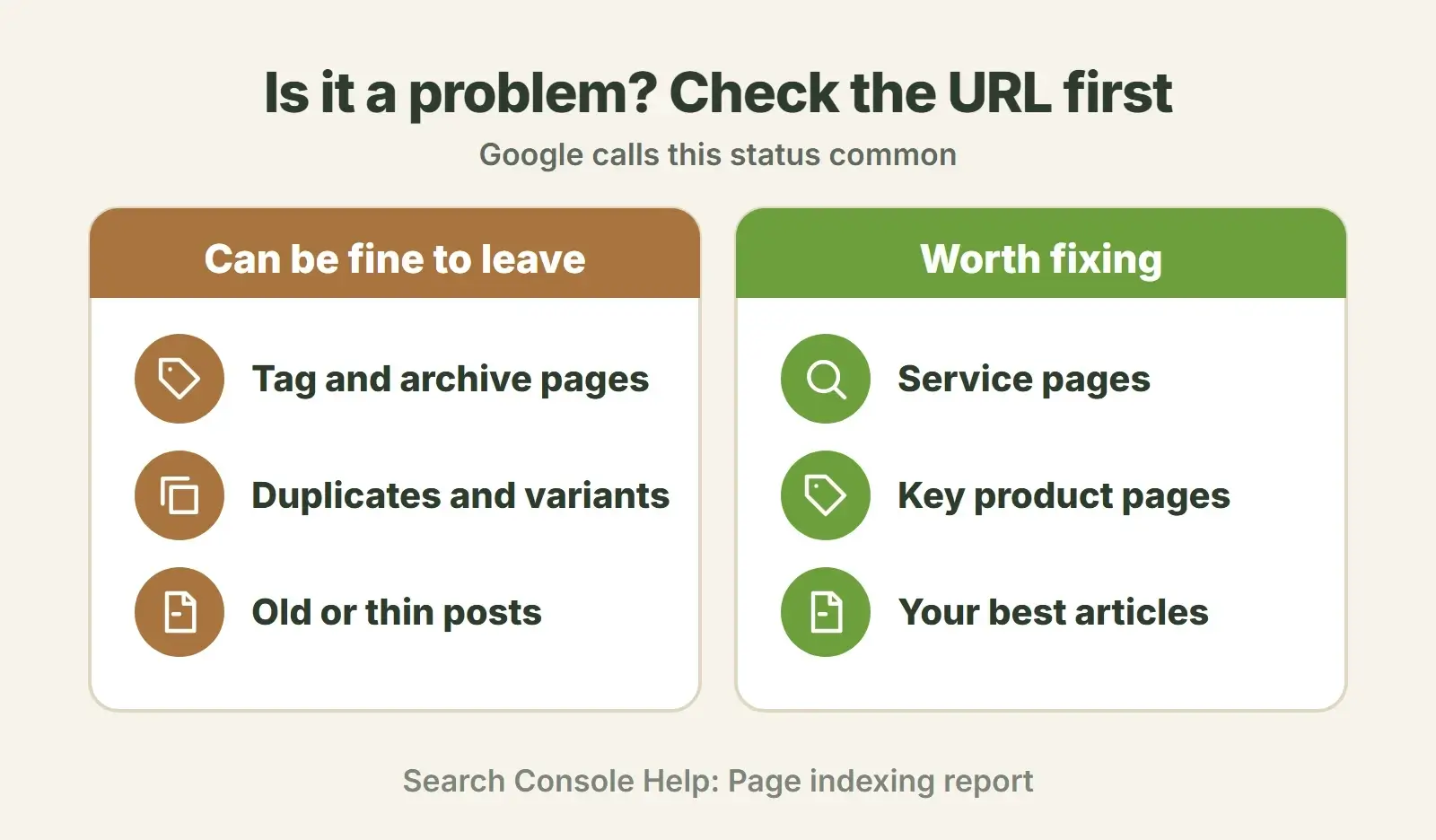
Note that the example table in the report shows at most 1,000 rows, so on a larger site you are looking at a sample. If service pages, location pages, key products or your best guides appear in the list, that is worth fixing. If it is mostly archives and variants, you can leave them, tidy them with noindex, or remove them, and spend your time elsewhere.
The decision tree: four questions for each important URL
Run each important URL through the URL Inspection tool in Search Console and answer these four questions in order. Each no leads to a specific fix.
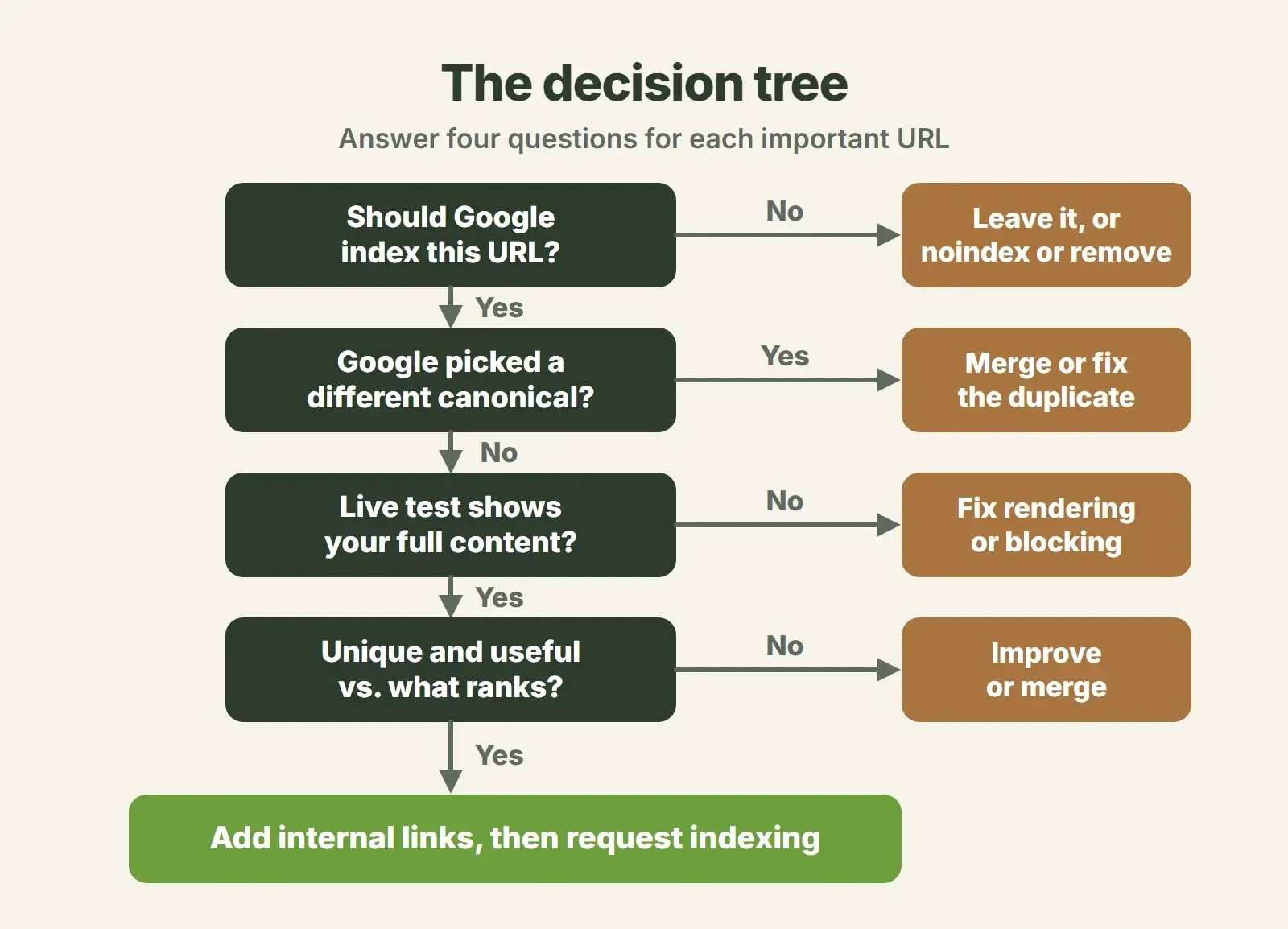
- Should Google index this URL? If it is an archive, a variant or a page you would not want a searcher to land on, the status is fine. Leave it, add noindex or remove it.
- Did Google pick a different canonical? In URL Inspection, compare the User-declared canonical with the Google-selected canonical. If they differ, Google treats your page as a copy of another one. Merge the two, or make each clearly different.
- Does the live test show your full content? Click Test live URL and open the test details. If the main text, links or images are missing, Google may be seeing an empty shell. Fix whatever is blocking scripts or loading content late.
- Is the page unique and useful compared with what already ranks? Search the main query and compare honestly. If your page says less than the top results, improve it or merge it into a stronger page.
If a page passes all four, we would give it stronger signals: more internal links from important pages, and time. Then request indexing once.
Six causes and how to fix each
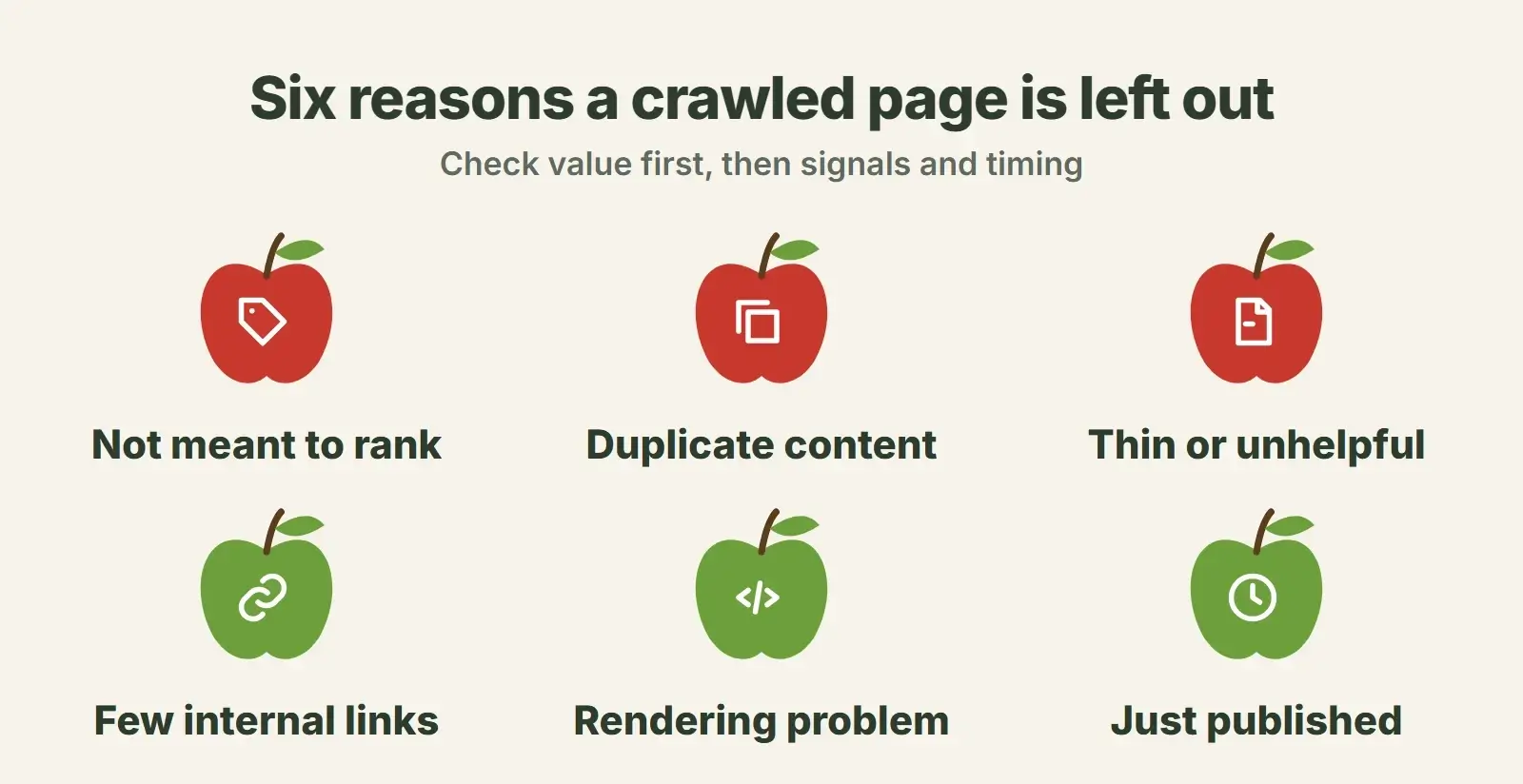
1. The page is not meant to rank
How to spot it: Archives, tag pages, internal search results, attachment pages and parameter URLs.
What to do: Nothing, if they are harmless. If there are thousands, add noindex to the types you never want in Google, or switch them off. Our WordPress SEO guide covers the settings.
2. Duplicate or near-duplicate content
How to spot it: The Google-selected canonical is another URL, or you have many pages built from the same template with only a city name or product size changed.
What to do: Pick one version and point duplicates to it with a canonical tag or a redirect. For location pages, give each page real local detail; our guide to service area pages shows what that looks like.
3. Thin or unhelpful content
How to spot it: Short pages, pages that repeat what everyone else says, or AI drafts nobody edited.
What to do: Use Google’s helpful content questions as a test. Does the page offer original information, a substantial and complete answer, and substantial value compared with other pages in the results? Add what only you can say: prices, process, examples, data, photos of real work. Or merge several weak pages into one strong one.
4. Few or no internal links
How to spot it: The page is linked only from the sitemap or one old post, or not at all.
What to do: Google’s link guidance says every page you care about should have a link from at least one other page on your site, and links must be normal anchor links. Link to it from your navigation, a hub page or related service pages, using descriptive anchor text.
5. A rendering or technical problem
How to spot it: The live test screenshot is blank or missing the main content, or the page looks like an error page while returning 200.
What to do: Make sure scripts and styles are not blocked, that the main text is in the HTML or renders quickly, and that genuinely missing pages return a real 404 instead of a friendly page with a 200 code, which Google reports as a soft 404.
6. The page is new or recently changed
How to spot it: It was published or updated in the last few weeks.
What to do: Give it time. Make sure the page is linked and in your sitemap, then wait before changing anything else, because Google gives no fixed timeline.
Have important pages stuck in this list?
Our technical SEO team works through your Page indexing report, sorts the URLs that matter from the noise and fixes the causes, from canonicals and rendering to thin and duplicate content.
How to check it in Google Search Console
- Open the Page indexing report in Search Console. Google’s help page links straight to it, and menu labels can change.
- Under Why pages aren’t indexed, click Crawled, currently not indexed.
- Scan the example URLs and sort them into fine to leave and worth fixing.
- For each important URL, use its Inspect link or paste it into the inspection bar at the top of Search Console.
- Check the canonical fields and run Test live URL.
- Fix the cause, then use Request indexing once for that URL.
- When all the important ones are fixed, click Validate Fix on the status.
| URL Inspection field | What it tells you | Cause it points to |
|---|---|---|
| Referring page and Sitemaps | How Google found the URL | No internal links if only the sitemap is listed |
| Last crawl and Page fetch | When and whether Google fetched it | Fetch problems, or a crawl that is fine |
| Indexing allowed? | Whether a noindex rule is present | An accidental noindex |
| User-declared vs Google-selected canonical | Which page Google prefers | Duplicates |
| Test live URL, then its details | What Google can fetch and render now | Rendering and blocked resources |
Our Google Search Console guide explains the rest of the reports if you are new to the tool.
Validate Fix, and what to do if validation failed
Validate Fix asks Google to recheck the URLs in that status. Google says validation typically takes up to about two weeks and sometimes much longer. It ends as Passed when all known instances are gone, or Failed when a certain threshold of pages still has the issue.
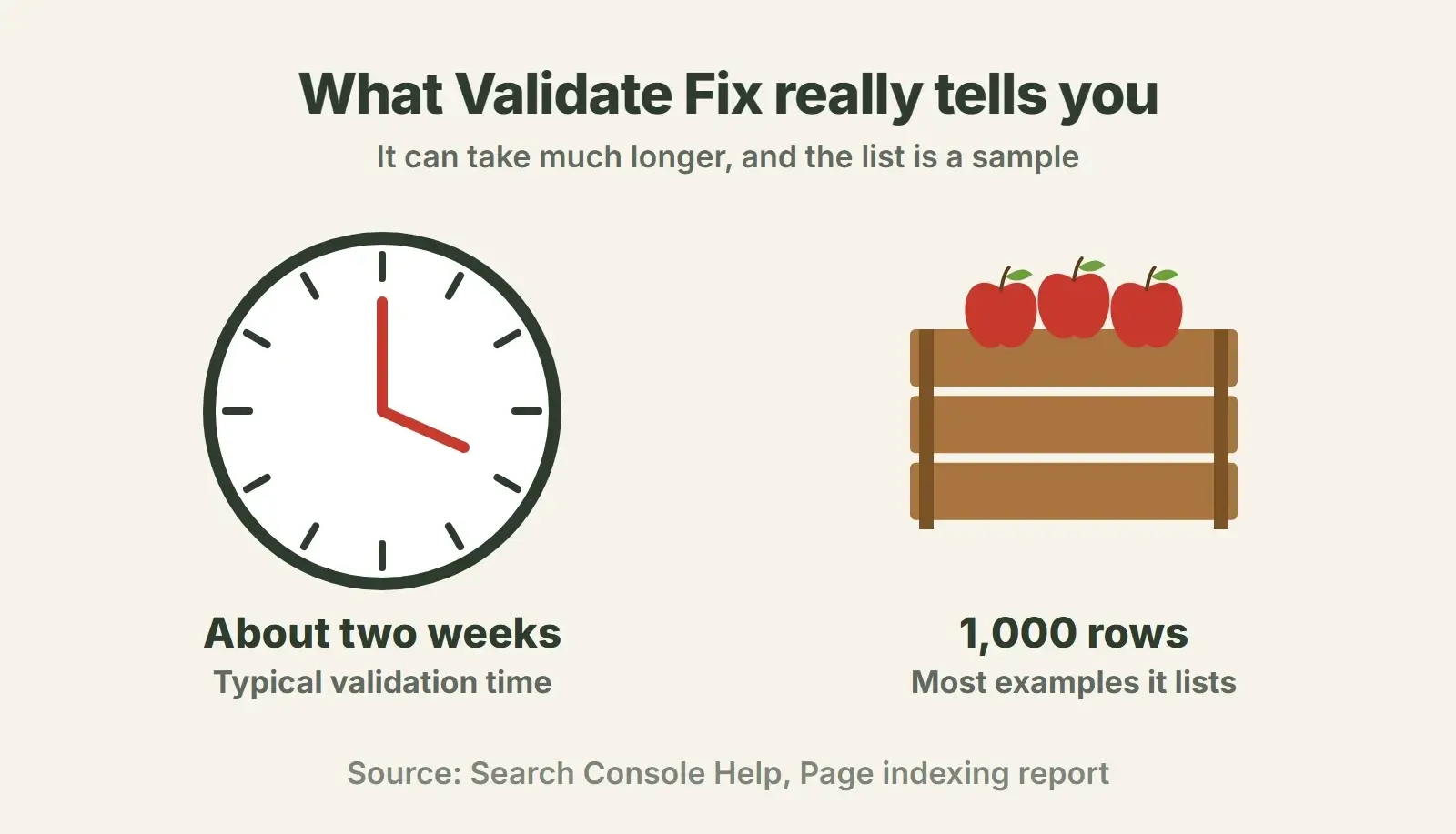
A failed validation for this status would not surprise us, because the list can hold pages Google does not need to index, such as archives and variants. Failed does not prove your fixes did nothing. Check your important URLs one by one in URL Inspection instead. If they now show URL is on Google, they are eligible to appear in results, whatever the validation badge says.
What not to do
- Do not request indexing again and again. There is a daily limit, and a request does not guarantee inclusion.
- Do not delete pages in bulk just because they are in the list. Sort them first.
- Do not buy indexing services or spam links at the page. They do not fix the reason Google declined it.
- Do not rewrite a page every few days. Make one solid improvement, then give Google time.
You do not need every URL indexed
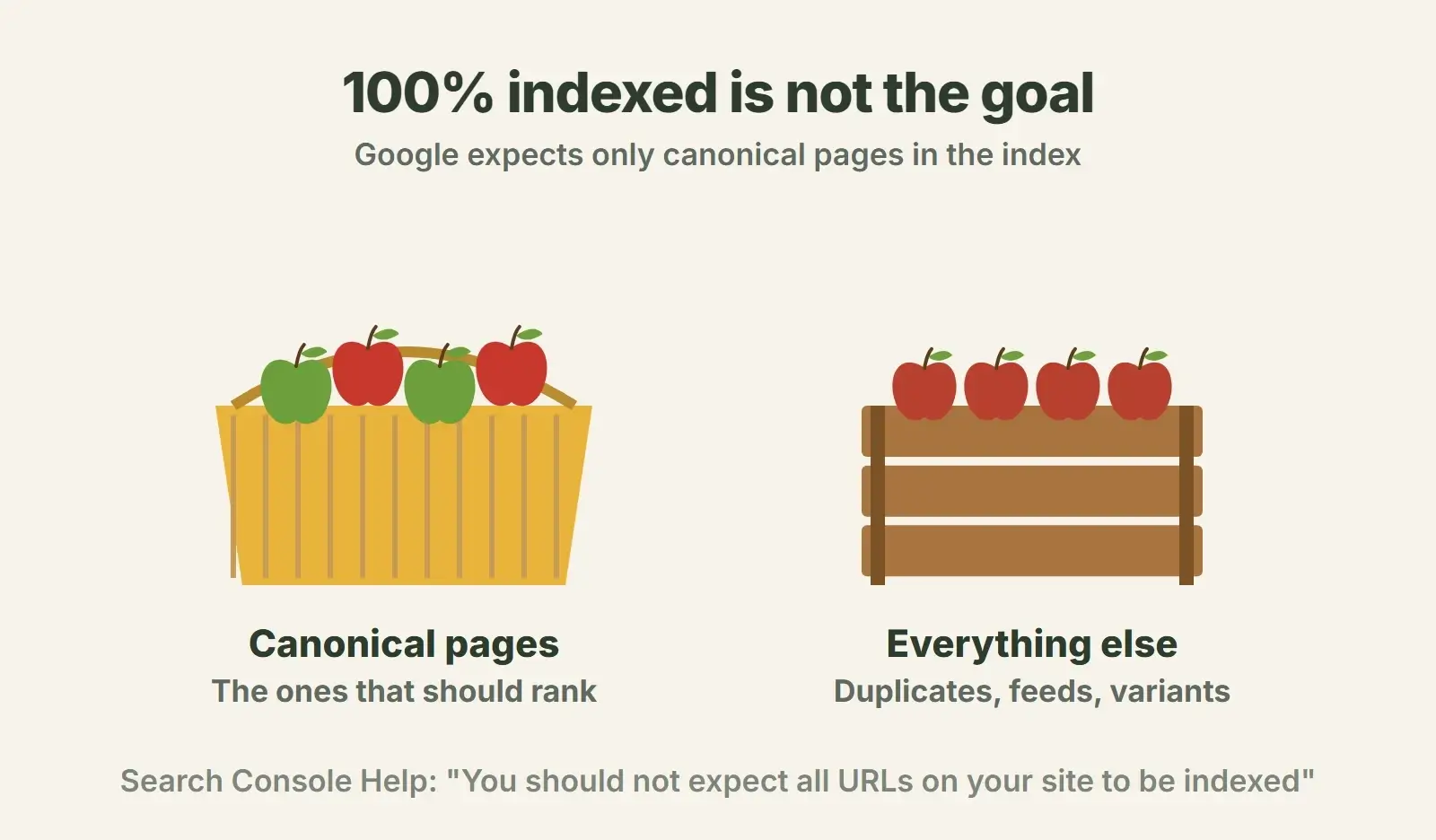
The Page indexing report says it outright: you should not expect all URLs on your site to be indexed, only the canonical pages. So a gap between known URLs and indexed URLs is not a fault in itself. We would set the goal that every page you want people to find is indexed, not that the not indexed number reaches zero.
- Sort the list into URLs that should rank and URLs that are fine to leave.
- Inspect each important URL in Search Console.
- Compare the user-declared and Google-selected canonicals.
- Run Test live URL and check the main content renders.
- Make sure Indexing allowed is Yes and the page returns 200.
- Compare the page honestly with the top results for its main query.
- Improve, expand or merge thin and near-duplicate pages.
- Add internal links from navigation, hubs and related pages.
- Request indexing once per fixed URL.
- Click Validate Fix and recheck the important URLs after two weeks.
If you have many statuses to work through at once, our technical SEO audit guide sets out an order to check things in.
Frequently asked questions
What does crawled currently not indexed mean?
It means Googlebot fetched the page but Google chose not to add it to the index for now, so it cannot show in search results. Google says it does not index every page on the web, so the status is common. Google could reach the page, so we would look first at the page’s value or duplication rather than a technical block.
How do I fix crawled currently not indexed?
Check that the URL should be indexed, then inspect it. If Google picked a different canonical, consolidate the duplicates. If the live test is missing content, fix rendering. If the page is thin compared with what ranks, improve or merge it. Then add internal links from strong pages, request indexing once and give Google time to look again.
Is crawled currently not indexed bad for SEO?
Not by itself. Google says the status is common and that it does not expect every URL to be indexed. It only matters when pages you want to rank are in the list. A large number of thin or duplicate URLs can be a sign of wider quality issues, so it is worth tidying those up, but the count alone is not a penalty.
Why did crawled currently not indexed validation fail?
Google says validation fails when a certain threshold of pages still has the issue after it rechecks them. This status can include archives and variants Google does not need to index, so a failure may not reflect your important pages. Check those individually in URL Inspection. If they now show URL is on Google, they are eligible to appear, even if the status badge says failed.
How long does it take for a crawled page to get indexed?
Google gives no fixed time, and it does not guarantee indexing at all, so a page Google sees as a duplicate may never be indexed. Validation alone typically takes up to about two weeks. Improve the page once, link to it well, request indexing once and then wait rather than making changes every few days.
Final thoughts
Crawled, currently not indexed is Google telling you it has seen the page and is not convinced yet. Sort the list, run the important URLs through the decision tree, fix the real cause, and judge success by your important pages rather than the total. If you would like help, our technical SEO service handles indexing problems, our SEO audit finds them across the whole site, and our content marketing team can turn thin pages into ones Google wants to keep.