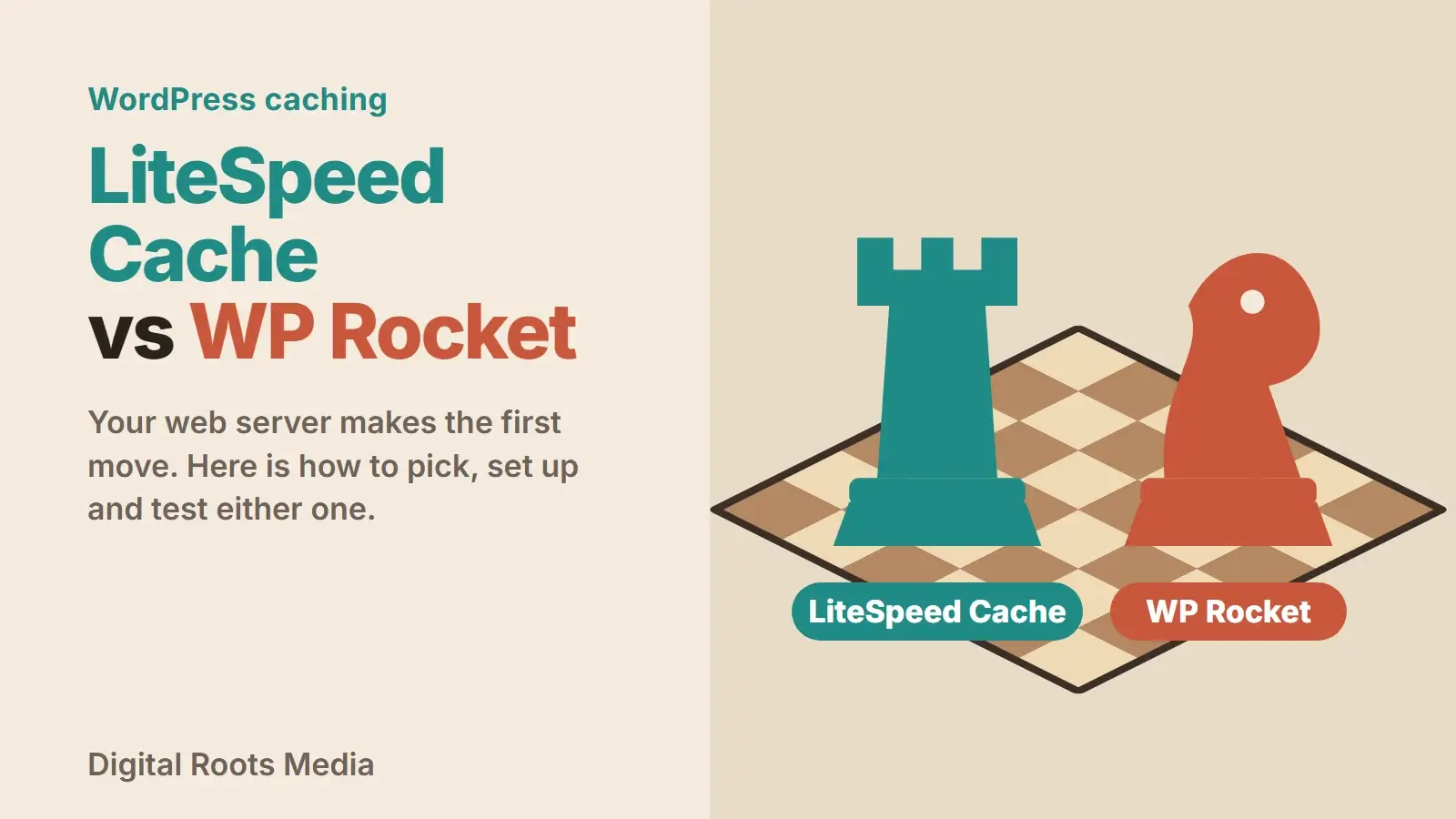
LiteSpeed Cache vs WP Rocket comes down to one question: what web server does your host run? If your site is on LiteSpeed (LiteSpeed Web Server Enterprise or OpenLiteSpeed) or behind the QUIC.cloud CDN, we would start with LiteSpeed Cache: it is free and its page cache is built for that server. If your host runs Apache or NGINX, LiteSpeed Cache cannot do page caching there, and we would pick WP Rocket as the simpler, more complete option. After that, your settings and your own test results should decide.
This comparison covers what each plugin does, what it costs, the settings that do the same job in each, and a fair way to test both on your own site rather than trusting someone else’s benchmark on someone else’s server.
- Check your server first: LiteSpeed Cache’s page cache only works with LiteSpeed software or QUIC.cloud.
- LiteSpeed Cache is free; WP Rocket is a paid plugin with yearly billing.
- LiteSpeed Cache includes image optimization; WP Rocket leaves that to a separate tool.
- Never run two page caches at once. Remove one fully before testing the other.
- Turn settings on one at a time and retest, because JavaScript and CSS options can break layouts.
The short answer: decide by server, then by features
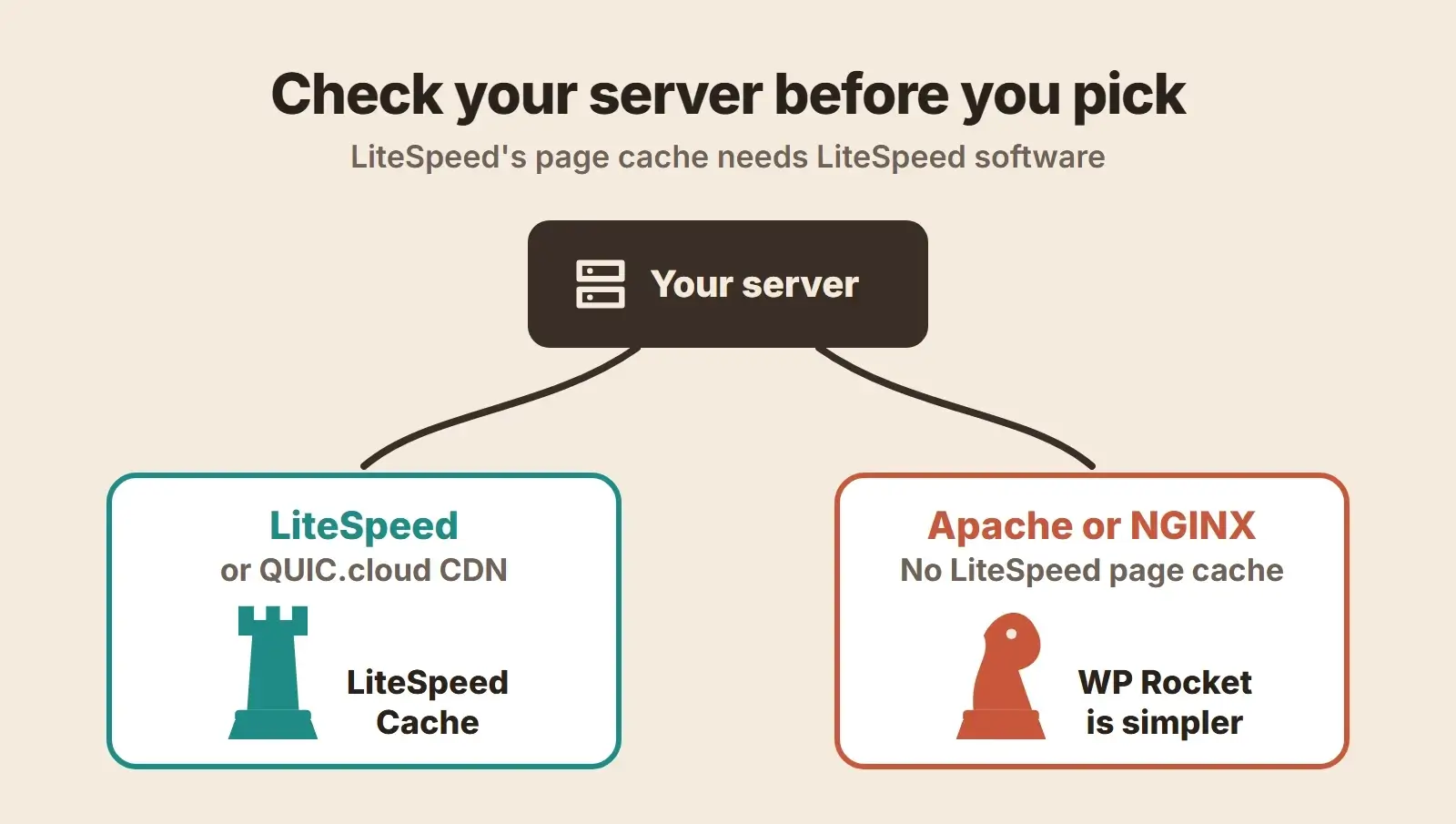
The LiteSpeed Cache plugin page on WordPress.org is clear about this: page caching requires LiteSpeed Web Server Enterprise with the LSCache module, OpenLiteSpeed, LiteSpeed WebADC or the QUIC.cloud CDN. Its other features, such as image optimization, minification and database clean-up, work on any server, including Apache and NGINX. So on a non-LiteSpeed host, LiteSpeed Cache becomes an optimization plugin without its main feature.
Not sure what your host runs? Look in your hosting plan description or control panel, or ask support which web server your account uses.
| Your situation | Our pick | Why |
|---|---|---|
| Host runs LiteSpeed or OpenLiteSpeed | LiteSpeed Cache | Free, server-level page cache, many extras |
| Host runs Apache or NGINX | WP Rocket | Full page cache on these servers, sensible defaults |
| Managed WordPress host with its own cache | Host cache first, optimization plugin second | The host may disable plugin page caching by design |
| You want the fewest settings to learn | WP Rocket | Applies key options on activation |
| You want image compression in the same plugin | LiteSpeed Cache | Image optimization included |
What each plugin costs
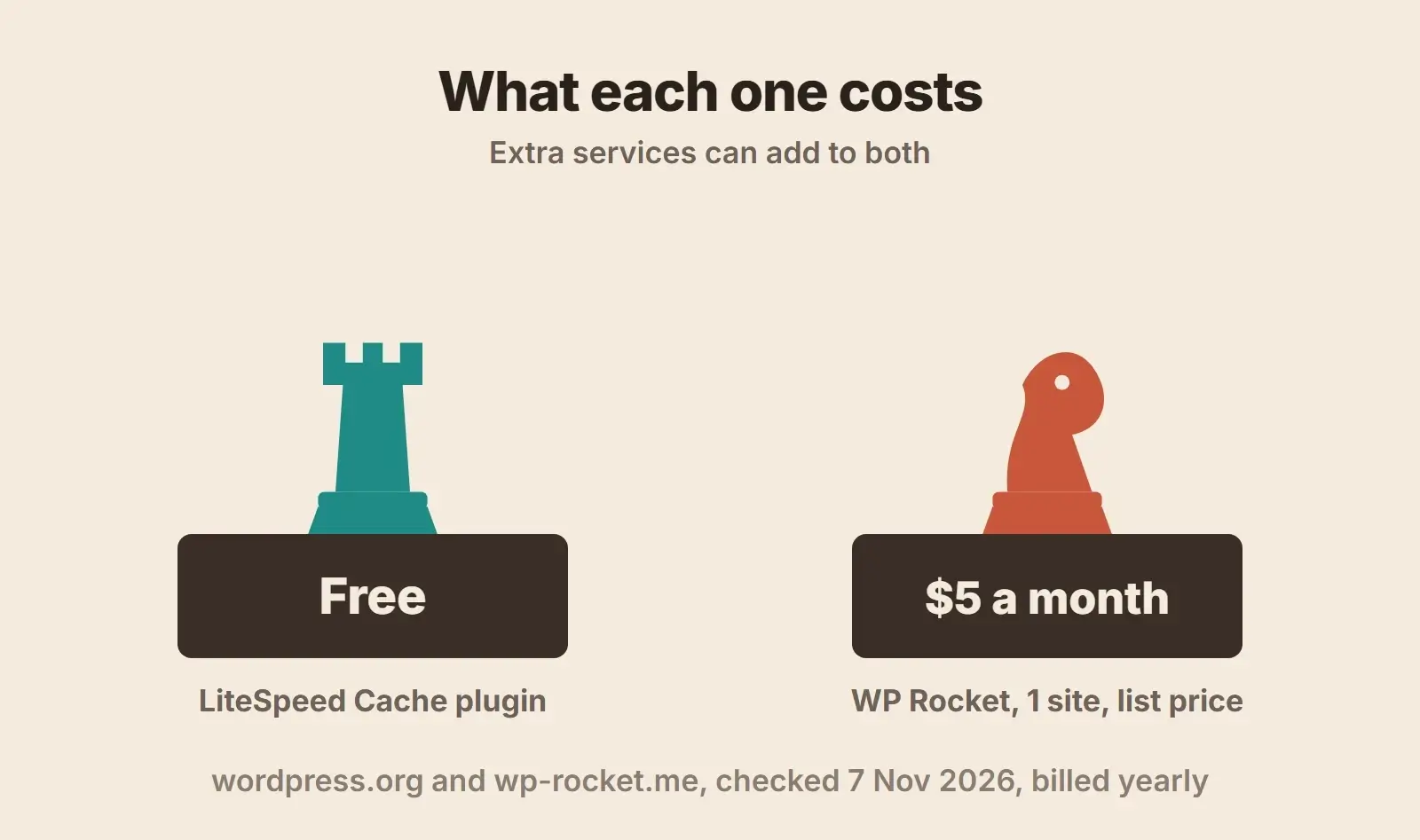
LiteSpeed Cache is free, and its developer states it will stay free and open source. Some services that plug into it come from QUIC.cloud, LiteSpeed’s own cloud platform, and the plugin page notes that some of those, such as critical CSS generation, are paid above certain usage levels.
WP Rocket is paid. On its pricing page, checked on November 7, 2026, the list prices before any discount were $5 a month for the Single plan (one site), $10 a month for Plus (three sites) and $25 a month for Multi (50 sites), billed yearly. The page also showed a first-purchase discount, and the offer changed within the week we checked, so read the current offer and the renewal price before you buy. The licence covers updates and support, and the page offers a 14-day free trial with a refund if you are not satisfied.
Features compared side by side
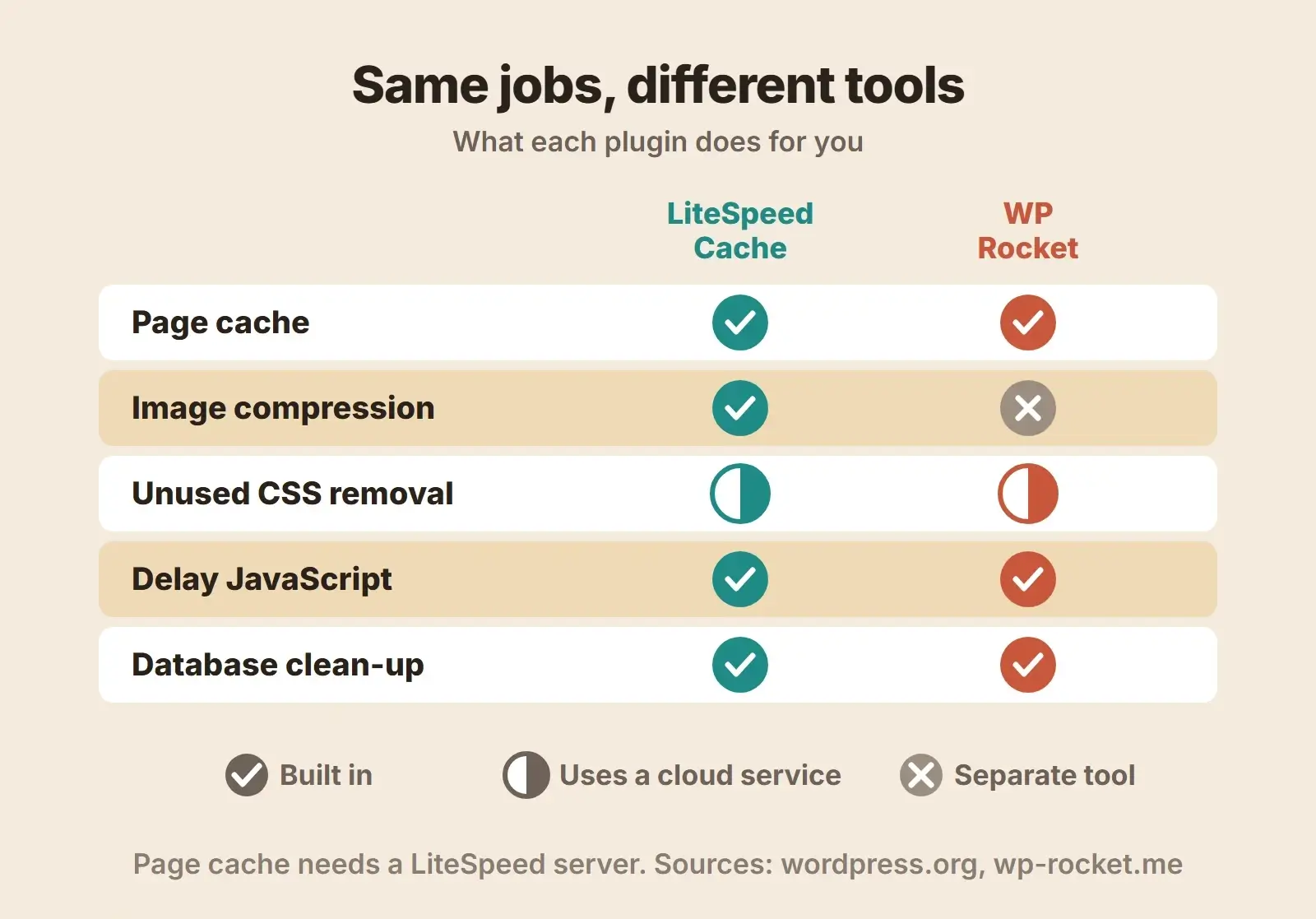
| Job | LiteSpeed Cache | WP Rocket |
|---|---|---|
| Page cache | Yes, on LiteSpeed servers or QUIC.cloud | Yes, on Apache, NGINX or LiteSpeed, on by default |
| Cache preloading | Preload crawler, enabled by the server admin | Yes, on by default |
| Browser cache | Yes | Yes, plus GZIP, on by default |
| Minify CSS and JavaScript | Yes, plus combine | Yes |
| Unused or critical CSS | Critical CSS via QUIC.cloud | Remove Unused CSS via WP Rocket’s cloud, or load CSS asynchronously |
| Delay or defer JavaScript | Yes | Yes, delay until interaction or defer |
| Lazy load | Images and iframes | Images, CSS backgrounds, videos and iframes |
| LCP image handling | Check the hero is not lazy loaded | Detects the LCP image and excludes it from lazy load |
| Image compression and WebP | Yes, lossless or lossy, WebP and AVIF | Separate product (Imagify) |
| Database clean-up | Yes | Yes, with scheduling |
| Object cache | Connects to Redis or Memcached your host provides | Not listed on its features page |
| CDN | QUIC.cloud and other CDNs | Any CDN, plus Cloudflare integration |
WP Rocket’s features page lists page caching, cache preloading, browser caching, GZIP compression and critical image optimization as applied on activation. That is why we find it the easier start: install it and the basics are on before you open a settings screen. LiteSpeed Cache has more switches, and expects you to work through them.
How each handles unused CSS
Both plugins send CSS work to the cloud. WP Rocket’s Remove Unused CSS feature sends each page’s address to its own service, which builds the CSS the page actually uses and stores it on your server. It runs in the background, needs the site to be publicly reachable, and regenerates every 30 days. If it causes problems, WP Rocket suggests its Load CSS Asynchronously option instead. LiteSpeed Cache generates critical CSS through QUIC.cloud. Either way, check menus, sliders and pop-ups after turning it on, because missing CSS shows up as broken layouts.
Never run both page caches at once
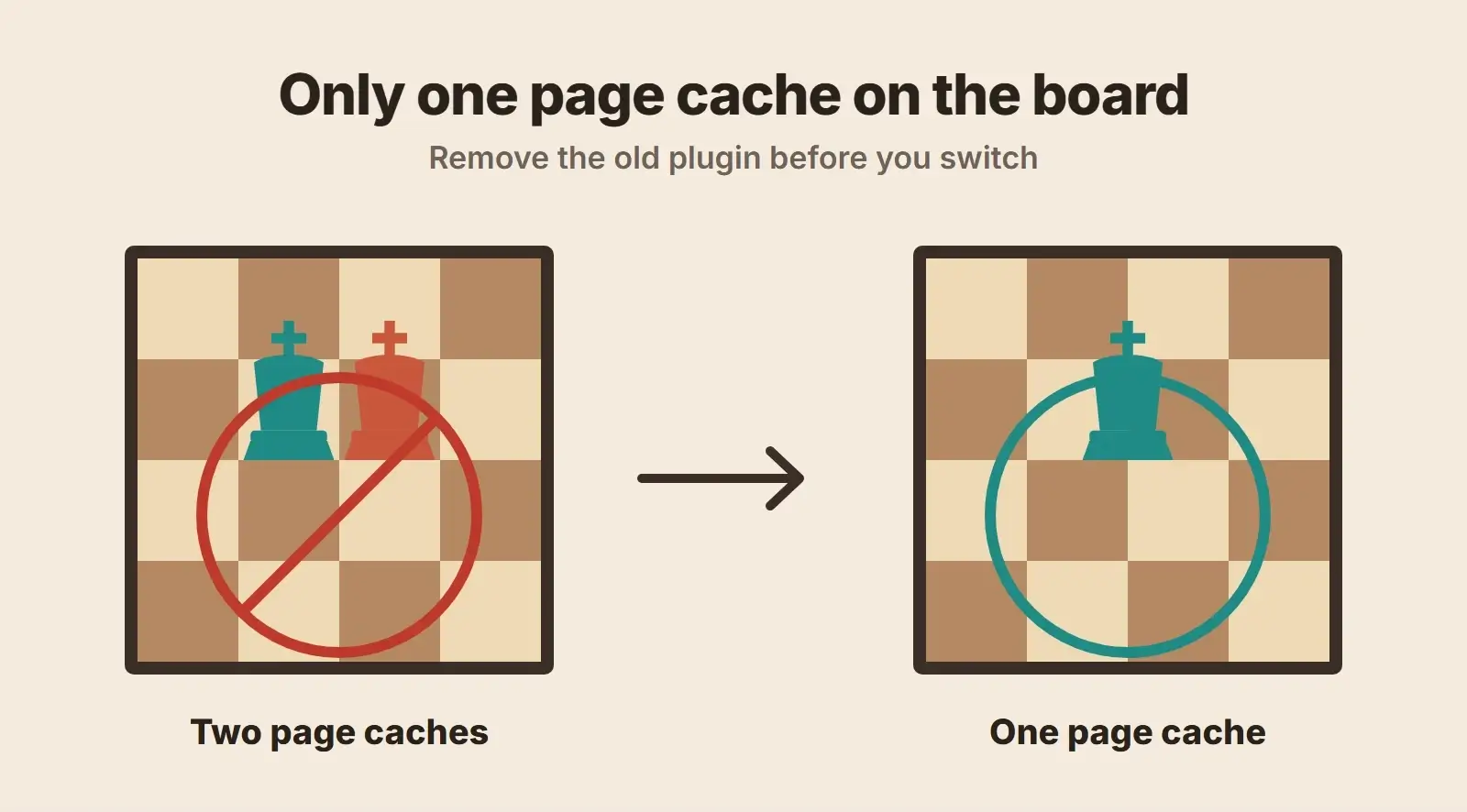
We would never run two page caches on one site. If a page is stored in two places, it gets much harder to tell which copy a visitor is seeing, or why an edit has not appeared. When you switch, deactivate and delete the old plugin, then check for leftover caching rules in the .htaccess file (WP Rocket’s docs note it writes there on Apache and LiteSpeed servers) and for a leftover advanced-cache.php drop-in in the wp-content folder.
Managed hosts are a special case. WP Rocket’s hosting compatibility notes say that on a managed WordPress host, page caching “may be disabled by design”, because the host caches pages itself. In that case keep the host’s cache and use the plugin for file optimization only. WordPress’s own optimization guide describes page caching, object caching and a CDN as separate layers; you want one of each, not two of any.
Recommended settings, in order
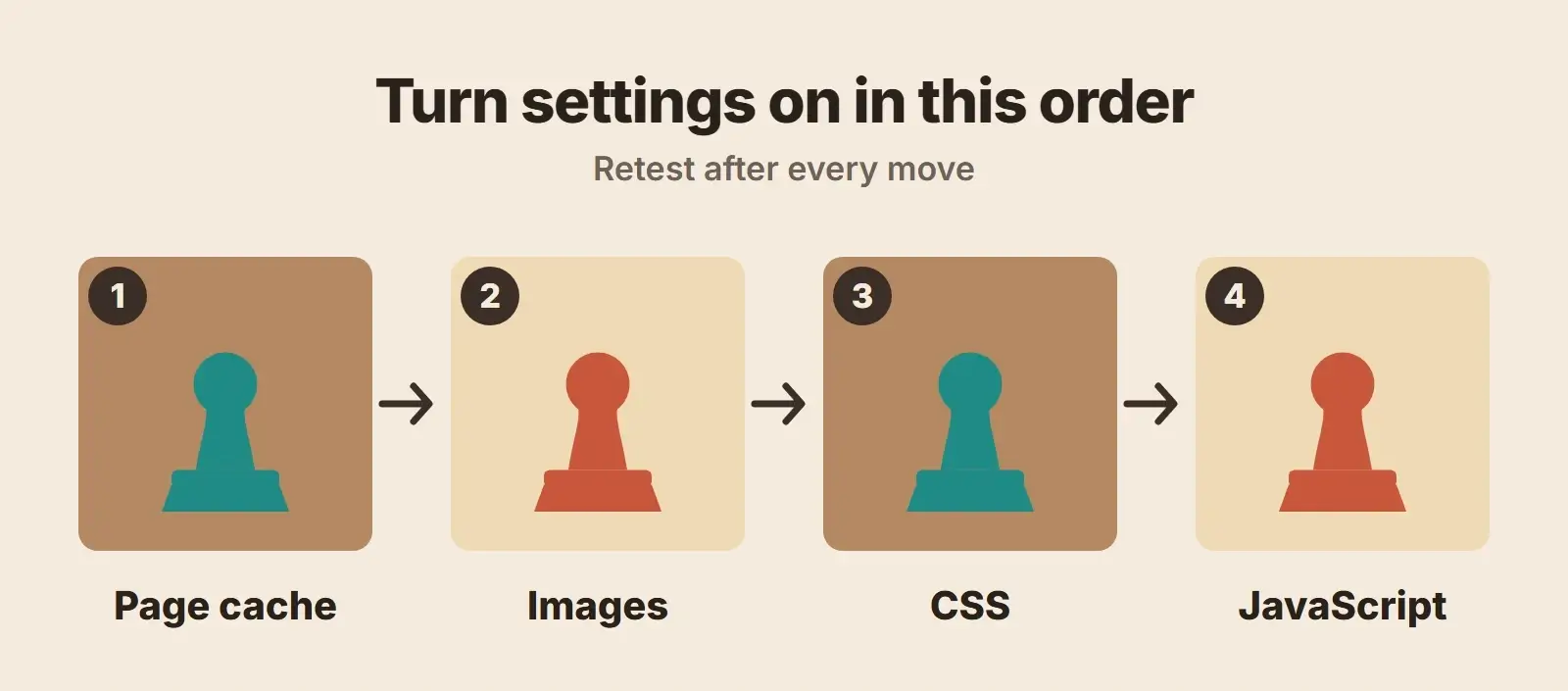
The setup order is the same for both plugins. Retest your key pages after each step.
- 1. Page cache and preload. Turn on the page cache and preloading. Exclude cart, checkout and account pages if your plugin does not do it for you.
- 2. Images. Turn on lazy loading, but make sure the hero image is excluded. WP Rocket does this automatically for the image it detects as the largest; in LiteSpeed Cache, check that the hero image is not lazy loaded and exclude it if it is. Compress images (built into LiteSpeed Cache, a separate tool with WP Rocket).
- 3. CSS. Minify first. Then try unused CSS removal or critical CSS, and check every template: home, a service page, a blog post, the contact page.
- 4. JavaScript. Defer or delay JavaScript last. It can help on mobile, and it can also break things: menus that do not open, sliders that do not move, forms that do not submit. Exclude the scripts that break.
How to test LiteSpeed Cache vs WP Rocket on your own site
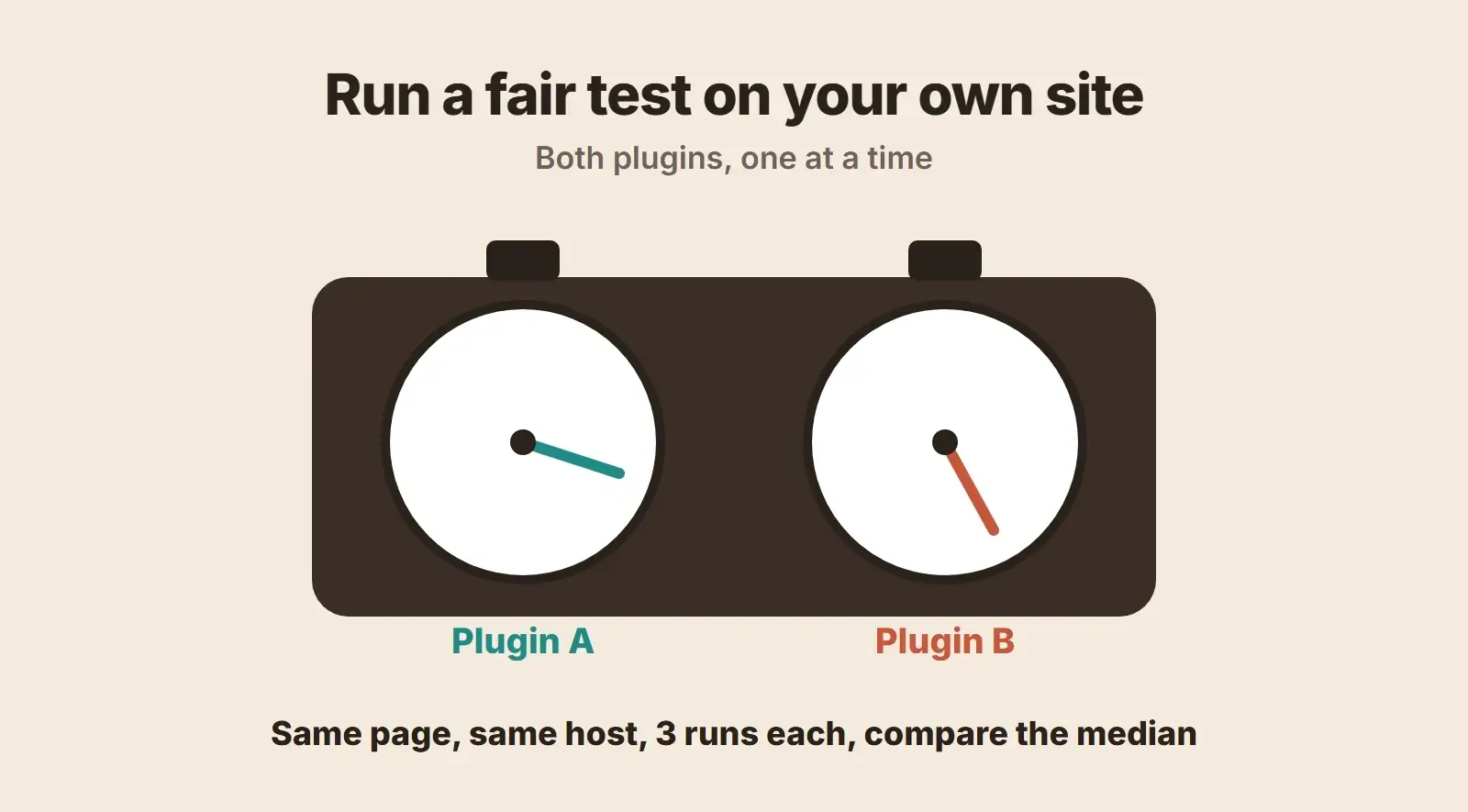
Benchmarks online are run on someone else’s host, theme and plugins. We did not run a lab test for this post, and the result that matters is yours. A fair test takes an afternoon on a staging copy:
- Pick three pages: the homepage, a key service or product page and a blog post.
- Test them in PageSpeed Insights on mobile with no caching plugin, three runs each. Note Time to First Byte, Largest Contentful Paint and Total Blocking Time, and use the median run.
- Install plugin A, apply the settings above, warm the cache by visiting each page once, then test three times again.
- Remove plugin A completely, install plugin B with equivalent settings and repeat.
- Compare medians, then check the pages by eye on a phone. A faster page that broke the menu is not a win.
If both plugins land close together, choose on cost, support and how comfortable you are with the settings screens. For the bigger picture on what slows a site down beyond caching, see why a WordPress site is slow, and if your site is built with Elementor, our guide on speeding up a slow Elementor site covers the builder side.
LiteSpeed Cache vs WP Rocket checklist
- Find out which web server your host runs.
- On LiteSpeed or QUIC.cloud, start with LiteSpeed Cache; on Apache or NGINX, start with WP Rocket.
- On a managed host with its own cache, keep the host cache and skip plugin page caching.
- Take a backup and test on staging.
- Record mobile PageSpeed Insights results for three pages before you change anything.
- Make sure only one page cache plugin is active.
- Turn on page cache and preload, then images, then CSS, then JavaScript.
- Keep the hero image out of lazy loading.
- Exclude cart, checkout and account pages from caching.
- Retest after each step and check menus, forms and sliders on a phone.
Want us to set up caching properly?
We check your server, pick the right caching setup, tune it page by page and make sure nothing breaks. Then we measure the result.
Frequently asked questions
LiteSpeed Cache or WP Rocket: which is faster?
We have not run a lab test, and we would not trust one from a different host. On a LiteSpeed server, LiteSpeed Cache’s server-level page cache costs nothing, so we would start there. On Apache or NGINX, LiteSpeed Cache cannot cache pages, so WP Rocket is the one to test. Run both on a staging copy of your own site to be sure.
Can I use WP Rocket on a LiteSpeed server?
Yes. WP Rocket lists LiteSpeed and OpenLiteSpeed among its compatible web servers, and you may prefer its simpler settings. We would still try LiteSpeed Cache first there, because it is free and its page cache is built for that server. Whichever you choose, run only one page cache, and remove the other plugin fully, including any leftover .htaccess rules.
Is LiteSpeed Cache really free?
The plugin is free and its developer says it will stay free and open source. Some optional cloud services run through QUIC.cloud, such as critical CSS and image optimization, and the plugin page notes some of those are paid above certain usage levels. Check your usage and any charges in your QUIC.cloud account before you rely on them for a busy site.
Should I trust WP Rocket vs LiteSpeed Cache benchmarks on Reddit?
Treat them with care. A forum post is one person’s result on one host, theme and set of plugins, and it may use settings you would not choose. It can give you ideas about what to try or which settings break things. Your own before and after test, on a staging copy of your site, is the result that applies to you.
Do I still need a caching plugin on managed WordPress hosting?
Maybe not for page caching. WP Rocket’s docs note that a managed host may disable plugin page caching by design, because the host caches pages itself. A plugin can still help with file optimization: minifying, delaying JavaScript, lazy loading and unused CSS. Check your host’s documentation for which plugins and features it supports before installing one.
Final thoughts
In LiteSpeed Cache vs WP Rocket, the server makes the first move: LiteSpeed Cache on LiteSpeed hosting, WP Rocket on Apache or NGINX, and the host’s own cache on managed platforms. After that, settings decide the result. Our WordPress speed optimization service sets this up and tunes it for you, our maintenance plans keep it working after every update, and if you would rather not think about hosting and caching at all, our website as a service plan includes them. For speed beyond WordPress, read our website speed optimization guide.