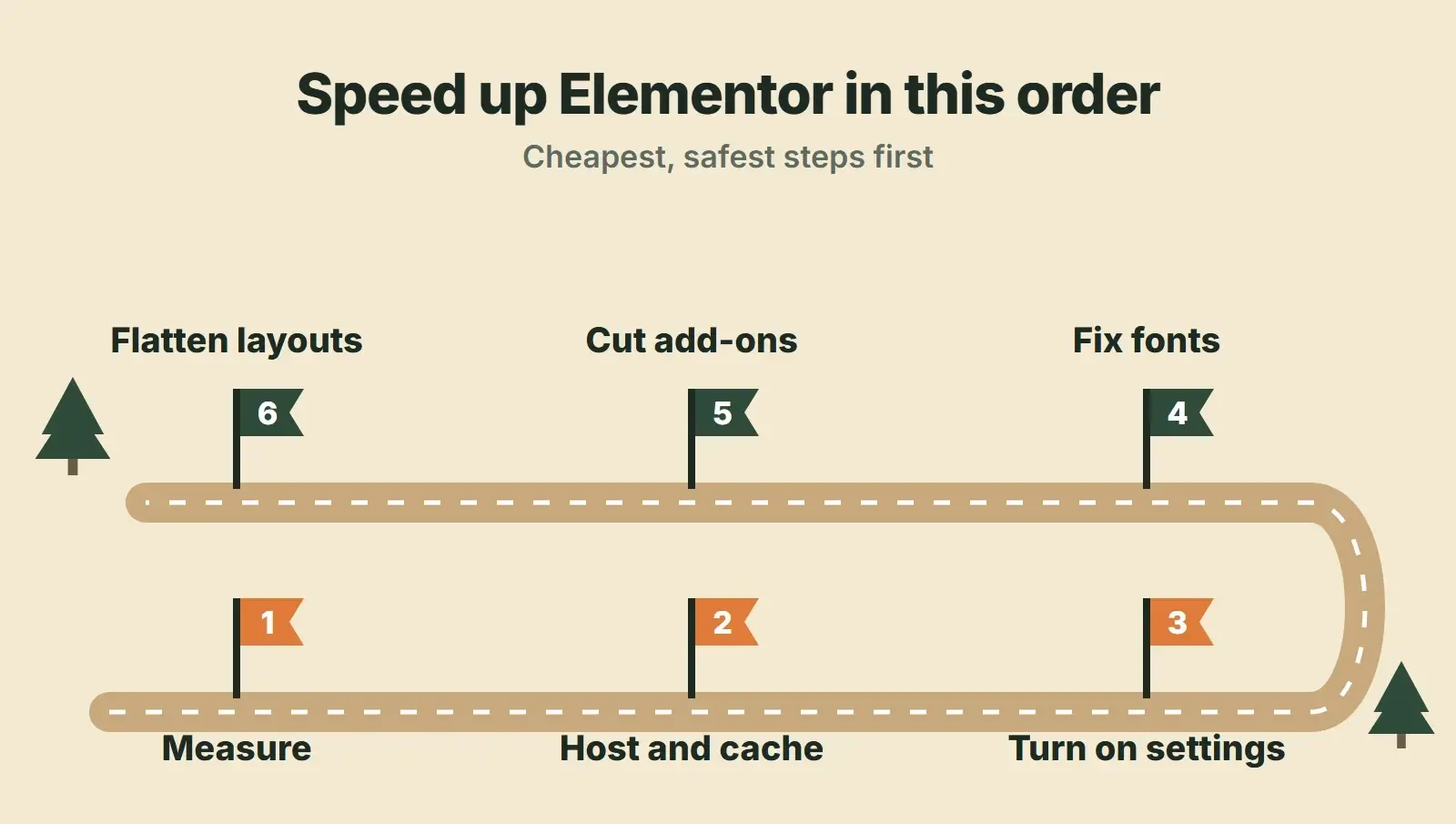
Elementor slow? In our view, Elementor itself is only part of the problem. Look at four things first: hosting and caching that cannot keep up, Elementor performance settings left switched off, layouts built from deeply nested sections and columns, and a pile of add-on plugins, icon libraries and fonts loading on every page. You can work on all four on the site you already have: measure, sort out the server, turn on the right settings, then trim fonts, add-ons and layouts one page at a time.
We build client sites on WordPress and Elementor, including this one. This guide covers the settings worth testing, what each does according to Elementor’s own documentation, and an order of work that lowers the risk of breaking something. No rebuild, no switching page builders.
- Measure first in PageSpeed Insights on mobile, so you know whether the server, the page or the code is slow.
- Elementor has built-in performance settings, so check which ones are on for your site.
- Inline Font Icons and Optimized Image Loading are sensible first settings to test, in our view.
- Flexbox containers produce fewer nested divs than sections and columns for the same layout.
- Every add-on pack you no longer use is code you can remove today.
Why Elementor sites get slow
A page builder turns visual choices into HTML, CSS and JavaScript. Every section, column, widget, icon set, font weight and add-on adds a little to what the browser has to download and draw. One addition does not matter. Three years of additions, a second add-on pack “just for one widget” and a homepage with twelve nested sections do.
The weight shows up as symptoms, and each one points to a metric you can measure. Web.dev names images without dimensions and web fonts among the causes of layout shift:
| Symptom | Likely Elementor cause | Metric it hurts |
|---|---|---|
| Page is blank for a long time | Slow server, no page cache, uncached elements | TTFB, LCP |
| Hero image or headline appears late | Lazy loaded hero, render-blocking CSS, fonts | LCP |
| Taps and menus feel sluggish | Large DOM, add-on scripts, sliders | INP |
| Content jumps while loading | Fonts swapping, images without sizes | CLS |
If those terms are new, our guide to Core Web Vitals explains how Google uses them, and our broader post on why a WordPress site is slow covers causes that are not specific to Elementor.
Step 1: measure before you touch a setting
Run your homepage and one or two key service or product pages through PageSpeed Insights on mobile. Note three numbers: Time to First Byte (server), Largest Contentful Paint (main content) and Interaction to Next Paint (responsiveness). Then scroll to the diagnostics and look for warnings about DOM size and unused CSS (the exact wording changes between Lighthouse versions). Those two point at the page build itself.
Save the results. Every step below should be followed by a retest, so you know which change helped and which one did nothing.
Step 2: rule out hosting and caching
If Time to First Byte is slow, start with the server. Elementor is a WordPress plugin, so the server still has to run PHP and query the database before any HTML reaches the browser. Check three things:
- PHP version and memory. Elementor’s requirements page (checked November 2026) highly recommends PHP 8.3 or newer, and a WordPress memory limit of at least 256 MB, with 512 MB recommended and 768 MB for best performance. WordPress on its own only tries to raise memory to 40 MB, so you may need to set a higher limit in wp-config.php or ask your host.
- A page cache. Use your host’s cache or one caching plugin, so visitors get a ready-made page instead of WordPress rebuilding every Elementor layout on each visit.
- A persistent object cache, if your host offers a cache server. WordPress documentation says it reduces trips to the database and speeds up page loads.
If you searched for “Elementor editor slow” or “Elementor slow editing”, start here too. The editor is a large application running inside your admin. If it lags on every click, check the memory limit and PHP version before blaming the builder.
Step 3: turn on Elementor’s own performance settings
Elementor’s performance features page lists the switches below (checked November 2026). They sit in Elementor’s settings, in the Features and Performance tabs, and the exact menu wording changes between versions. Turn them on one at a time on a staging copy, check the pages that matter, then retest.
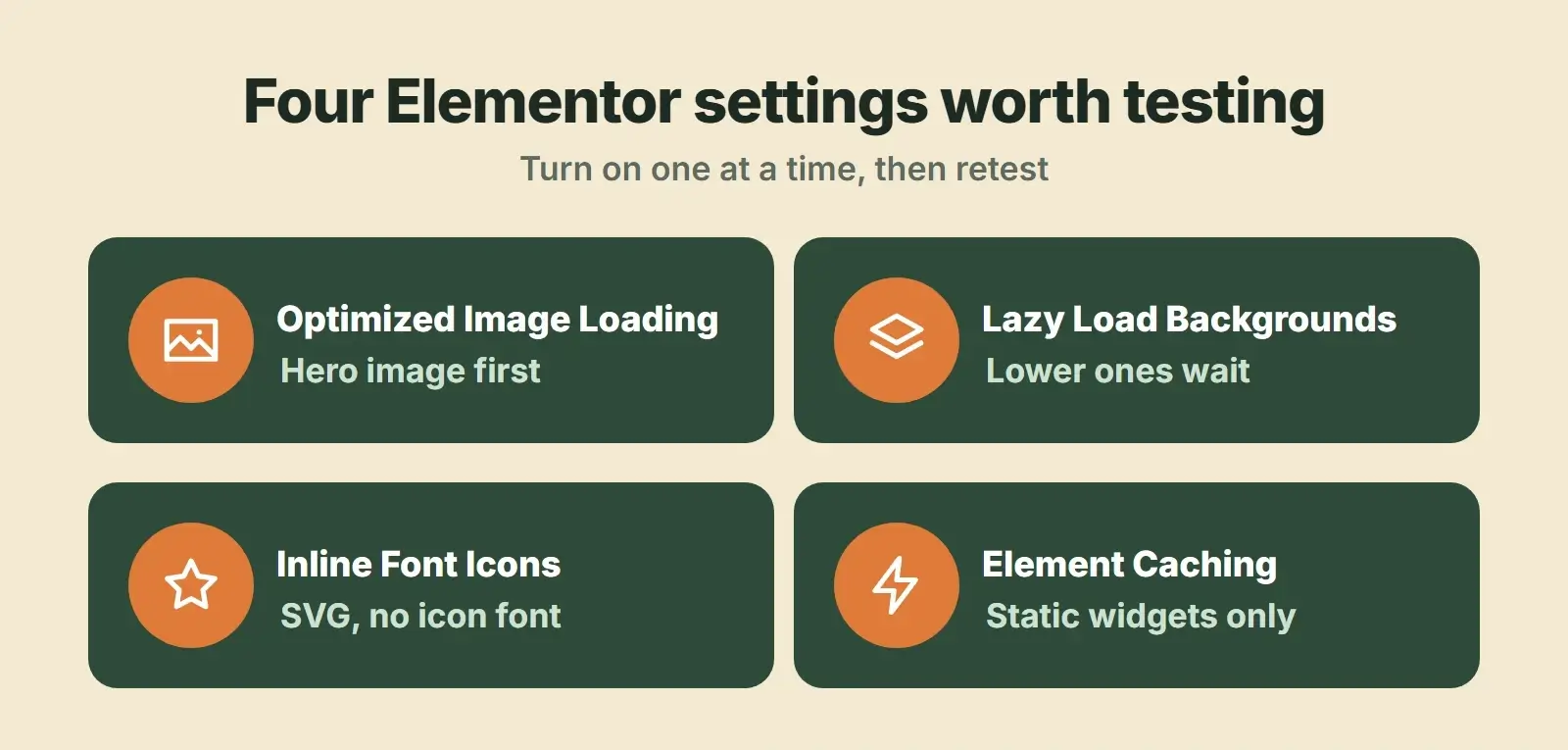
| Setting | What it does (per Elementor) | Risk |
|---|---|---|
| Optimized Image Loading | Adds fetchpriority=”high” to the likely LCP image and loading=”lazy” to images below the fold | Low |
| Lazy Load Background Images | Lazy loads all background images except the first one | Low; check hero sections that use a background image |
| Inline Font Icons | Renders icons as inline SVG instead of loading the Font Awesome and eicons libraries | Low; check custom icon CSS |
| Optimized Gutenberg Loading | Dequeues block editor scripts and styles that are not used | Low |
| Element Caching (experiment) | Serves a stored copy of an element instead of rendering it each time | Medium; static elements only |
| Optimized Control Loading (experiment) | Loads editor controls only when needed | Low; editor only |
Element Caching: useful, with one rule
According to Elementor’s Element Caching guide, a cached element’s rendered HTML is stored in the database, which cuts server memory use and Time to First Byte. You set it per element in the Advanced tab under Cache Settings, and site wide in the Performance tab, where you also choose how often the cache expires. The rule: only cache static elements. Anything with dynamic tags, shortcodes or personalised content (a cart count, a logged-in greeting, a latest-posts list) should stay uncached, or visitors may see stale content.
Step 4: fix fonts and icons
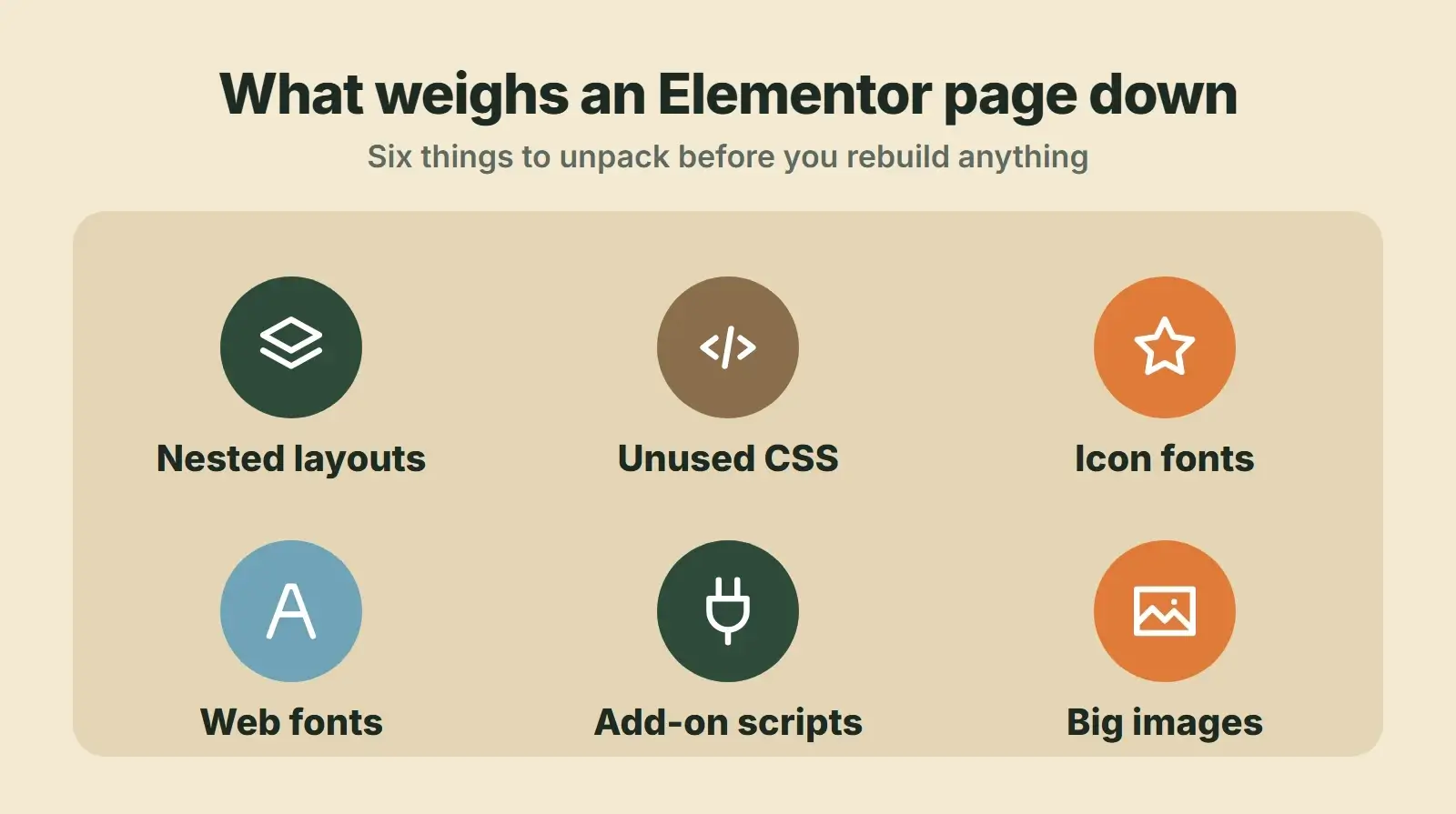
Fonts are worth checking on an Elementor site, because the global typography settings make it easy to add a new family or weight without noticing what it costs. Each family and weight is another file to download before text can draw in that font.
- Pick one or two font families and only the weights you actually use, such as regular and bold.
- Turn on Load Google Fonts Locally in the Performance tab so fonts come from your own server instead of a separate Google connection. Elementor switched the default to Disabled from version 3.32.1, so if you enabled it before, check it is still on after updating.
- Set the Google Fonts Load option under the Advanced tab. Swap shows text in a fallback font almost immediately. Optional uses the web font only if it arrives almost at once. Blocking keeps text invisible for a short period first, per MDN. We would pick Swap or Optional.
- Turn on Inline Font Icons so a handful of icons does not pull in a full icon library and its CSS.
- Disable any font or icon libraries that add-on packs load on their own.
Step 5: cut add-ons you do not need
Add-on packs for Elementor are convenient. The risk is accumulation. A site that installed three packs over the years for one widget each may load scripts and stylesheets from all of them. Make a list of every widget actually used on the site. Elementor’s Element Manager shows which elements are used and how often, and warns that turning off one in use can break the site. Then:
- Switch off every widget you do not use inside each pack, if the pack allows it.
- Replace one-off widgets with Elementor’s own widgets where you can, and delete the pack.
- Remove sliders and carousels above the fold. They can delay the main image and add JavaScript.
- Check third-party embeds: chat widgets, maps and video players. Load them on click where possible.
Test each removal on staging first. Deleting a pack that still powers one widget on one page leaves a blank gap where that widget used to be.
Step 6: flatten the heaviest layouts
This is the step that takes the most work, because it involves editing pages. Older layouts were built from sections, columns and inner sections, and each level adds wrapper elements to the HTML. Flexbox containers do the same job with fewer layers.
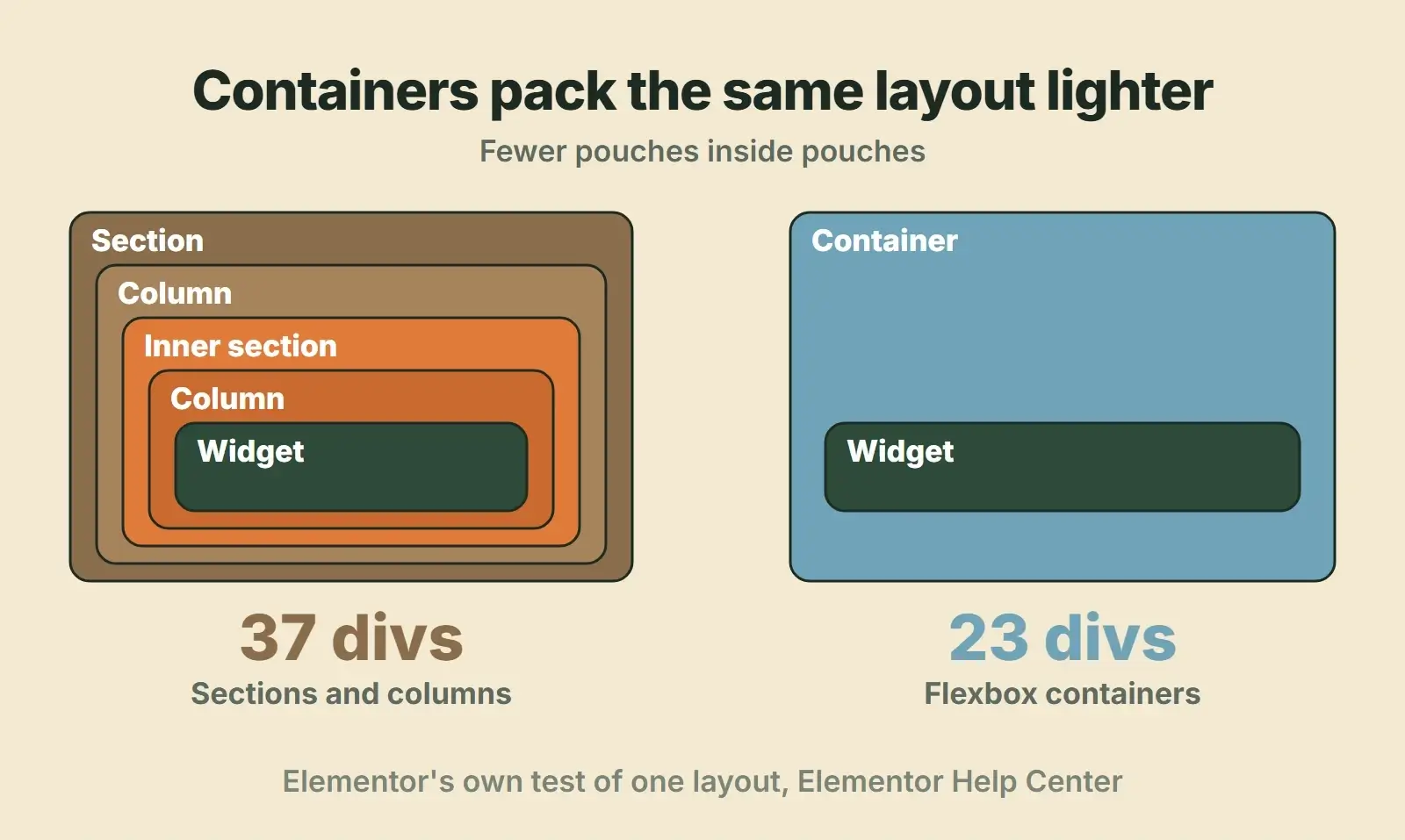
Elementor’s container performance test rebuilt the same block both ways: the section version produced 37 div elements and 105 lines of HTML, the container version 23 divs and 76 lines. That is one block. Across a long homepage the difference can add up, and it can show in the DOM size warning.
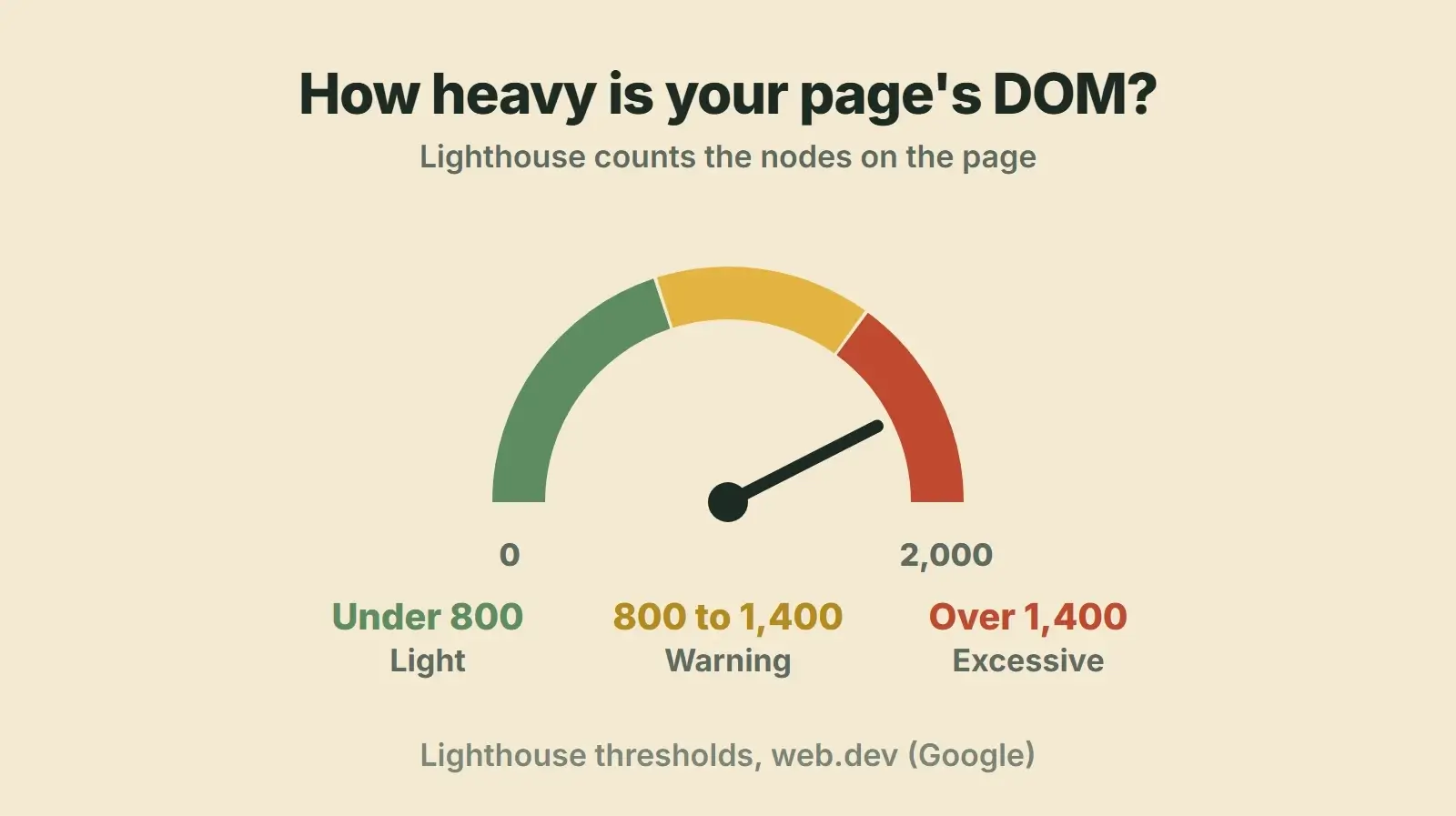
Google’s guide to DOM size explains why this matters: Lighthouse warns above 800 nodes and flags a DOM as excessive above 1,400, and a larger DOM makes both the first render and every interaction that changes the page more expensive. That can feed a poor Interaction to Next Paint score, which our INP guide covers in depth.
You do not need to rebuild the whole site. Start with the pages that get the most traffic and have the worst scores:
- Convert old sections to containers page by page. Elementor’s Convert to Container option makes a copy below the original and is one way, so check spacing and mobile layouts afterwards.
- Remove empty spacer widgets and wrapper containers that only add padding; use the container’s own padding and gap settings instead.
- Delete elements you do not need instead of hiding them per device.
- Keep the hero simple: a heading, a short line, a button and one properly sized image.
What it is worth: our own Elementor pages
Our own site runs on Elementor. In 2026 we rebuilt our service pages on a lighter layout. On mobile, PageSpeed Insights scores went from 59 to 60 up to 88 to 89, with Largest Contentful Paint at about 2.6 seconds. One older page still on the previous layout scores 55, with Largest Contentful Paint at 13.4 seconds. These are our own pages on the same builder, measured in our November 2026 audit. Another site will move by a different amount.
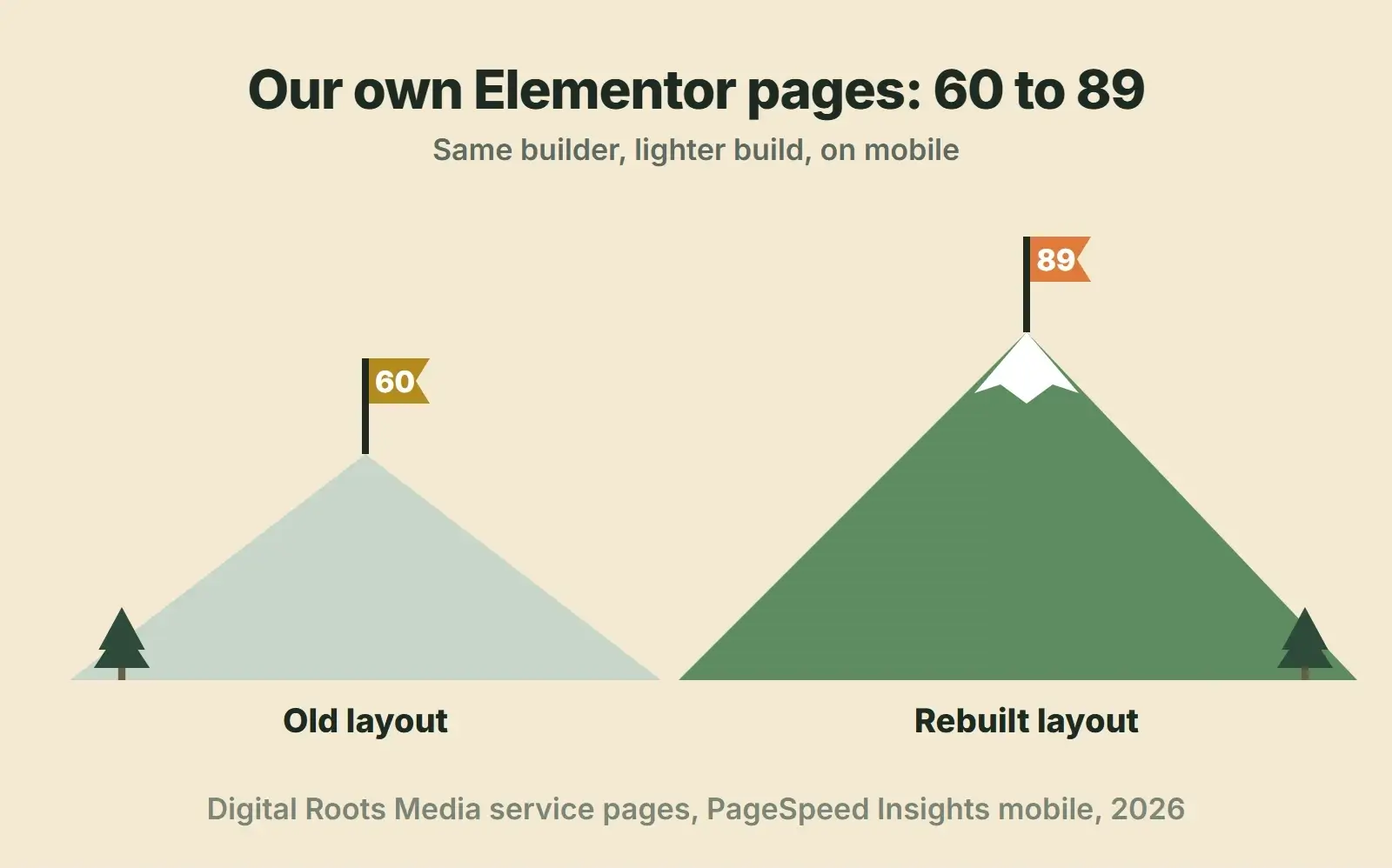
Our reading: Elementor can be fast, and how a page is built matters a great deal.
Elementor speed checklist
- Test key pages in PageSpeed Insights on mobile and save the results.
- Confirm PHP 8.3 or newer and a WordPress memory limit of at least 256 MB.
- Turn on one page cache and, if your host offers it, a persistent object cache.
- Turn on Optimized Image Loading and check the hero image is not lazy loaded.
- Turn on Lazy Load Background Images and Inline Font Icons, then check icons and hero sections.
- Test Element Caching on static elements only.
- Cut fonts to one or two families and the weights you use; load Google Fonts locally.
- Set Google Fonts Load to Swap or Optional, not Blocking.
- Remove unused add-on packs and switch off unused widgets in the ones you keep.
- Remove sliders above the fold and load chat, maps and video on click.
- Convert the heaviest pages from sections to containers and delete spacer widgets.
- Retest and compare with your saved results.
Want us to speed up your Elementor site?
We build on Elementor. We measure your key pages, fix the server, settings, fonts, add-ons and layouts in the right order, and keep your design as it is.
Frequently asked questions
Why is Elementor slow loading on my site?
Start by checking for slow hosting or no page cache, Elementor performance settings left off, deeply nested section layouts, and add-on packs, fonts and icon libraries loading on every page. Test in PageSpeed Insights first. A slow Time to First Byte points to the server; a large DOM and unused CSS point to the page build itself.
Is Elementor slowing down my website compared with other builders?
In our view, any page builder adds some weight compared with hand-coded pages. How much depends on how the site is built. Our own Elementor service pages score 88 to 89 on mobile PageSpeed Insights after a lighter rebuild, so a well-built Elementor site can be fast. Settings, layout habits and add-ons matter more than the builder’s name.
Why is the Elementor editor slow?
The editor is a large application running in your browser and on your server. Places to check are a low WordPress memory limit, an old PHP version, slow hosting and too many plugins. Elementor recommends at least 256 MB of memory, 512 MB ideally, and PHP 8.3 or newer. Very long pages with many nested elements can also slow the editor down.
Do Elementor containers make pages faster?
They produce less HTML for the same layout. In Elementor’s own test, one block used 37 divs with sections and 23 with containers. Fewer elements mean a smaller DOM, which helps rendering and responsiveness. Converting is worth it on heavy, high-traffic pages, but check spacing and mobile layouts after each conversion.
Should I switch away from Elementor to speed up my site?
Not as a first step, in our view. A rebuild on another platform will likely cost more than fixing hosting, settings, fonts, add-ons and the heaviest layouts on the site you already have. Rebuild only if the site also needs a new design or structure for other reasons, and measure the current site first so you know what you are trying to beat.
Final thoughts
An Elementor slow site is a heavy pack, not a broken boot. Measure, fix the server, turn on the settings Elementor already gives you, then cut fonts, add-ons and nested layouts on the pages that matter most. If you would rather hand it over, our WordPress speed optimization service does exactly this, our WordPress development team can convert heavy layouts without changing your design, and our maintenance plans keep the site light as plugins update.