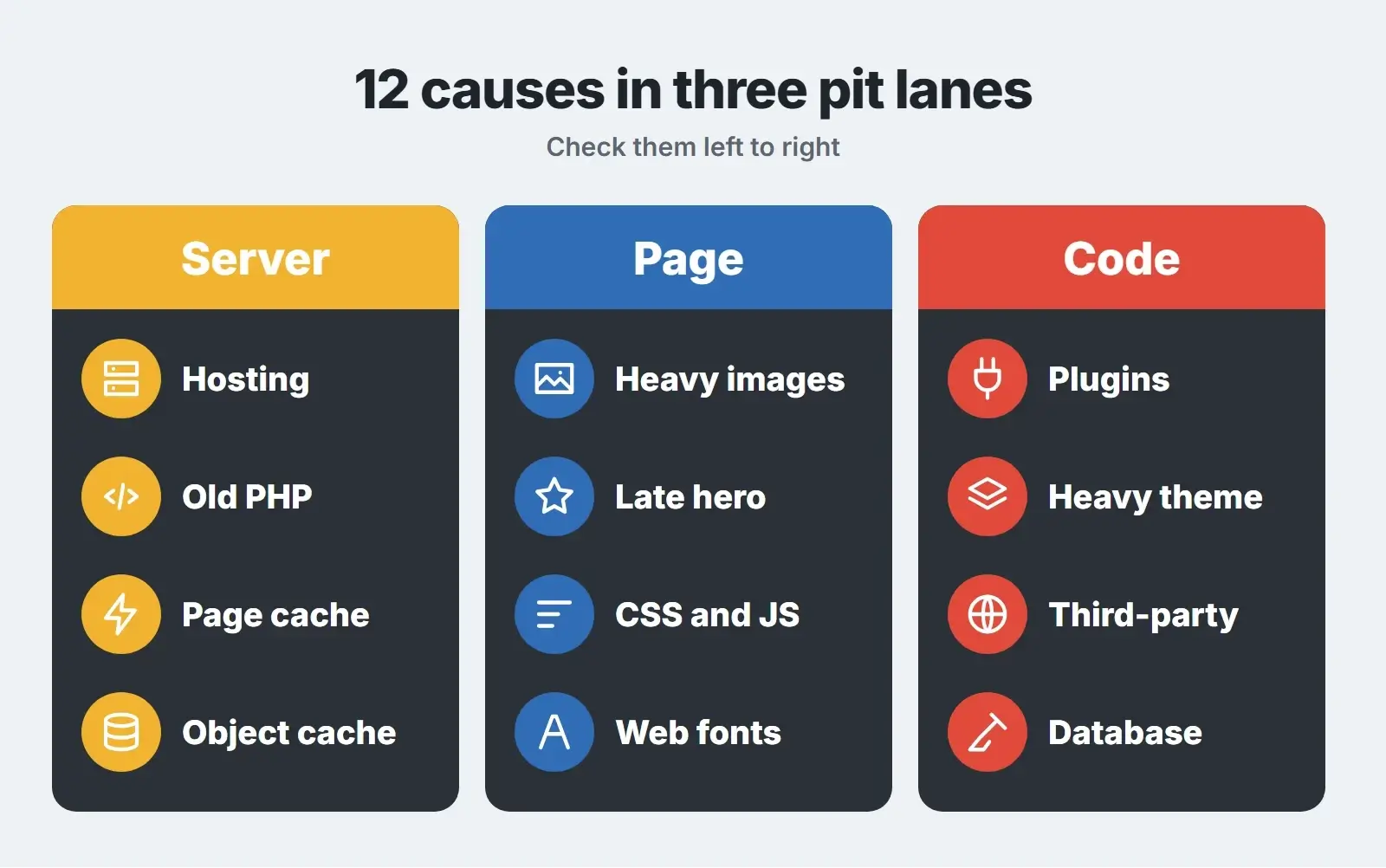
Why is my WordPress site slow? In most cases it comes down to one of three places: the server takes too long to build the page (slow hosting, an old PHP version, no caching), the page itself is too heavy (large images, render-blocking CSS and JavaScript, web fonts), or code added over time does too much work (too many plugins, a heavy theme or page builder, third-party scripts and a bloated database). Measure first, find which of the three is slowest, and fix that before anything else.
This guide lists the 12 causes we find most often when we speed up WordPress sites, in the order we check them, with the fix for each. It uses Google’s own thresholds as the finish line, so you know when a fix has worked.
- Test before you change anything: PageSpeed Insights shows both real-visitor data and a lab test.
- Slow server response (TTFB over 0.8 seconds) points to hosting, PHP or caching.
- A slow main image (LCP over 2.5 seconds) points to images, CSS, JavaScript or fonts.
- Slow taps and clicks (INP over 200 milliseconds) usually point to plugins and third-party scripts.
- Page caching and properly sized images are the two fixes that help almost every site.
First, measure: how slow is slow?
Run your key pages through PageSpeed Insights, on mobile first. The report has two parts. The top section is field data: what real Chrome users experienced over the previous 28 days. Below it is lab data: a simulated load on one device and one network speed, which is the part to use for debugging. If the field data says your site is fine but the lab score is low, your visitors are probably doing better than the score suggests.
Google’s Core Web Vitals give you the finish line. A page passes when, for at least 75 percent of visits, the main content appears within 2.5 seconds (Largest Contentful Paint, LCP), the page responds to taps and clicks within 200 milliseconds (Interaction to Next Paint, INP), and the layout barely moves while loading (Cumulative Layout Shift of 0.1 or less). Our post on Core Web Vitals in 2026 covers how Google uses them.
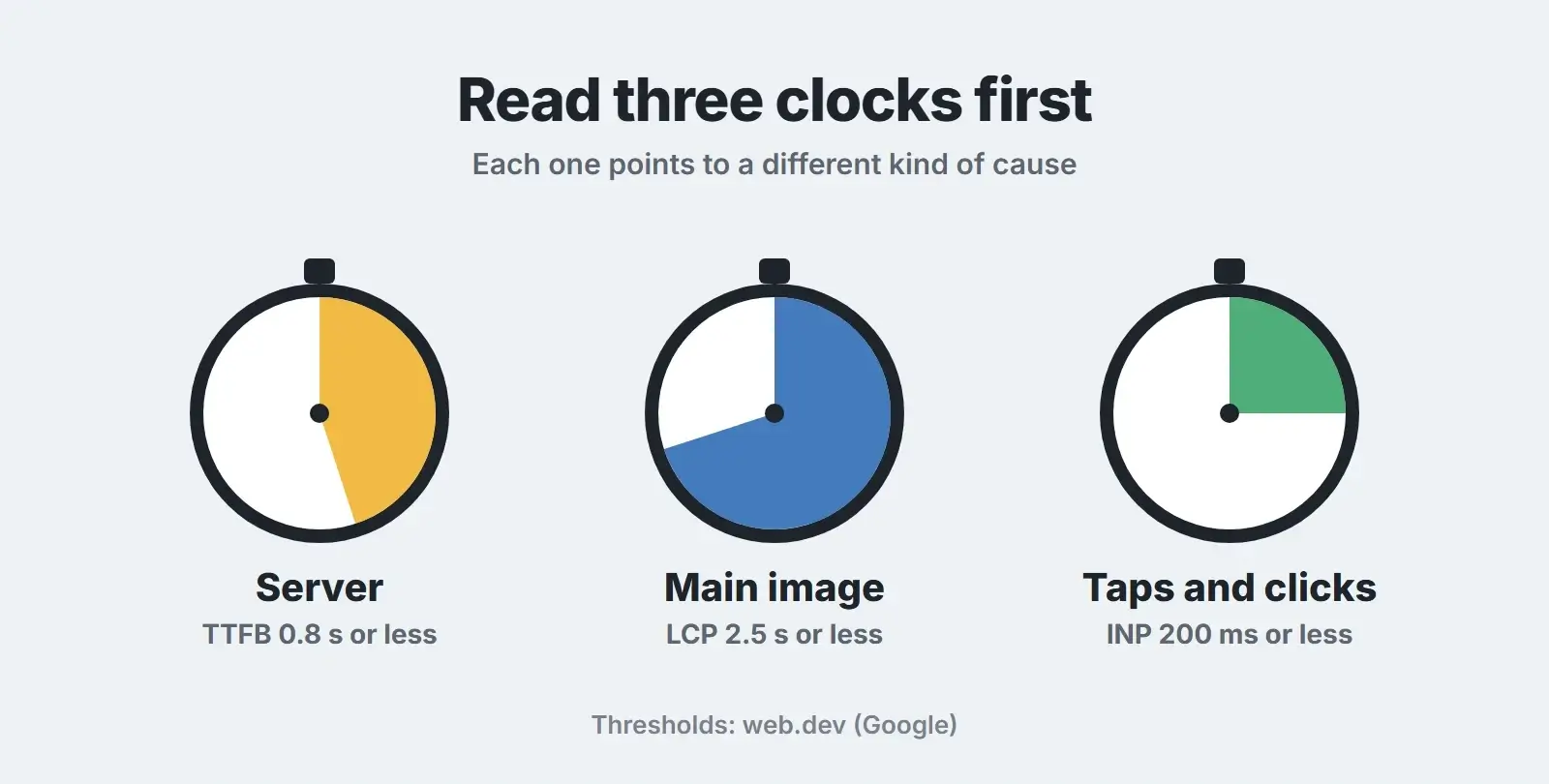
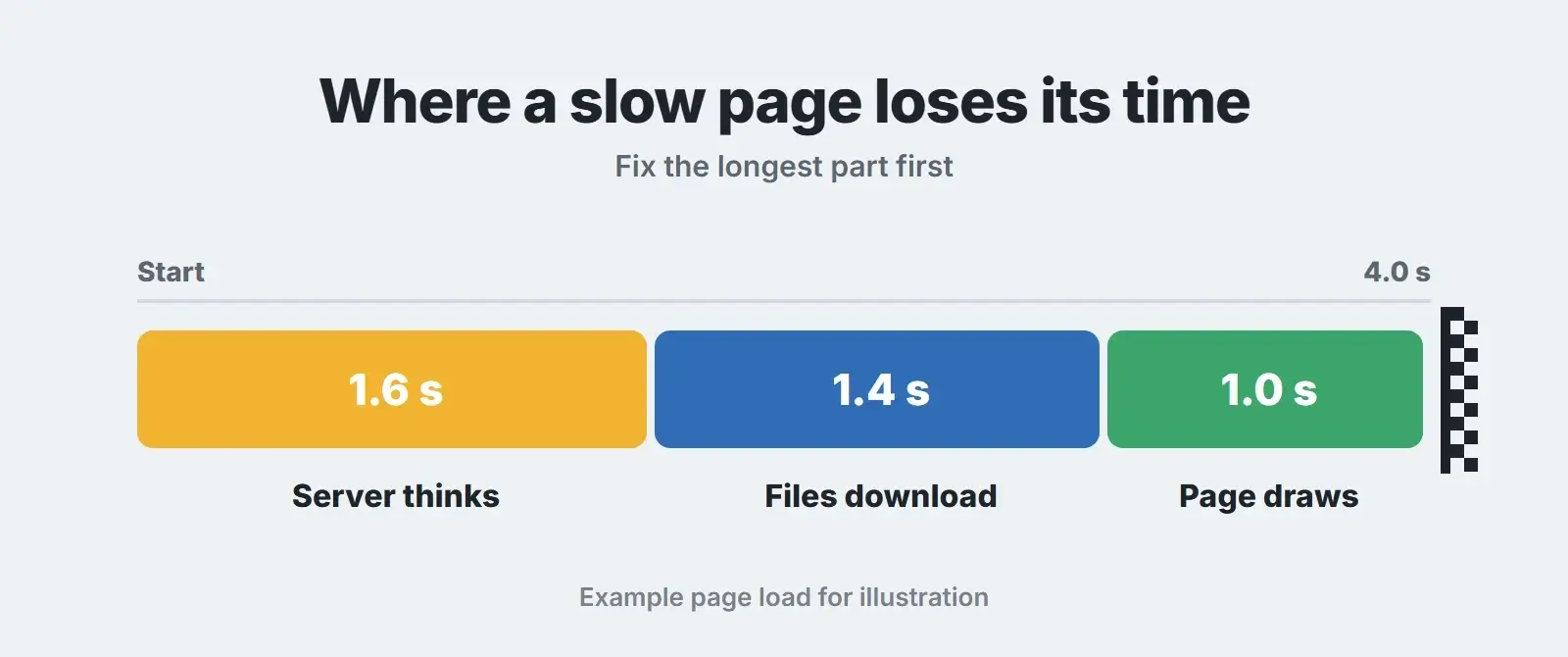
Add one more number: Time to First Byte (TTFB), shown in the lab diagnostics. Google’s TTFB guide calls 0.8 seconds or less good and anything over 1.8 seconds poor. TTFB is not a Core Web Vital, but every other metric waits for it, so a slow TTFB drags everything else down with it.
| What you see | Where to look first | Causes below |
|---|---|---|
| TTFB over 0.8 s | The server: hosting, PHP, caching, database | 1, 2, 3, 4, 12 |
| LCP over 2.5 s with a fast TTFB | The page: images, CSS, JavaScript, fonts | 5, 6, 7, 8 |
| INP over 200 ms | Code: plugins, page builder, third-party scripts | 9, 10, 11 |
| Slow only when logged in | Admin load, plugins, uncached pages | 3, 9, 12 |
The 12 causes of a slow WordPress site
Work through them in this order. The server causes come first because no front-end fix can make up for a page that takes two seconds to leave the server.
Server causes
1. Slow or overloaded hosting
Why it slows you down: On busy shared hosting, your site competes with many others for the same processor and memory. When the server is short of resources, every uncached page waits in a queue before it is even built.
How to fix it: Check TTFB on a simple page with no plugins doing heavy work. If it is still slow, the host is the bottleneck. Look for hosting with enough PHP workers for your traffic, server-level caching, a data centre close to your customers and current PHP versions. Moving host is often the single biggest speed gain for small sites.
2. An old PHP version
Why it slows you down: WordPress is written in PHP, and each major PHP release runs the same code more efficiently. Old versions are also out of security support, which is its own risk.
How to fix it: WordPress recommends PHP 8.3 or greater. Check your version under Tools, Site Health, Info, Server. Test the upgrade on a staging copy first, because very old plugins can break on newer PHP, then switch it in your hosting panel.
3. No page caching
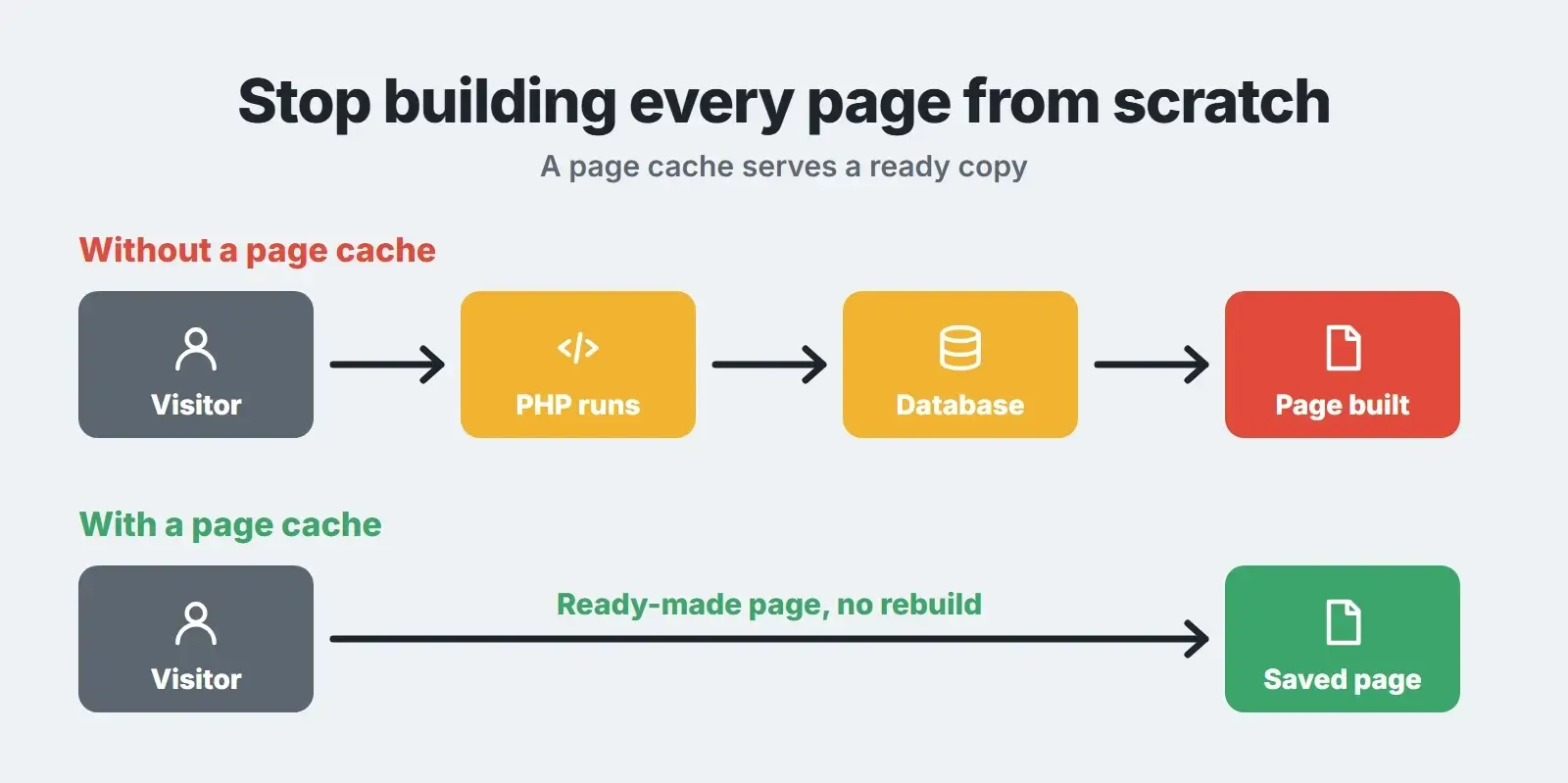
Why it slows you down: Without a page cache, WordPress runs PHP and queries the database to build every page for every visitor, even when the page has not changed since the last visit.
How to fix it: WordPress’s own optimization guide recommends a caching plugin that serves pages as static files. Use the cache your host provides, or one plugin such as LiteSpeed Cache (on LiteSpeed servers) or WP Rocket. Use only one page cache at a time, and exclude carts, checkouts and account pages.
4. No persistent object cache
Why it slows you down: Busy sites, WooCommerce stores and membership sites run many repeated database queries, including for logged-in users who never see the page cache.
How to fix it: A persistent object cache such as Redis or Memcached keeps the results of frequent queries in memory. Your host has to provide the cache server; you then connect it with a plugin. It matters most for stores, logged-in users and large sites.
Page causes
5. Heavy, oversized images
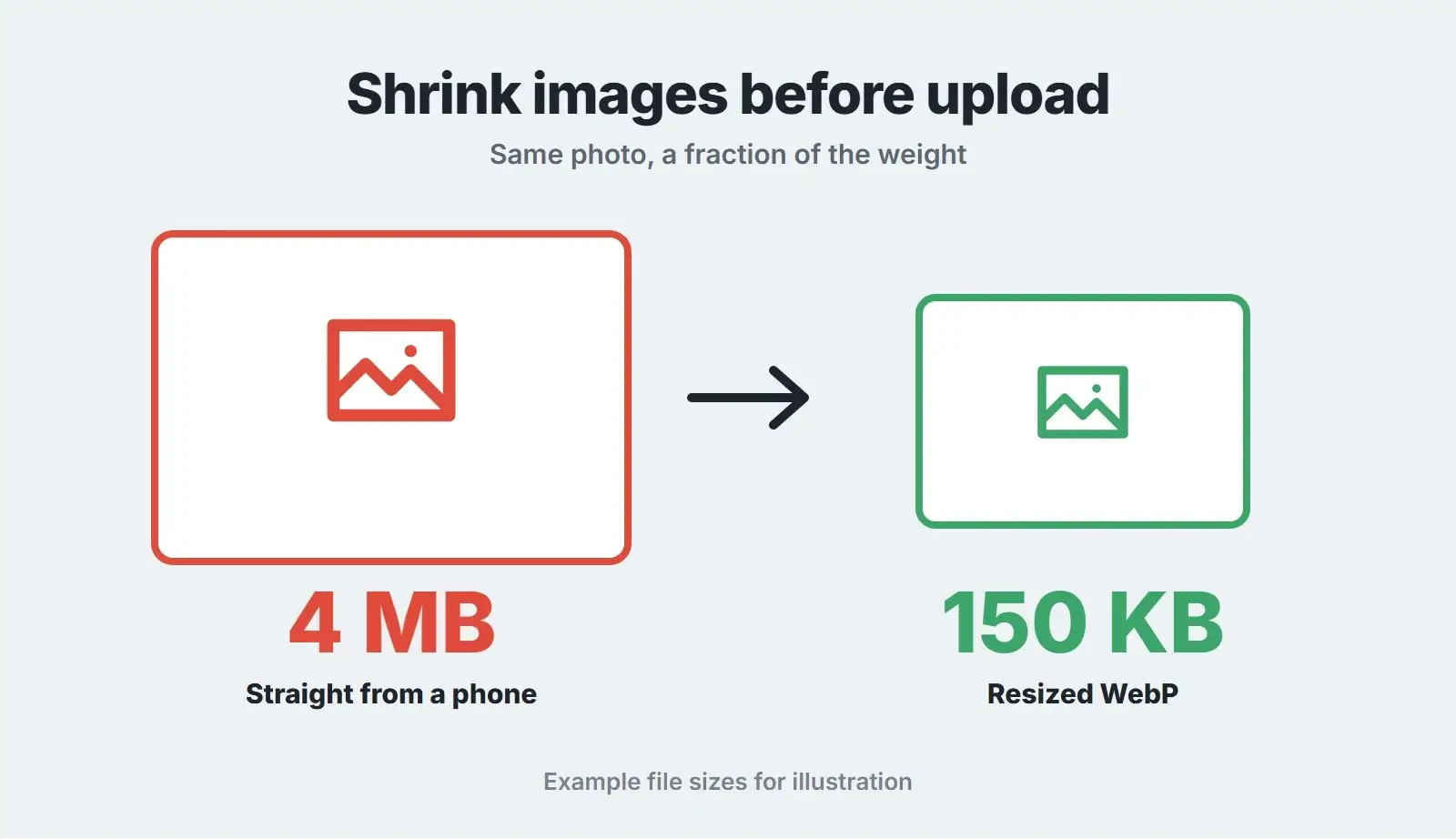
Why it slows you down: A photo straight from a phone or camera can weigh several megabytes. If it is displayed 800 pixels wide, the visitor still downloads the full file, which is painful on mobile data.
How to fix it: Resize images to about twice their display width before upload, compress them, and serve WebP. WordPress creates several sizes on upload and adds them to the srcset so phones can pick a smaller file, but only if the original is not absurdly large to begin with.
6. The main image loads late
Why it slows you down: The hero image is usually the Largest Contentful Paint element. If it is lazy loaded, set as a CSS background, or loaded from a slider script, the browser finds it late and the LCP clock keeps running.
How to fix it: Since WordPress 6.3, core adds fetchpriority=”high” to the image it judges most likely to be the LCP image and skips lazy loading on the first images. Page builders and sliders can undo this. Use a normal image element for the hero, make sure it is not lazy loaded, and avoid sliders above the fold.
7. Render-blocking CSS and JavaScript
Why it slows you down: Stylesheets and scripts in the page head must download before the browser draws anything. Themes and plugins often load their files on every page, used or not.
How to fix it: Remove assets that pages do not use, defer non-critical JavaScript, and let your caching plugin generate critical CSS or delay scripts until interaction. Test after each change, because aggressive settings can break menus and forms.
8. Too many web fonts
Why it slows you down: Every font family and weight is another file. Fonts loaded from a third-party server also need an extra connection before the text can be drawn.
How to fix it: Use one or two families and only the weights you need, host them on your own server as WOFF2, and use font-display: swap so text shows straight away in a fallback font.
Code causes
9. Too many or badly built plugins
Why it slows you down: The number of plugins matters less than what they do. One plugin that runs slow database queries on every page costs more than ten small ones that do little.
How to fix it: Install Query Monitor on a staging copy and look at the slowest queries and the plugin responsible for each. Remove plugins you no longer use, replace heavy ones with lighter alternatives, and deactivate one at a time while measuring if you are unsure.
10. A heavy theme or page builder layout
Why it slows you down: Multipurpose themes and page builders can produce deeply nested HTML and large CSS files. A large DOM slows down drawing the page and responding to taps.
How to fix it: Turn on the performance features your builder offers, simplify layouts with fewer nested containers, and remove unused widgets. Our Interaction to Next Paint guide shows how a heavy DOM affects responsiveness.
11. Third-party scripts
Why it slows you down: Chat widgets, tracking pixels, video embeds, maps and review widgets each load code from another server, and many run JavaScript on the main thread just as visitors try to tap.
How to fix it: List every third-party script and ask whether it earns its place. Load chat and video only when someone clicks, keep tags in one tag manager, and remove pixels for tools you no longer use.
12. A bloated database and autoloaded options
Why it slows you down: Years of revisions, spam comments, expired transients and leftovers from deleted plugins grow the database. Worse are autoloaded options: settings WordPress loads on every single request.
How to fix it: From WordPress 6.6, Site Health warns when autoloaded options exceed 800 KB, and large options no longer autoload by default. Check Site Health, clean up leftovers from removed plugins, limit post revisions, and take a backup before any database clean-up.
What the fixes are worth: our own numbers
We rebuilt our own service pages on a lighter layout in 2026: fewer nested containers, self-hosted fonts, a properly sized hero image that is never lazy loaded and fewer scripts. On mobile, PageSpeed Insights scores moved from 59 to 60 up to 88 to 89, with the main image showing at about 2.6 seconds. One older page still on the previous layout scores 55, with the main image at 13.4 seconds. Same server, same plugins, so the difference is the page build.
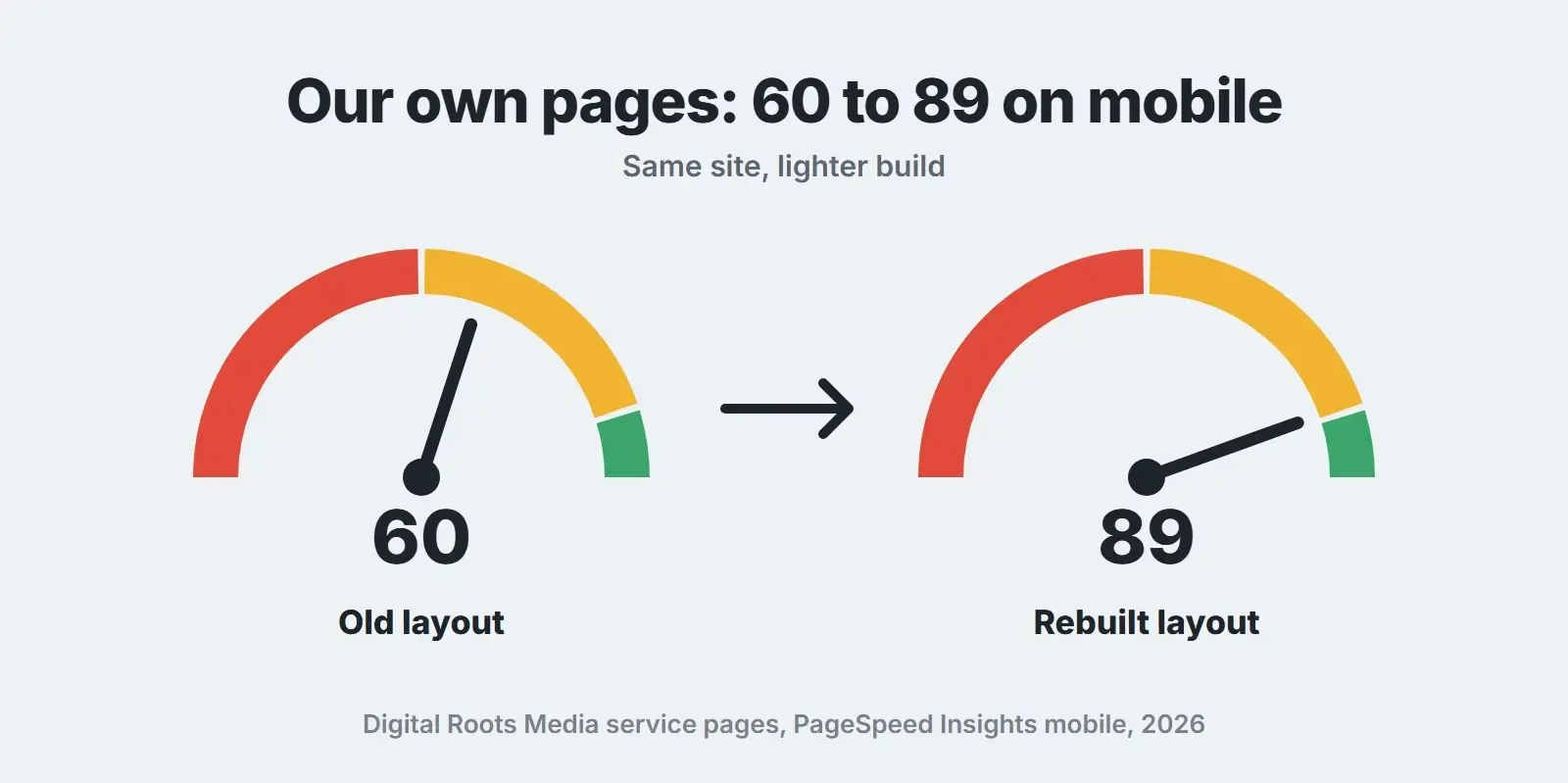
The lesson: hosting and caching set the floor, but how a page is built decides how far above it you get. For a broader look beyond WordPress, our website speed optimization guide covers the same ground for any platform.
Quick checklist: speed up a slow WordPress site
- Test key pages in PageSpeed Insights on mobile and note TTFB, LCP and INP.
- If TTFB is over 0.8 seconds, check hosting, PHP version and caching first.
- Upgrade to PHP 8.3 or newer on a staging copy, then on the live site.
- Turn on one page cache and exclude cart, checkout and account pages.
- Ask your host about a persistent object cache for stores and logged-in users.
- Resize and compress images before upload and serve WebP.
- Make sure the hero image is a normal image, is not lazy loaded and is not in a slider.
- Defer non-critical JavaScript and remove CSS and scripts pages do not use.
- Cut fonts to one or two families and host them yourself.
- Find slow plugins with Query Monitor and remove or replace them.
- Remove third-party scripts that do not earn their place; load chat and video on click.
- Check Site Health for autoloaded options and clean the database after a backup.
Speed is not a one-off job. Plugin updates, new tracking tags and fresh content slowly add weight again, which is why speed checks belong in a regular WordPress maintenance checklist.
Want us to find what is slowing your site down?
We measure your key pages, find the real bottleneck and fix it, from hosting and caching to images, plugins and page builder bloat.
Frequently asked questions
Why is my WordPress site slow all of a sudden?
A sudden slowdown usually follows a change: a plugin or theme update, a new plugin, a new tracking script, a traffic spike or a problem at your host. Check what changed recently, look at your host’s status page and resource usage, and use Query Monitor on a staging copy to see whether one plugin is suddenly running slow queries. Malware can also cause slowdowns, so scan the site if nothing else explains it.
Do too many plugins slow down WordPress?
They can, but the number matters less than what each plugin does. A plugin that runs heavy database queries or loads large scripts on every page costs far more than several small, well-built ones. Measure with Query Monitor, remove plugins you do not use and replace heavy ones rather than chasing a target number.
Is my hosting the reason my WordPress site is slow?
Often, yes. If Time to First Byte is over 0.8 seconds even on a simple page, the server is the bottleneck and front-end fixes will not solve it. Cheap shared hosting, too few PHP workers, an old PHP version and a data centre far from your customers are common causes. A good host with server-level caching can change load times more than any plugin.
Why is my WordPress site slow only when I am logged in?
Logged-in users usually bypass the page cache, so every page is built from scratch, and the admin bar and editor load extra scripts. Visitors may be seeing a much faster site than you. Test in a private browser window while logged out to see what customers get, and use an object cache to speed up logged-in pages.
What is a good PageSpeed score for WordPress?
Treat the score as a guide, not the goal. What Google uses is real-visitor Core Web Vitals: LCP within 2.5 seconds, INP of 200 milliseconds or less and CLS of 0.1 or less for at least 75 percent of visits. Mobile scores in the high 80s or 90s usually go with passing vitals, but a site can pass its vitals with a lower lab score.
Final thoughts
So, why is your WordPress site slow? Usually because of two or three of these 12 causes stacked together, not one mystery problem. Measure first, start with the server, then the page, then the code, and measure again after each fix. If you would rather have it done for you, our WordPress speed optimization service finds and fixes the bottleneck, our website maintenance plans keep the site fast after that, and our technical SEO team makes sure the speed gains reach Google.