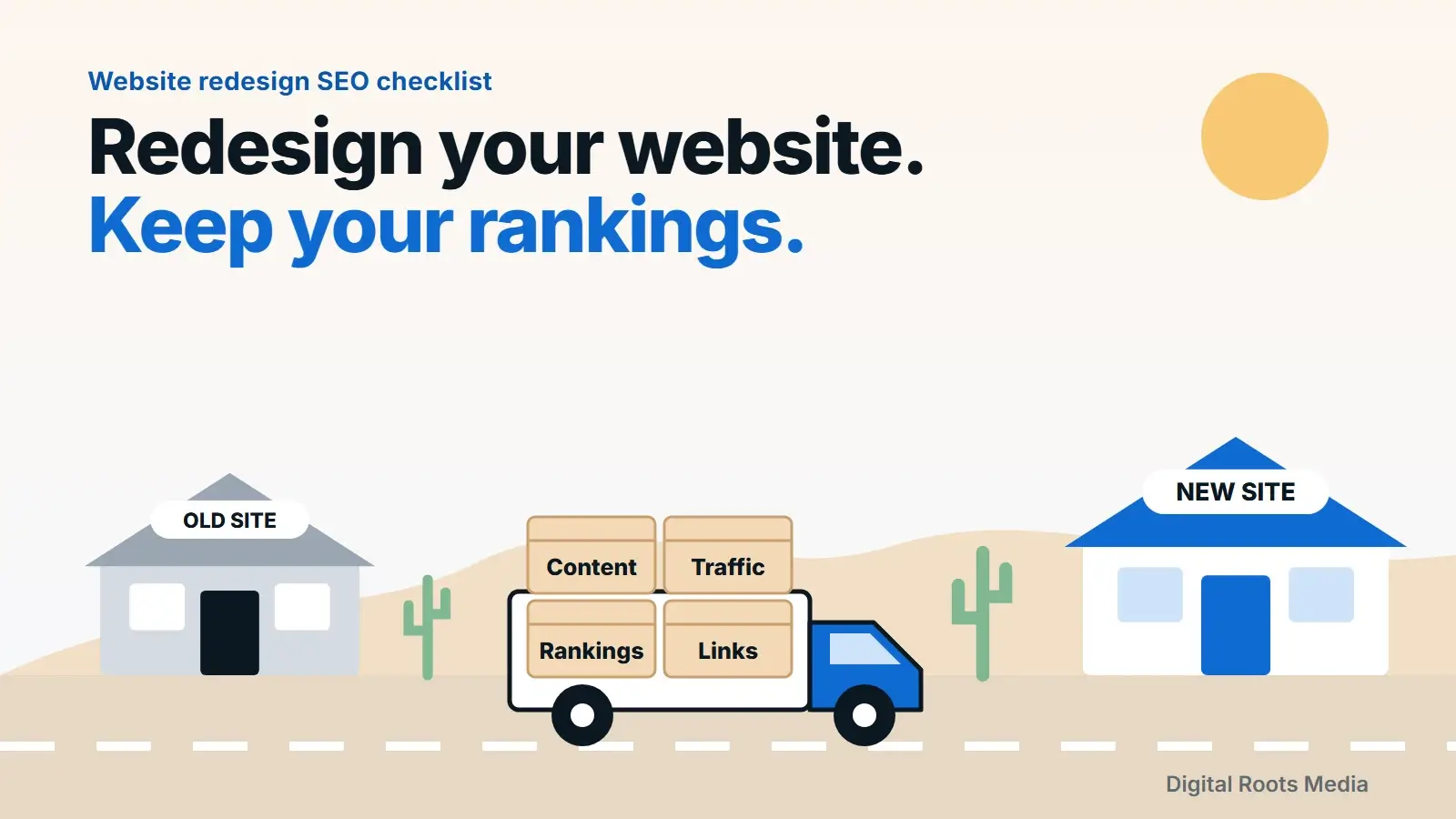
Yes, you can redesign a website without losing SEO. The rule is simple: change how the site looks, but protect what Google already trusts. Keep every URL that earns traffic, or send it to its new home with a 301 redirect. Keep the content, titles and internal links that rank. Then launch with a tested checklist and watch Google Search Console for the first few weeks.
Most traffic drops after a redesign are not caused by the new design. They come from pages that moved without a redirect, content that was cut, or a staging setting left switched on. This guide is the website redesign SEO checklist we use, built on Google’s own site move documentation, in the order you should do it.
- Change the look freely. Protect URLs, content, titles and internal links.
- Map every old URL to its new home and use permanent 301 redirects, one hop each.
- Never send every old page to the home page. Google may treat that as a soft 404.
- Expect a small, temporary dip. Google says a few weeks or more for medium sites.
- Keep redirects in place for at least a year.
Why redesigns lose rankings
Google ranks pages, not designs. When a redesign goes wrong, it is usually because the pages Google knew about stopped existing in the form it trusted. These are the usual causes:
- URLs changed with no redirects. Every old link, bookmark and search result now leads to a 404.
- Content was cut. Long pages that answered real questions were replaced with short, pretty sections.
- On-page signals changed. Titles, H1s and meta descriptions were rewritten without keeping the terms that ranked.
- Internal links broke. The new menu dropped pages, so Google finds them less often.
- Staging settings went live. A robots.txt block or a noindex tag from development was never removed.
- The new site is slower. Heavier pages hurt Core Web Vitals and the experience on phones.

What you can change freely, and what to protect
Think of the redesign as repainting a house. The paint, the windows and the furniture can all change. The foundation stays. For SEO, the foundation is four things.
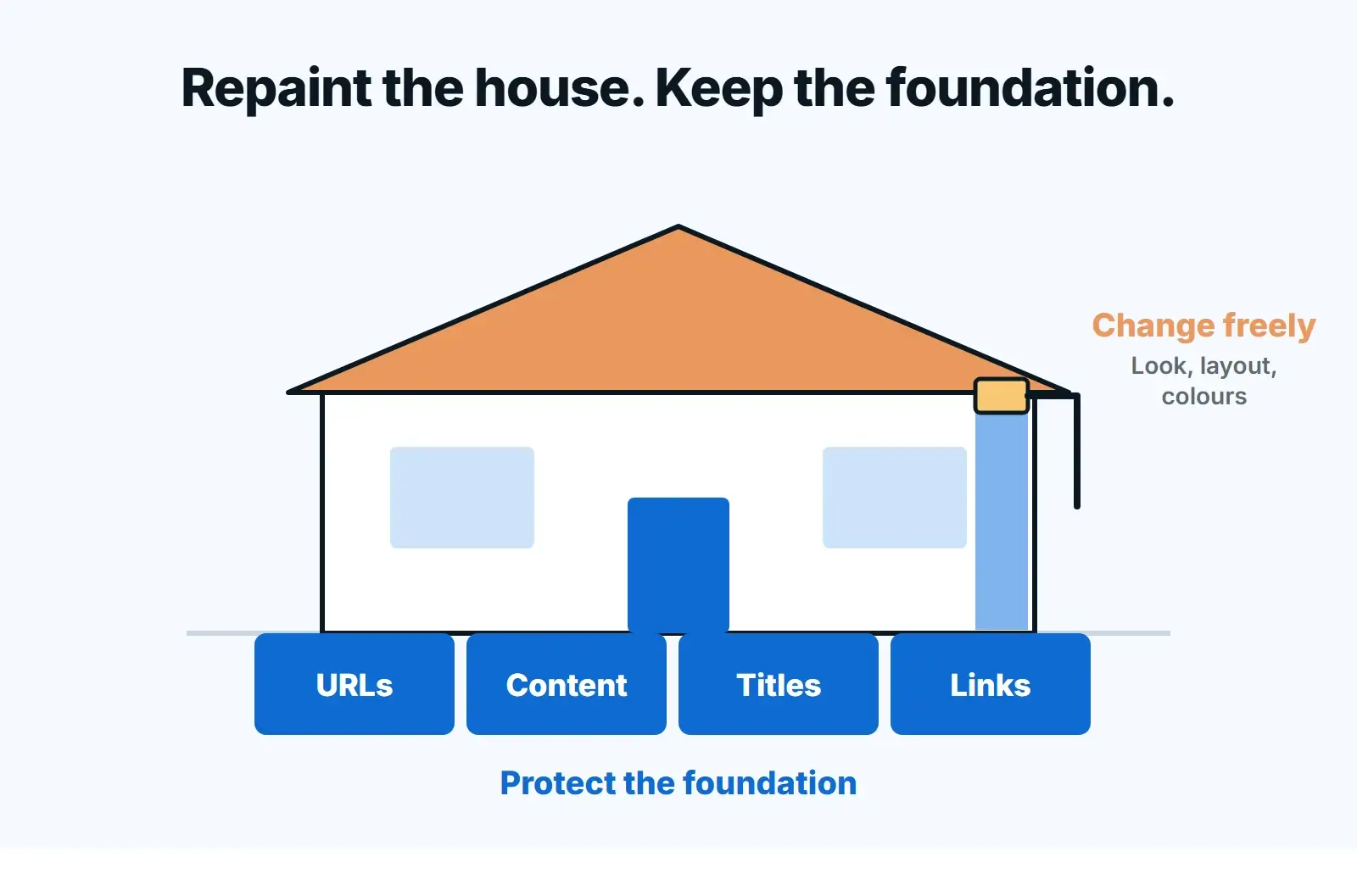
| Change freely | Protect (or redirect) |
|---|---|
| Colours, fonts, layout and imagery | URLs of pages that get traffic or links |
| Navigation design | The pages the navigation links to |
| Page sections and visual order | The copy that answers search questions |
| Calls to action and forms | Title tags, H1s and meta descriptions that rank |
| CMS or theme | Structured data, canonical tags and hreflang |
Step 1: Benchmark before you touch anything
You cannot protect what you have not measured. Before design work starts, save a snapshot of how the current site performs. It takes an afternoon and it is your only proof of what to keep.
- Search Console: export the last 12 months of pages and queries from the Performance report. These are the pages you must not lose.
- Analytics: export landing pages by organic sessions and conversions.
- A full crawl: run a crawler such as Screaming Frog to list every URL, title, H1, meta description, canonical and status code.
- Backlinks: list the pages other sites link to. They need a redirect even if they get little traffic.
- Speed: record Core Web Vitals for your top templates so you can compare after launch.
If you are not sure which pages matter, an SEO audit before the redesign is cheaper than recovering lost rankings after it. Our technical SEO audit guide shows what to look for.
Step 2: Build a URL map
Google’s first instruction for any site move is to prepare a URL mapping from the current URLs to their new format. It is a spreadsheet with two columns: old URL and new URL. Every page from your crawl, Search Console export and backlink list gets a row.
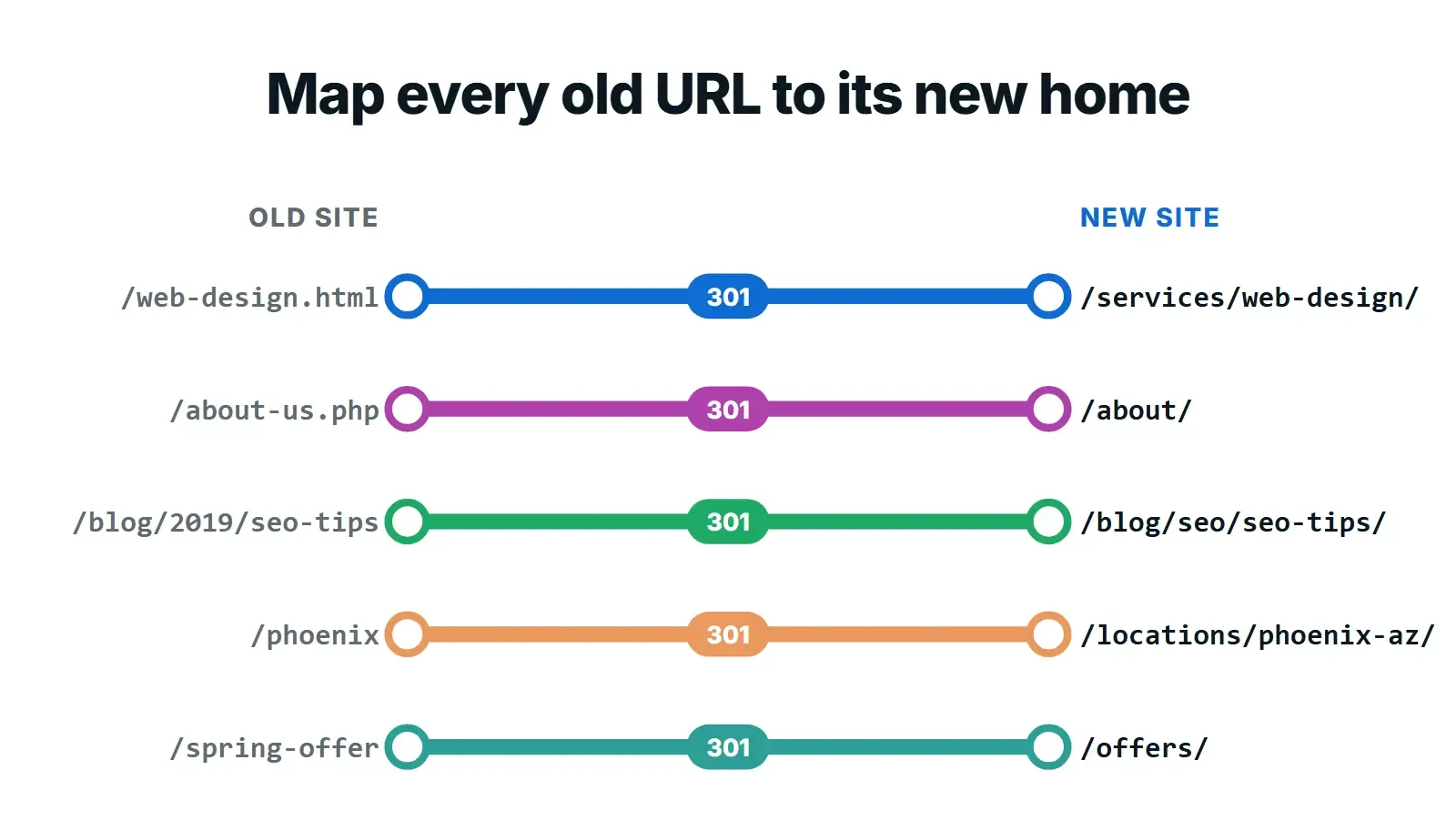
Three rules keep the map clean:
- Keep URLs when you can. The safest redirect is the one you never need. If a page keeps its purpose, keep its address.
- Redirect to the closest match. An old service page goes to the new service page, not to the home page.
- Merged pages go to the merged page. If three thin pages become one strong guide, all three redirect to that guide.
Google is explicit about the home page shortcut: don’t redirect many old URLs to one irrelevant destination such as the home page, because it can confuse users and might be treated as a soft 404. If a page truly has no replacement, let it return a 404 or 410 instead.
Step 3: Choose the right redirect
Google sorts redirects into permanent and temporary. A permanent redirect (301 or 308) tells Google to show the new URL in search. A temporary one (302, 303 or 307) tells Google to keep showing the old URL. For a redesign, almost every redirect should be a permanent, server-side 301.

Avoid redirect chains. Google’s crawlers follow up to 10 redirect hops, but every hop slows visitors down and adds a point of failure. If an old page already redirected once in a previous redesign, update that old rule so it points straight to the newest URL.

Step 4: Keep the content and on-page signals that rank
A redesign is a good moment to improve content, but improve it on purpose. For every page in your Search Console export, compare the old and new versions before launch.
- Keep the main topic, the headings that match search queries and the answers people came for.
- Keep or improve title tags and meta descriptions. Our on-page SEO checklist covers what good looks like.
- Carry over structured data. If your old pages had schema markup, the new templates need it too.
- Keep image alt text and file names on images that rank in image search.
- Rebuild internal links so important pages are still linked from the menu and from related pages.
Step 5: Build on a staging site, safely
Build and test the new site on a staging copy that search engines cannot index. Password protection is the safest option. If you block crawling with robots.txt or noindex during development, Google’s advice is to plan exactly what changes at launch, so those settings do not go live by mistake.
Before launch, crawl the staging site and compare it to your URL map. Every old URL should return one 301 to the right page, and every new page should return a 200 with the correct title, canonical and content.
Step 6: Launch day
Launch on a quiet day for your business, early in the week, when your developer is available for the next few days. Then run through the checks below in order.

- Redirects are live: test your top 50 URLs and a sample of the rest.
- robots.txt allows crawling and the staging noindex tags are gone.
- The new XML sitemap is live and submitted in Search Console.
- Canonical tags point to the new URLs, not to staging.
- Every form sends, and the emails arrive.
- Analytics and conversion tracking fire on the new pages.
- Internal links point straight to new URLs, not through redirects.
Only use the Change of Address tool in Search Console if you are moving to a new domain or subdomain. Google says you don’t need it for an HTTP to HTTPS move, a www change or moving pages within the same domain, which covers most redesigns.
After launch: the first few weeks
Google says to expect temporary fluctuation in rankings after any significant change, and that a medium-sized site can take a few weeks or more before the new URLs fully replace the old ones. A small, temporary dip is normal. A drop that keeps falling after a week usually means something is broken.
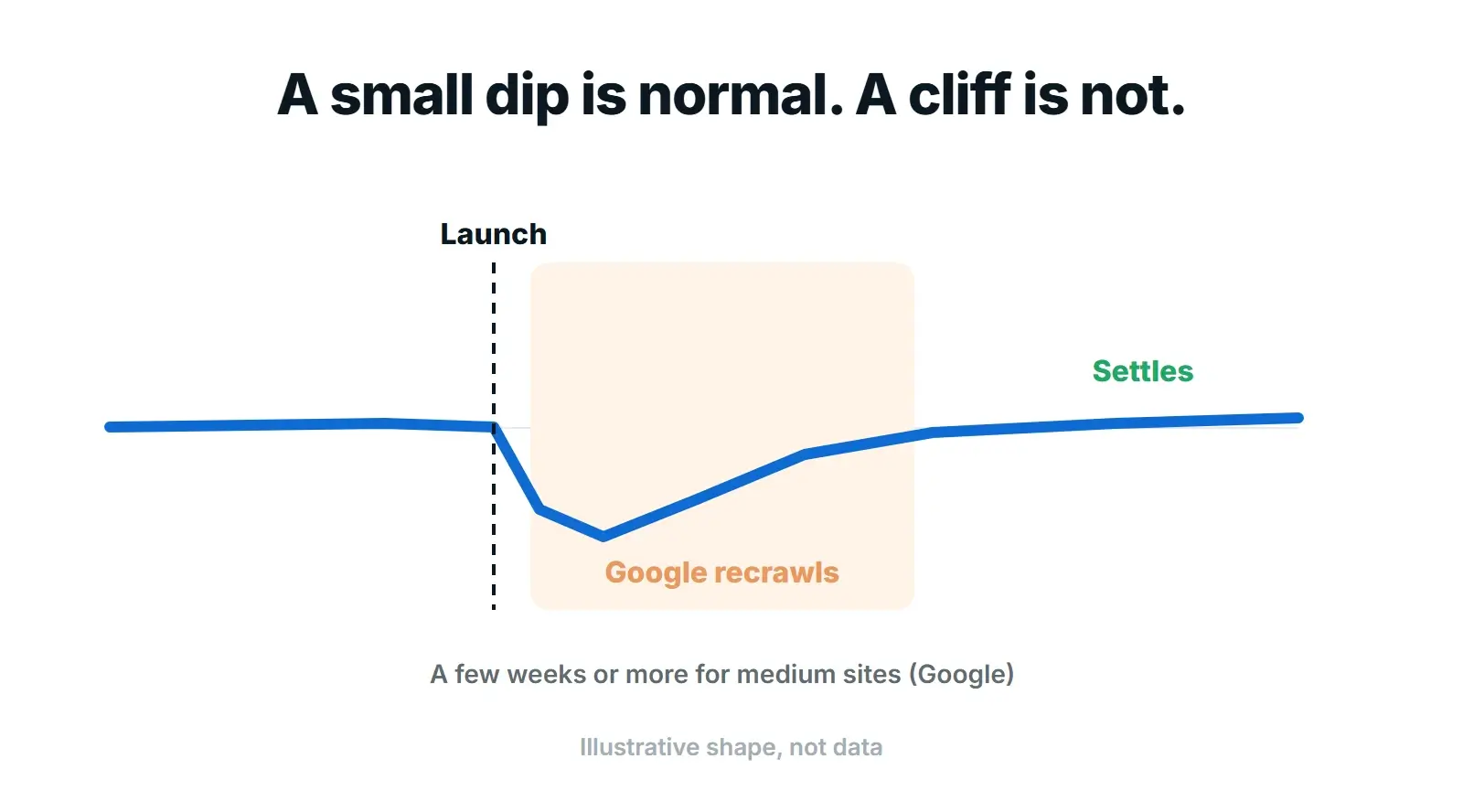
- Check the Page indexing report in Search Console for new 404s, redirect errors and pages excluded by noindex.
- Compare top pages: check the clicks of your top 20 old pages against their new URLs, week by week.
- Fix 404s fast: any old URL that gets traffic and now returns a 404 needs a redirect.
- Update links you control: Google Business Profile, social profiles, email signatures and ads.
- Keep the redirects: Google recommends keeping them for at least one year, and longer is fine.
Redesigning soon?
Our website redesign service maps every URL and redirects it, so rankings carry over, then watches Search Console through launch. The scope is agreed as one fixed price before work begins.
Frequently asked questions
Will a website redesign hurt my SEO?
It does not have to. Redesigns lose rankings when URLs change without redirects, content is cut or staging settings go live. If you keep or redirect every important URL, keep the content and on-page signals that rank and test before launch, most sites see only a small, temporary dip while Google recrawls.
How long does it take to recover after a redesign?
Google says a medium-sized site can take a few weeks or more before the new URLs fully replace the old ones, and larger sites take longer. If traffic is still falling after the first week, look for missing redirects, noindex tags or blocked pages rather than waiting.
Should I keep the same URLs when I redesign?
Yes, whenever the page keeps the same purpose. Keeping a URL is safer than redirecting it. Change URLs only when the structure genuinely improves, and then map every old URL to its closest new page with a permanent 301 redirect.
How long should I keep 301 redirects?
Google recommends keeping redirects for as long as possible, generally at least one year, so it can transfer signals and recrawl links from other sites. From a visitor’s point of view, keeping them indefinitely is better, because old links and bookmarks keep working.
Do I need the Change of Address tool for a redesign?
Only if you move to a new domain or subdomain. Google says the tool is not needed for HTTP to HTTPS moves, www changes or moving pages within the same domain, which covers most redesigns.
Final thoughts
A redesign should make your site faster, clearer and better at turning visitors into enquiries, not cost you the search traffic you have already earned. Benchmark first, map every URL, redirect with 301s, keep what ranks and launch with a checklist. If you are still deciding whether it is time, start with the signs your website needs a redesign, and see what a small business website costs before you budget. When you are ready, our website redesign service handles the whole move, with technical SEO built in and maintenance and support after launch.