This WordPress speed optimization checklist gives you 30 checks in six phases: measure, server, caching, images, CSS, JavaScript and fonts, then plugins and the database. Each check has a pass mark, so you know when to move on. Work through them in order, change one thing at a time and retest. You can try the first three phases without a developer; the last part of this guide explains the signs that a problem needs professional help, so you only pay for what you cannot fix yourself.
The pass marks come from Google’s own Core Web Vitals thresholds and WordPress’s own documentation, not from a plugin vendor. Print this page or keep it open next to your dashboard while you work.
- Measure before and after every change, on mobile, with PageSpeed Insights.
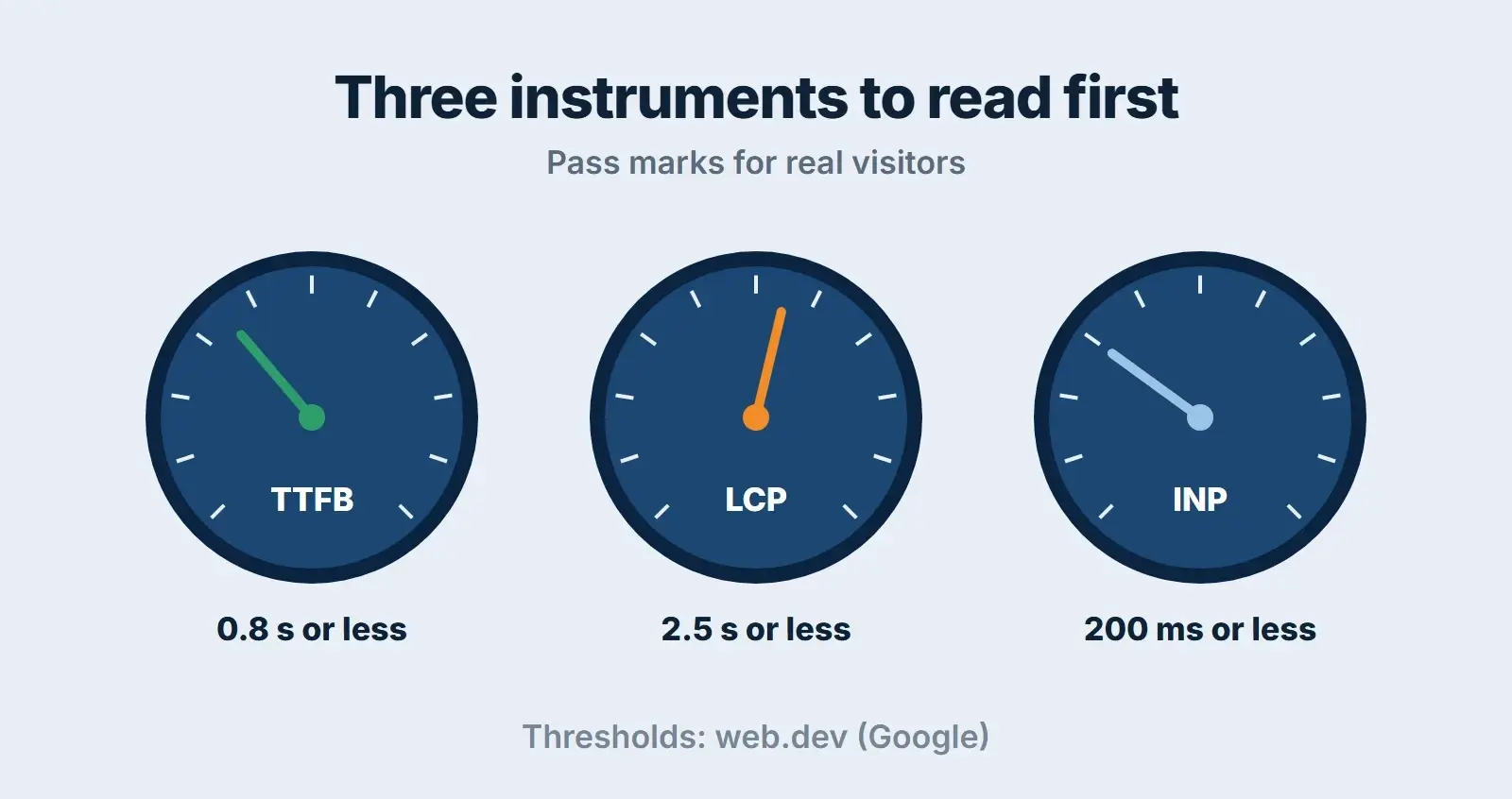
- The three pass marks: server response 0.8 seconds or less, LCP 2.5 seconds or less, INP 200 ms or less.
- Server and caching checks come first, because everything else waits on the server’s first response.
- Back up and use a staging copy for anything beyond a settings change.
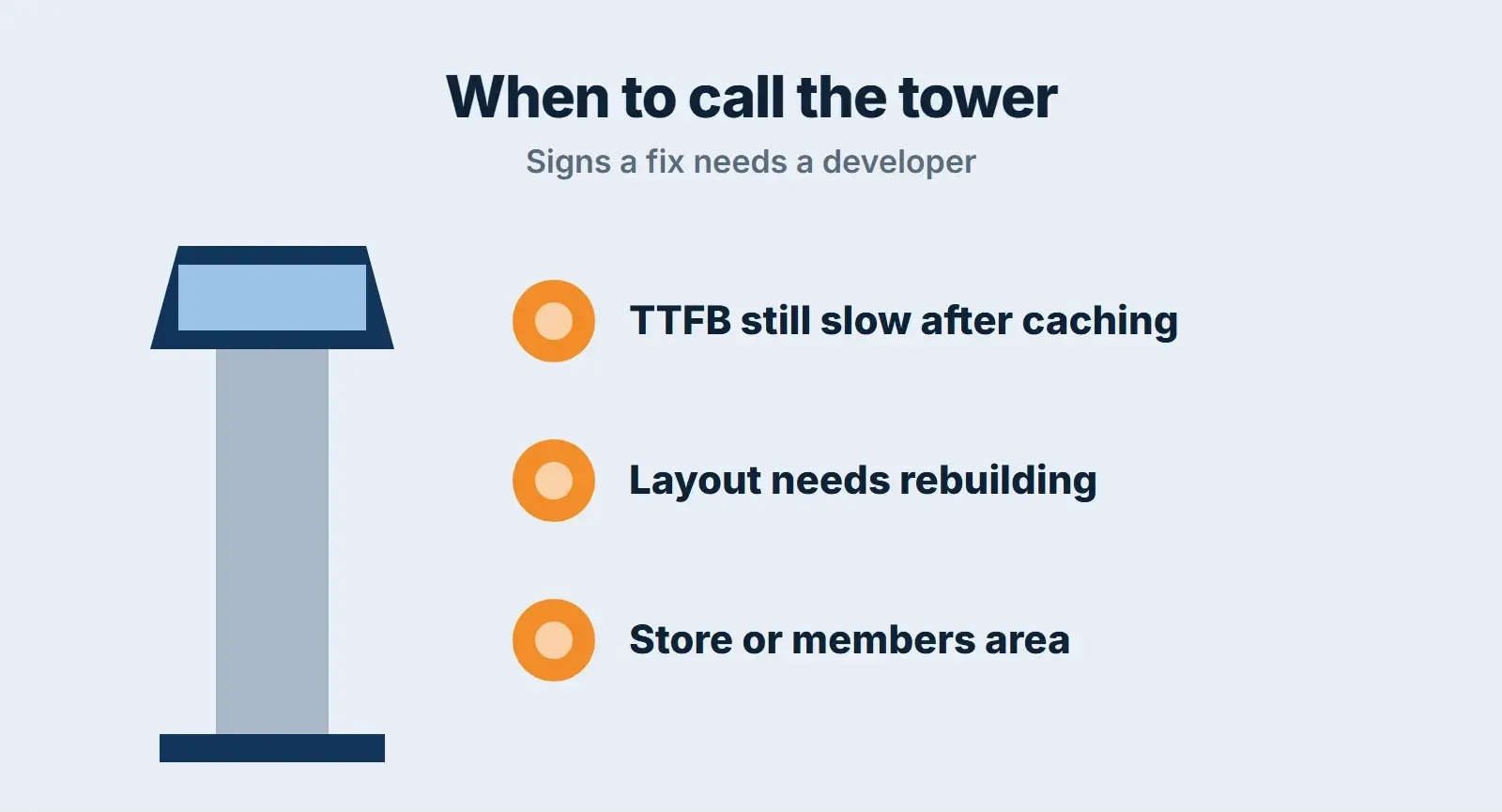
- If the server is still slow after caching, or the fix needs a rebuild, that is the point to get help.
How to use this checklist
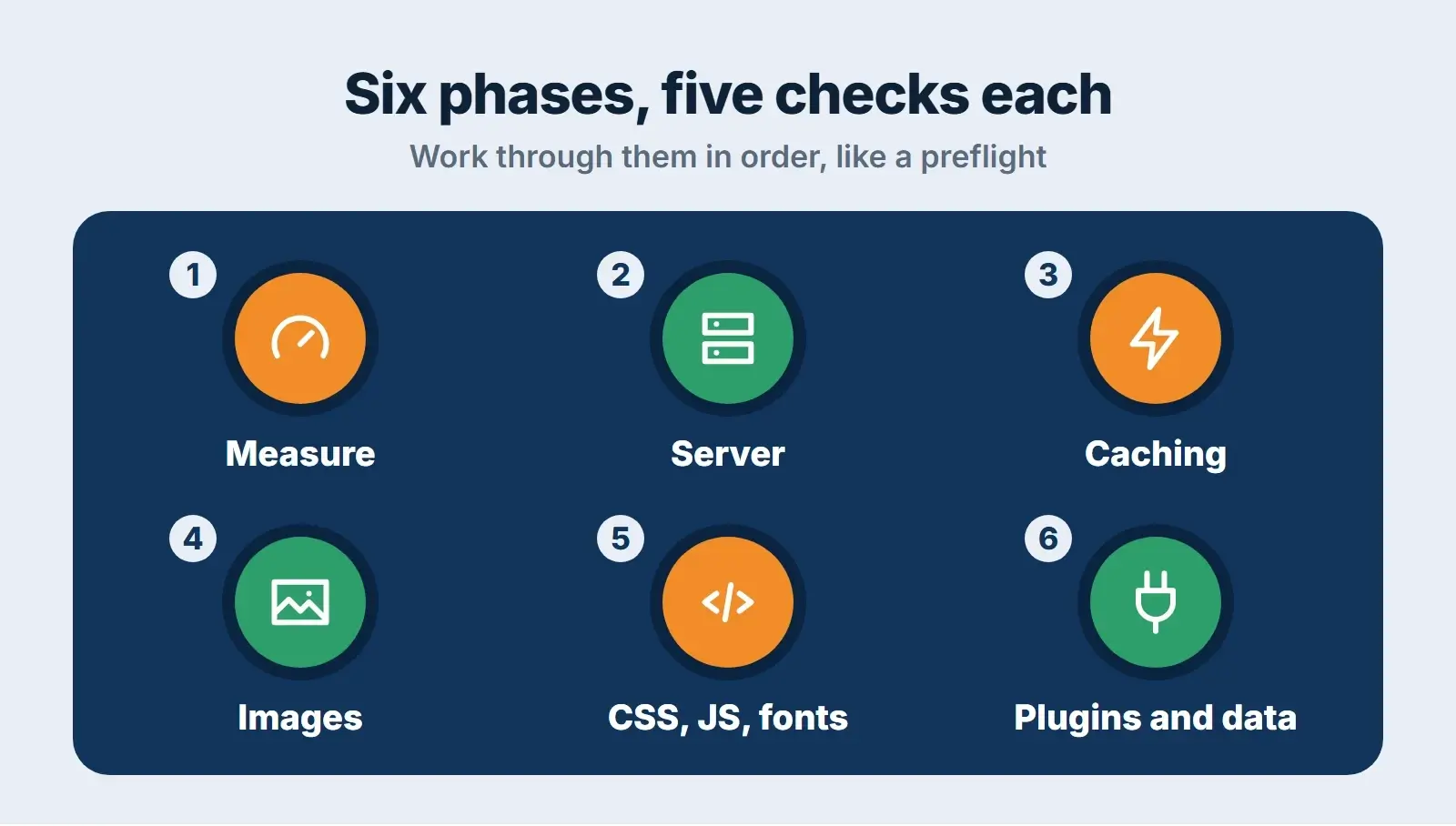
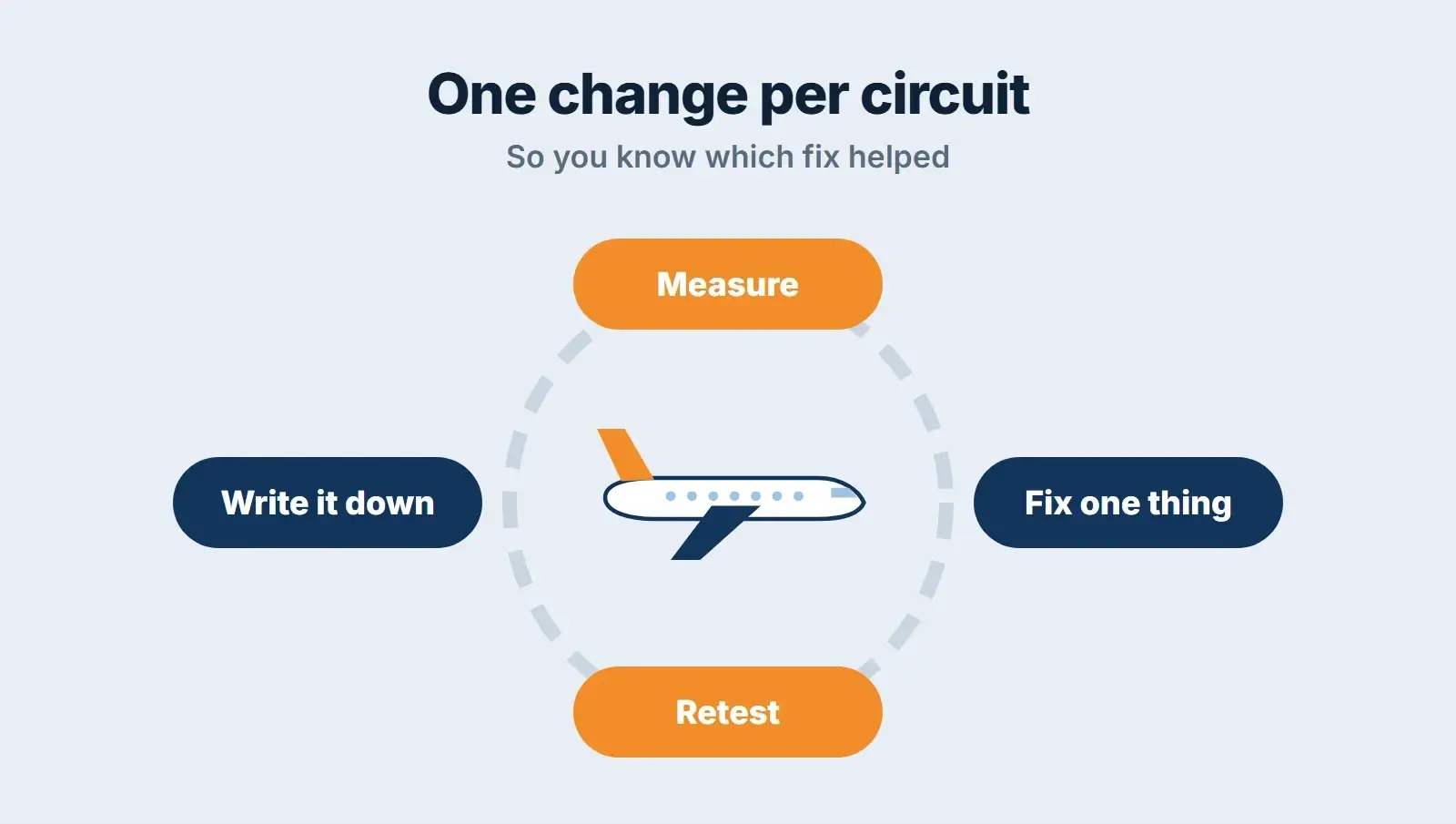
Run the phases in order. In our view, there is little point shrinking images while the server takes three seconds to answer. After each check, retest the same pages and write down the result. That log is what tells you which fixes worked, and it is what a developer will ask for if you do end up hiring one.
Phase 1: measure (checks 1 to 5)
- Test your homepage and two key pages in PageSpeed Insights on mobile.
- Write down the field data (real visitors over the last 28 days) and the lab score for each page.
- Note Time to First Byte. Google calls 0.8 seconds or less good.
- Note LCP, INP and CLS against the Core Web Vitals thresholds: 2.5 seconds, 200 milliseconds and 0.1.
- Test logged out, in a private window, so you see what visitors see.
If field data says the site passes but the lab score is low, your real visitors are doing better than the test device. If field data is missing, PageSpeed Insights has too few real Chrome visits to report, and the lab test is your guide.
Phase 2: server (checks 6 to 10)
- Run PHP 8.3 or newer, as WordPress recommends. Check under Tools, Site Health, Info, Server, and test the upgrade on staging.
- Check the WordPress memory limit in Site Health. WordPress itself only asks for 40 MB on a single site; Elementor, for example, asks for at least 256 MB.
- Make sure your server is in or near the country where most of your customers are.
- Check your hosting plan’s resource usage for limits being hit at busy times.
- Confirm HTTPS works with no redirect chains (http to https to www and back).
Our guide on why a WordPress site is slow explains each server cause in more depth, including when moving host is the right call.
Phase 3: caching (checks 11 to 15)
- Turn on exactly one page cache: your host’s or one plugin, never two.
- Exclude cart, checkout, account and other personalised pages from the page cache.
- Turn on cache preloading so the first visitor after a change does not get a slow page.
- Ask your host about a persistent object cache, which cuts trips to the database.
- Use a CDN if your visitors are far from your server.
Not sure which caching plugin fits your host? Our LiteSpeed Cache vs WP Rocket comparison explains why the web server is the first question. One more note from WordPress’s wp-config documentation: the WP_CACHE line does nothing on its own without the advanced-cache.php file a caching plugin installs, so do not add it by hand and expect a change.
Phase 4: images (checks 16 to 20)
- Find the LCP element in PageSpeed Insights. It may be the hero image.
- Make sure the hero is never lazy loaded. Google’s advice: never lazy-load your LCP image.
- Use a normal image for the hero, not a CSS background or slider, so the browser finds it early.
- As a rule of thumb, resize images to about twice their display width before upload and serve WebP or AVIF.
- Lazy load images further down the page, and set width and height so the layout does not jump.
LCP has several moving parts. Our guide to fixing WordPress LCP breaks it into four parts and shows which WordPress setting controls each.
Phase 5: CSS, JavaScript and fonts (checks 21 to 25)
- Remove CSS and JavaScript that pages do not use, or let your caching plugin remove unused CSS.
- Defer or delay non-critical JavaScript, then check menus, forms and sliders on a phone.
- Use one or two font families and only the weights you need, self-hosted as WOFF2.
- Set font-display to swap or optional so text appears straight away.
- List every third-party script (chat, pixels, maps, video) and load the ones you keep on click or later.
If taps feel slow, read our Interaction to Next Paint guide. Built with Elementor? Our guide to a slow Elementor site lists the builder’s own performance settings, and Google’s DOM size guide explains why Lighthouse flags pages over 1,400 nodes.
Phase 6: plugins and database (checks 26 to 30)
- Install Query Monitor on staging and find the slowest queries and the plugins behind them.
- Delete plugins and themes you no longer use, not just deactivate them.
- Check Site Health for autoloaded options. From WordPress 6.6 it warns above 800 KB.
- Limit post revisions with WP_POST_REVISIONS in wp-config.php and clear old spam and transients, after a backup.
- Move WP-Cron to a real server cron on busy sites, with DISABLE_WP_CRON set to true.
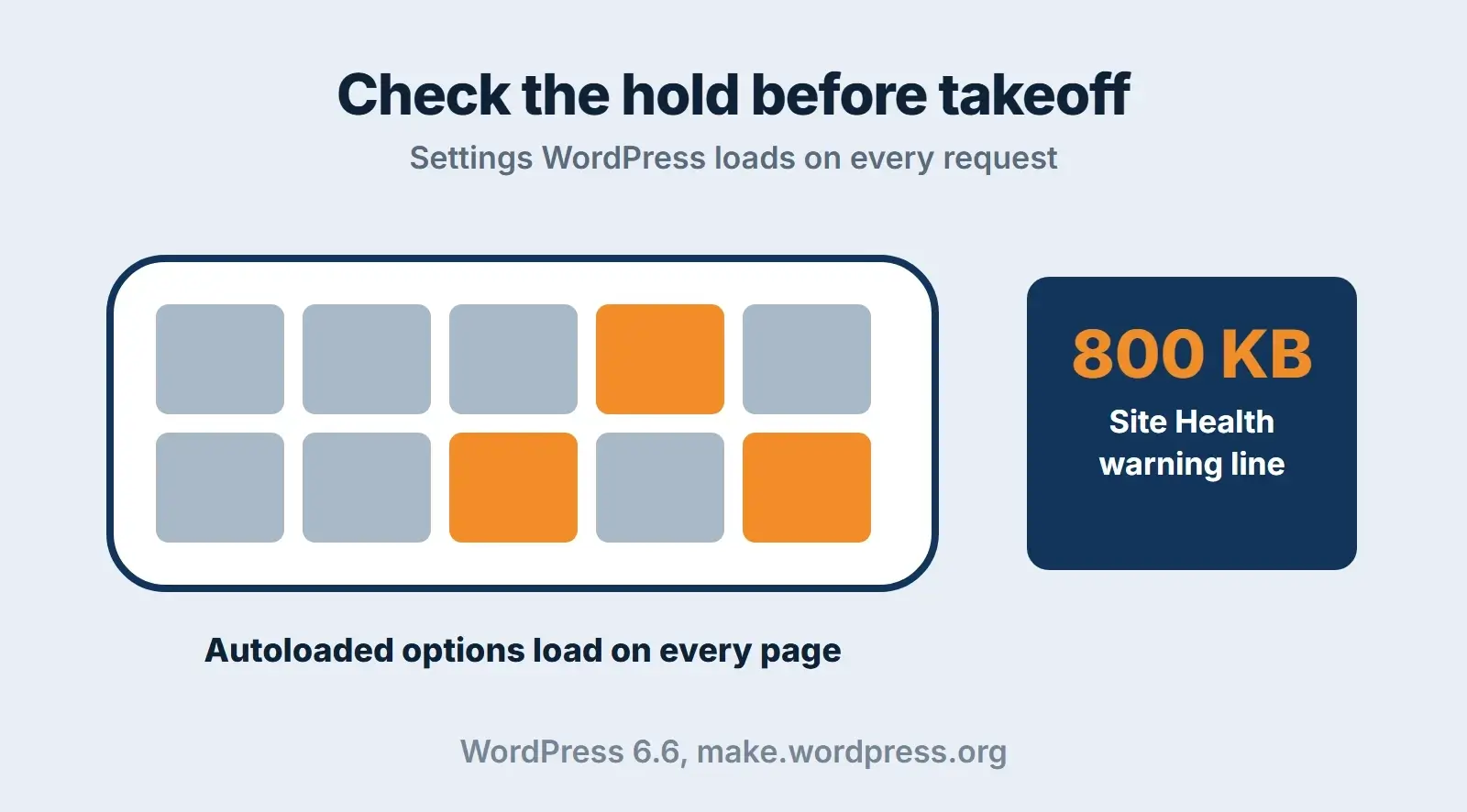
Autoloaded options are settings WordPress loads on every single request, whether the page needs them or not. A plugin you deleted may have left some behind. Check them in Site Health before blaming your host.
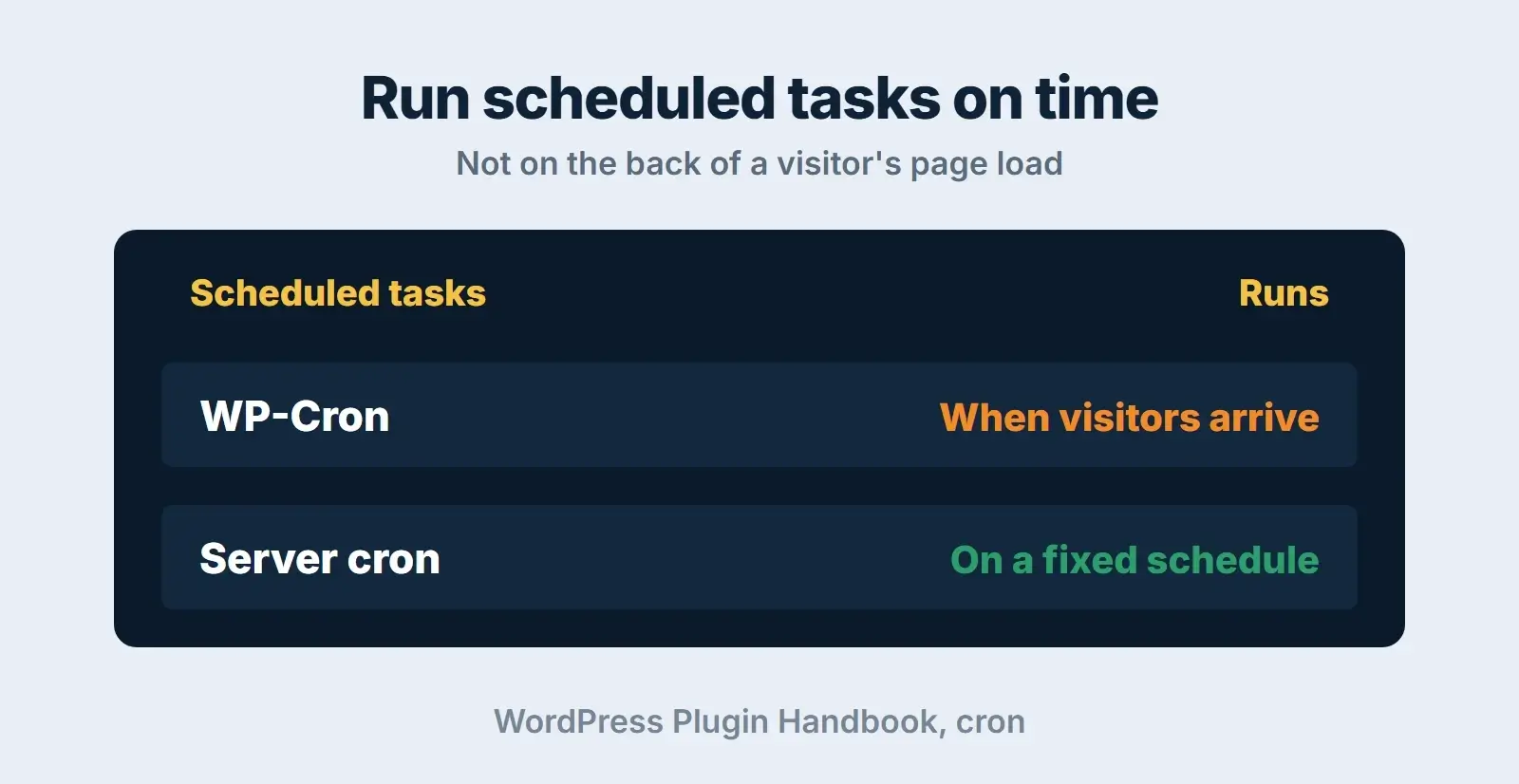
WordPress’s own handbook explains that WP-Cron checks for due tasks on page loads, so busy sites do the check constantly and quiet sites run tasks late. A server cron fixes both. Ask your host how to set one up.
What passing looks like: our own numbers
We rebuilt our own service pages on a lighter layout in 2026. In our November 2026 audit, mobile PageSpeed Insights scores had moved from 59 to 60 up to 88 to 89, with LCP at about 2.6 seconds. One older page still on the previous layout scored 55 with an LCP of 13.4 seconds. Those are our pages, not a promise for yours, but they show the size of change a lighter page build can make.

When to hire help
You can do a lot of this checklist yourself. Some problems, though, cost more in time and risk than paying someone. These are the signs:
| What you see | Why it needs help | Who we would call |
|---|---|---|
| TTFB over 0.8 s even with a page cache | Slow code, database or hosting limits | Developer or a better host |
| Passing lab scores but failing field data | Real visitors hit pages or devices the test misses | Speed specialist |
| DOM size warnings across the site | The theme or layout needs rebuilding | WordPress developer |
| Store, booking or members area is slow | Cart and account pages stay out of the page cache | Developer plus object cache |
| Settings break menus, forms or checkout | Scripts need careful exclusions | Speed specialist |
When you do hire, share your phase 1 baseline and your change log. A good specialist will measure the same pages, explain what they will change and show you before and after numbers. Be wary of anyone who promises a perfect score or a ranking jump: Google says there is no single signal, and that a perfect score just for SEO may not be the best use of your time.
Done the checklist and still slow?
We take your baseline, find the bottleneck that settings cannot fix and fix it properly: hosting, caching, images, scripts, plugins or the page build itself.
Speed also slips over time as plugins update and new content goes up. Our maintenance plans, from $199 a month, include ongoing care, and our WordPress maintenance checklist shows what to keep checking.
Frequently asked questions
How do I optimize WordPress website speed step by step?
Measure first in PageSpeed Insights on mobile. Then fix the server (PHP version, memory, hosting), turn on one page cache, fix the hero image and image sizes, trim CSS, JavaScript and fonts, and finally audit plugins and the database. Change one thing at a time and retest, so you know which fix made the difference.
Which checks make the biggest difference to WordPress speed?
Our short list is three: a working page cache, a hero image that is properly sized and never lazy loaded, and fewer third-party scripts. Better hosting can matter more when Time to First Byte is slow. We would leave plugin and database clean-ups until later, unless one plugin clearly stands out in Query Monitor. Your own before and after numbers will show which fix helped.
How often should I run a WordPress speed checklist?
Run the full checklist once, then repeat the measuring phase every month and after any big change: a new plugin, a theme update, a redesign or a new tracking script. Field data covers 28 days, so a monthly check catches slow drift before it shows up as a failing Core Web Vitals report.
Can I speed up WordPress without plugins?
Partly. Hosting, PHP version, image sizes before upload, fewer fonts, fewer third-party scripts and deleting unused plugins need no extra plugin at all. Page caching needs either your host’s built-in cache or one caching plugin. Some hosts include page caching, so check before installing one.
Is a 100 PageSpeed score necessary?
No. What matters is passing Core Web Vitals for real visitors: LCP within 2.5 seconds, INP of 200 milliseconds or less and CLS of 0.1 or less. Chasing the last few lab points can mean removing useful features. We would call a site that passes its field data with a score in the high 80s in good shape.
Final thoughts
A WordPress speed optimization checklist works the way a preflight does: the same checks, in the same order, every time, with a clear pass mark for each. Do the first phases yourself and keep a log. If the server is still slow after caching or the fix needs a rebuild, our WordPress speed optimization service picks up where you left off, our maintenance plans keep the site fast, and our website as a service plan covers hosting, caching and care in one monthly fee.