To fix WordPress LCP (Largest Contentful Paint), find out which part of the wait is slow, then fix that part. When the LCP element is a hero image, it is late for one of four reasons: the server is slow to send the page, the browser finds the image late (it sits in CSS, a slider or a lazy loading script), the image file is too heavy, or stylesheets, fonts and scripts hold up drawing. Fix the server with caching, put the hero in a normal image tag that is never lazy loaded, resize and compress it, and cut render-blocking files. Google’s target is 2.5 seconds or less.
This guide walks through each cause in the order to check it, with the WordPress settings, plugins and theme habits that cause it and the fix for each. It pairs with our guide to Interaction to Next Paint, the responsiveness side of the same Core Web Vitals report.
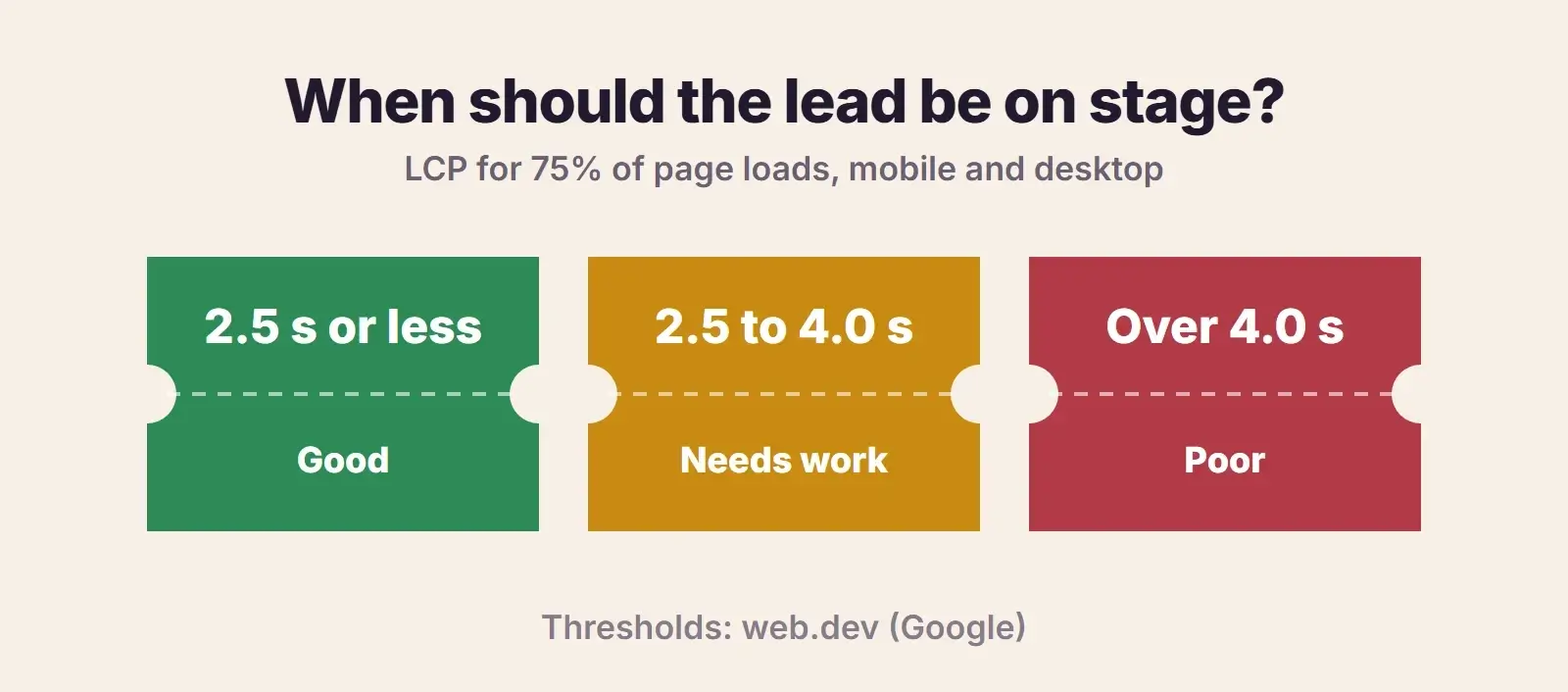
- LCP is good at 2.5 seconds or less for 75 percent of page loads, and poor above 4.0 seconds.
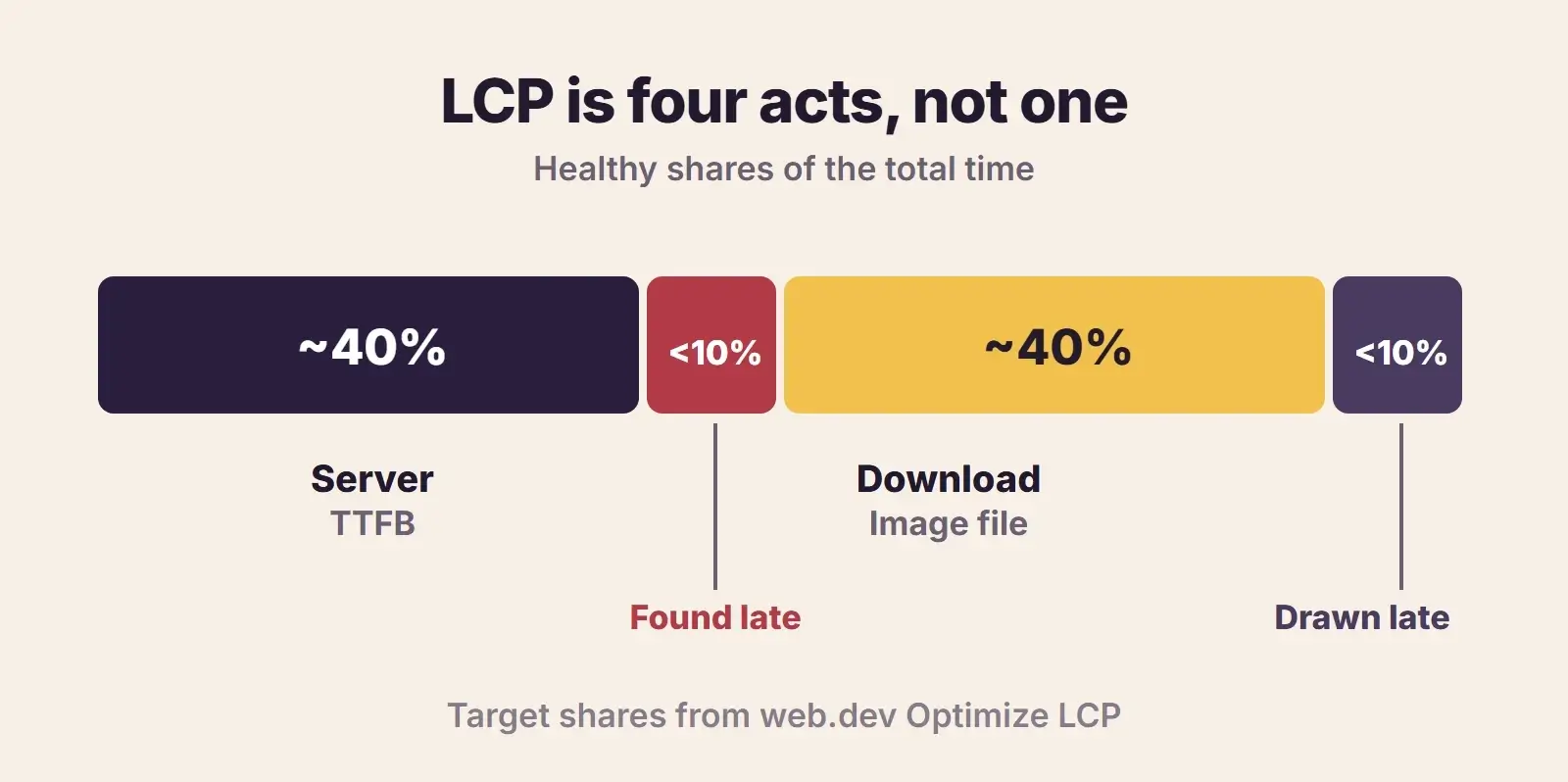
- LCP splits into four parts: server time, discovery delay, download time and render delay.
- The hero image must be in the HTML, never lazy loaded, and ideally marked fetchpriority=”high”.
- Page caching is the first fix to try for the server part, which should be about 40 percent of the total.
- Render-blocking CSS, fonts and scripts are the last mile: they can hold back an image that has already arrived.
What LCP measures and what good looks like
Largest Contentful Paint is the time from the start of the page load until the largest image or text block in the visible area is drawn. Google’s LCP guide sets the bar: 2.5 seconds or less is good, 2.5 to 4.0 seconds needs improvement, and anything over 4.0 seconds is poor, measured at the 75th percentile of real page loads, with mobile and desktop counted separately.
LCP is one of the three Core Web Vitals, alongside responsiveness and layout stability. Our post on Core Web Vitals explains how Google uses them in Search.
What can be the LCP element
Only a few kinds of element count: images, images inside an SVG, video poster images or first frames, elements with a background image loaded through CSS url(), and block-level text such as a big heading or paragraph. On a WordPress homepage that could be the hero image, a background image on the first section, or the main headline when there is no image.

Step 1: find your LCP element and its slow part
Run the page in PageSpeed Insights on mobile. Look in the diagnostics for the LCP element and any breakdown of its time into phases. Google’s Optimize LCP guide uses four parts, with healthy shares for each:
| LCP part | What it is | Healthy share | Where to look on WordPress |
|---|---|---|---|
| Time to First Byte | Server builds and sends the HTML | About 40% | No page cache, slow host, old PHP, heavy plugins |
| Resource load delay | Time before the browser starts fetching the image | Under 10% | Hero in CSS background, slider script, lazy loading |
| Resource load duration | Downloading the image file | About 40% | Oversized image, no WebP, no srcset size that fits |
| Element render delay | Image arrived but is not drawn yet | Under 10% | Render-blocking CSS, fonts, scripts, hidden by JavaScript |
Fix the part that is furthest above its healthy share. If the server part alone is 2 seconds, work on the image alone leaves little room to get under 2.5 seconds.
Step 2: fix the server part with caching
Time to First Byte is the first act, and every other part waits for it. On WordPress, the first fix to try is a page cache, so the server hands over a ready-made page instead of running PHP and database queries for every visitor. Use your host’s cache or one caching plugin, never two. If you are choosing a plugin, our LiteSpeed Cache vs WP Rocket comparison explains which suits which server.
If Time to First Byte is still slow with a page cache in place, look at the host, the PHP version and heavy plugins, which our guide on why a WordPress site is slow covers in detail.
Step 3: make the hero image discoverable early
The browser reads the HTML from top to bottom. If the hero image is a normal image tag near the top, the browser starts fetching it almost at once. If it only appears in a stylesheet, a slider’s JavaScript or a page builder’s background setting, the browser has to download and read those files first. That gap is the resource load delay, and it should be under 10 percent of LCP.
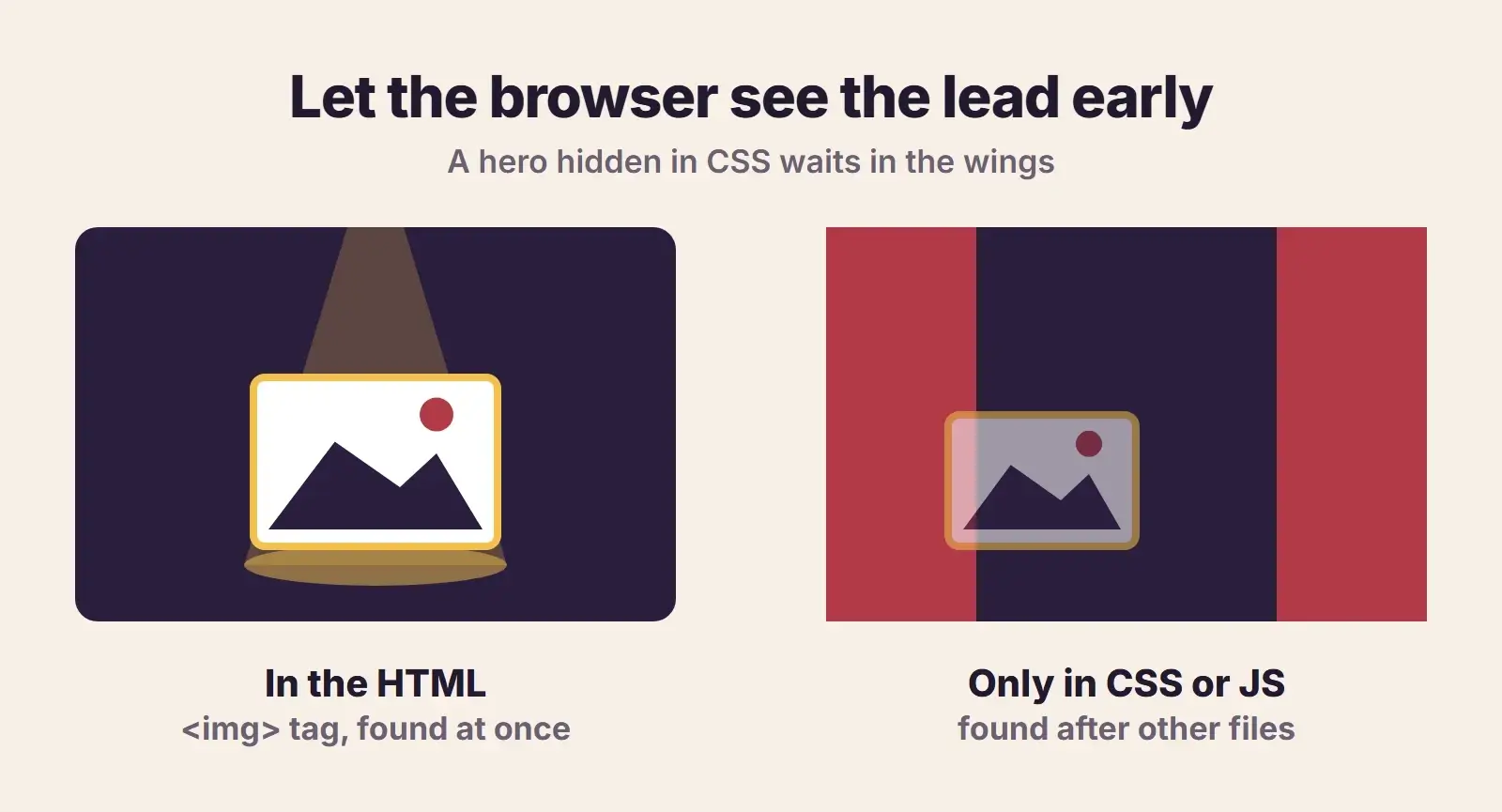
Google’s guide is direct: the LCP resource needs to be “discoverable in the initial HTML document response”. On WordPress that means:
- Use an image widget or block for the hero, not a section background image, where the design allows it.
- If the hero has to be a background image, preload it with a high fetch priority. Check whether your theme or performance plugin has a setting for this.
- Remove sliders and carousels from the top of the page. The first slide can wait for the slider script.
- Avoid hero images inserted by A/B testing or personalisation scripts, which hide the element until the script runs.
Step 4: never lazy load the LCP image
Lazy loading tells the browser to wait until an image is about to scroll into view. That is right for images further down the page and wrong for the hero. Google puts it plainly: “Never lazy-load your LCP image.”
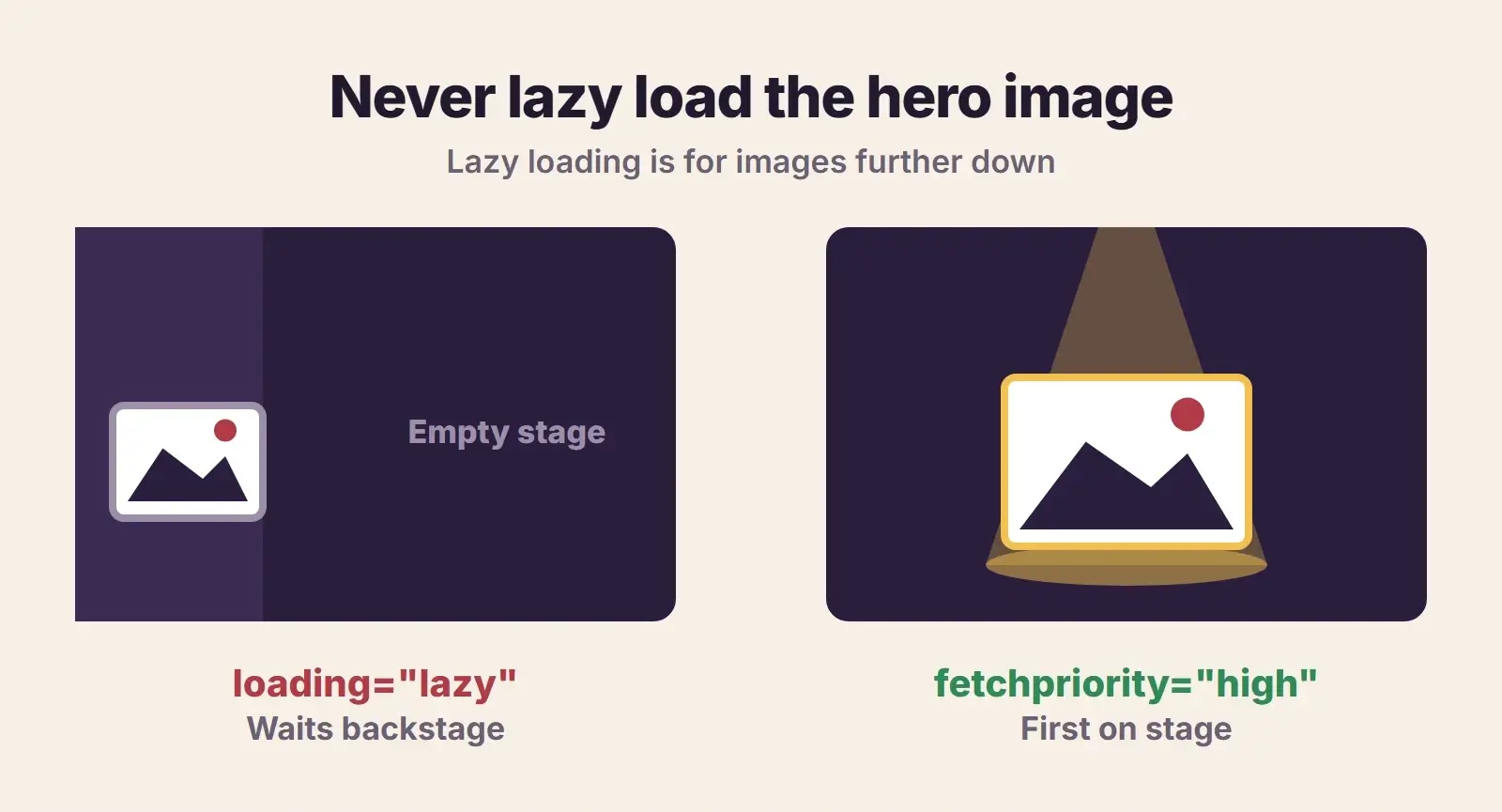
WordPress core has helped here since WordPress 6.3: it adds fetchpriority=”high” to the image it judges most likely to be the LCP image and stops lazy loading the first images on the page. Themes, page builders and plugins can still undo this. Check the hero image tag in your page source (right-click, View page source, search for the image file name):
| You see on the hero | What it means | Fix |
|---|---|---|
| loading=”lazy” | The hero waits for lazy loading | Exclude it from lazy loading in your theme, builder or caching plugin |
| fetchpriority=”high” | The browser fetches it first | Keep it; make sure only one image has it |
| data-src instead of src | A script swaps the image in later | Exclude the hero from the lazy loading script |
| No img tag at all | It is a CSS background | Switch to an image, or preload it |
Settings that control this on WordPress sites:
- Elementor: the Optimized Image Loading setting applies fetchpriority=”high” to LCP images and lazy loads images below the fold. Lazy Load Background Images skips the first background image. Our guide to fixing a slow Elementor site covers the rest of Elementor’s settings.
- WP Rocket: its features page (checked November 2026) says it detects the LCP image and excludes it from lazy loading.
- LiteSpeed Cache and other optimization plugins: check the lazy load exclusions and add the hero image if it is being lazy loaded.
Step 5: make the image file lighter
Resource load duration is the time spent downloading the image itself. Healthy is about 40 percent of the total, so on a slow mobile connection the file size matters a lot:
- As a rule of thumb, resize the hero to about twice the size it is displayed at, not the 5,000 pixel original from a camera.
- Compress it and serve WebP or AVIF. An image plugin can convert files for you.
- Let WordPress serve the right size. It creates several sizes on upload and lists them in srcset, so phones can download a smaller file, as long as the image uses markup WordPress generates.
- Serve images from a CDN if your visitors are far from your server.
Step 6: cut what holds up drawing
Element render delay is the frustrating one: the image has arrived, but the browser still cannot draw it because it is waiting for something else. Healthy is under 10 percent. Places to check on WordPress are stylesheets and scripts in the page head and web fonts.
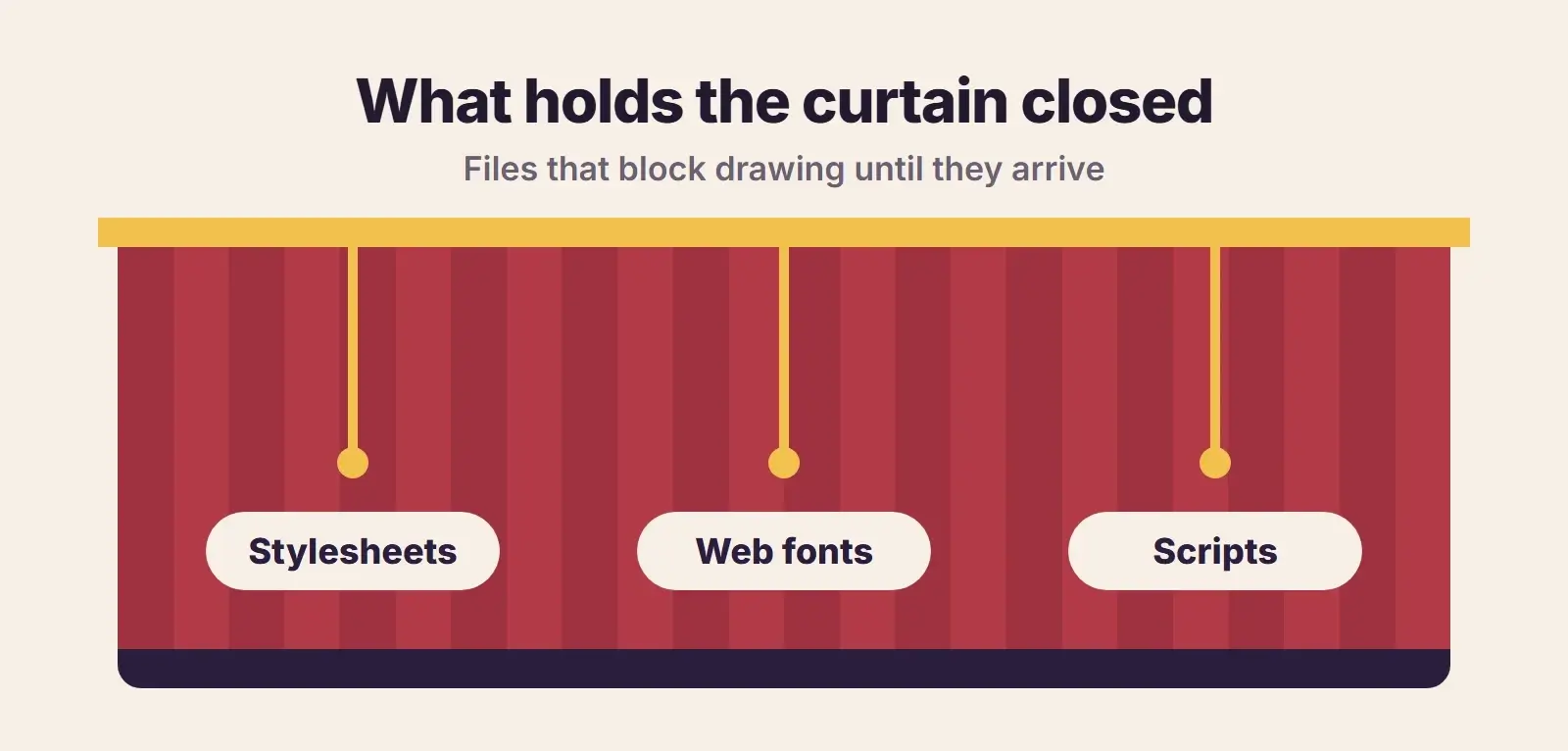
- Stylesheets: remove CSS that pages do not use, and let your caching plugin generate critical CSS or remove unused CSS. Check menus and pop-ups afterwards.
- Scripts: defer non-critical JavaScript or delay it until interaction. Google notes that synchronous scripts in the head should almost never be used.
- Fonts: Google’s font best practices recommend WOFF2 files, which are about 30 percent smaller than WOFF, preconnecting to any third-party font server, and font-display: optional or swap so text is not held back. Use one or two font families and preload only the most important one.
- Long tasks: heavy third-party scripts such as chat widgets and tag managers can block the main thread right when the image should be drawn. Load them later.
What it is worth: our own numbers
We rebuilt our own service pages on a lighter layout in 2026. In our November 2026 audit, LCP on those pages sat at about 2.6 seconds on mobile, with PageSpeed Insights scores of 88 to 89. One older page still on the previous layout had an LCP of 13.4 seconds and scored 55. These are our own pages, and yours will move by a different amount, but it shows how much the page build can matter.
WordPress LCP checklist
- Test key pages in PageSpeed Insights on mobile and note the LCP element.
- Check which of the four LCP parts is longest.
- Turn on one page cache and confirm Time to First Byte drops.
- Use an image tag for the hero, not a CSS background, slider or script.
- Make sure the hero is not lazy loaded and carries fetchpriority=”high”.
- Preload the hero if it must stay a background image.
- Resize and compress the hero; serve WebP or AVIF.
- Remove unused CSS and defer or delay non-critical JavaScript.
- Self-host one or two font families in WOFF2 with font-display swap or optional.
- Load chat widgets and other third-party scripts after the page has drawn.
- Retest, then watch the field data for the next 28 days.
Want us to fix your LCP?
We find your LCP element, measure each part of the delay and fix the slow ones, from caching and hero images to fonts and scripts, without changing your design.
Frequently asked questions
How do I improve LCP in WordPress?
Find the LCP element in PageSpeed Insights, see which part of the delay is longest, and fix that part first. That can mean a page cache for the server part, a normal hero image that is never lazy loaded for the discovery part, a resized WebP file for the download part, and less render-blocking CSS, JavaScript and fonts for the last part.
Is there a WordPress LCP plugin that fixes it automatically?
No single plugin fixes every cause. Caching plugins such as WP Rocket and LiteSpeed Cache cover the server part and can handle lazy loading, CSS and JavaScript. Image plugins shrink files. Page builders such as Elementor have their own image loading settings. A hero built as a slider or a CSS background still needs changing in the page itself.
Why is my LCP still bad after installing a caching plugin?
Caching fixes the server part, but the hero image may still be found late, lazy loaded, too heavy or held back by render-blocking files. Check the hero tag in your page source for loading=”lazy” or data-src, check the file size, and look at the LCP breakdown in PageSpeed Insights to see which part is still slow.
Why is my mobile LCP so much worse than desktop?
PageSpeed Insights tests mobile on a throttled phone profile, so heavy images, fonts and scripts cost more. The LCP element can also differ: a heading on desktop may be replaced by a large image on a narrow screen. Make sure WordPress serves a smaller image size to phones through srcset, and test the mobile layout separately.
How long does it take for LCP fixes to show in Search Console?
Lab tools such as PageSpeed Insights show the change straight away. The field data that Search Console and the top of PageSpeed Insights use is based on real Chrome visits over the previous 28 days, so improvements can appear gradually over about four weeks as new visits replace old ones.
Final thoughts
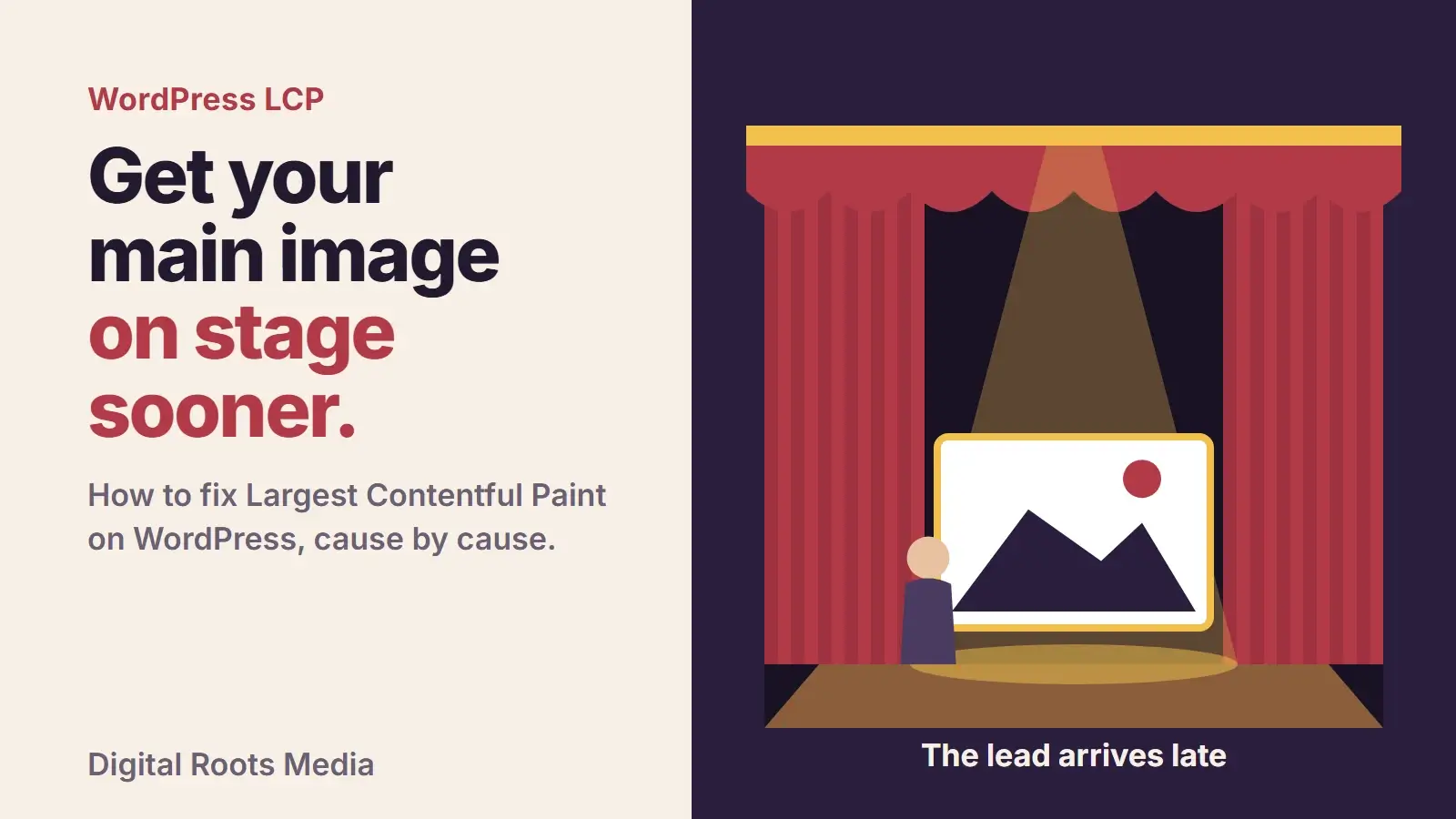
Good WordPress LCP is mostly about getting the lead actor on stage on cue: a cached server, a hero image the browser can see straight away and never lazy loads, a light file, and nothing holding the curtain closed. If you want it done for you, our WordPress speed optimization service fixes LCP across your key pages, our technical SEO service checks the results in Search Console, and our maintenance plans stop new plugins and images from undoing the work.