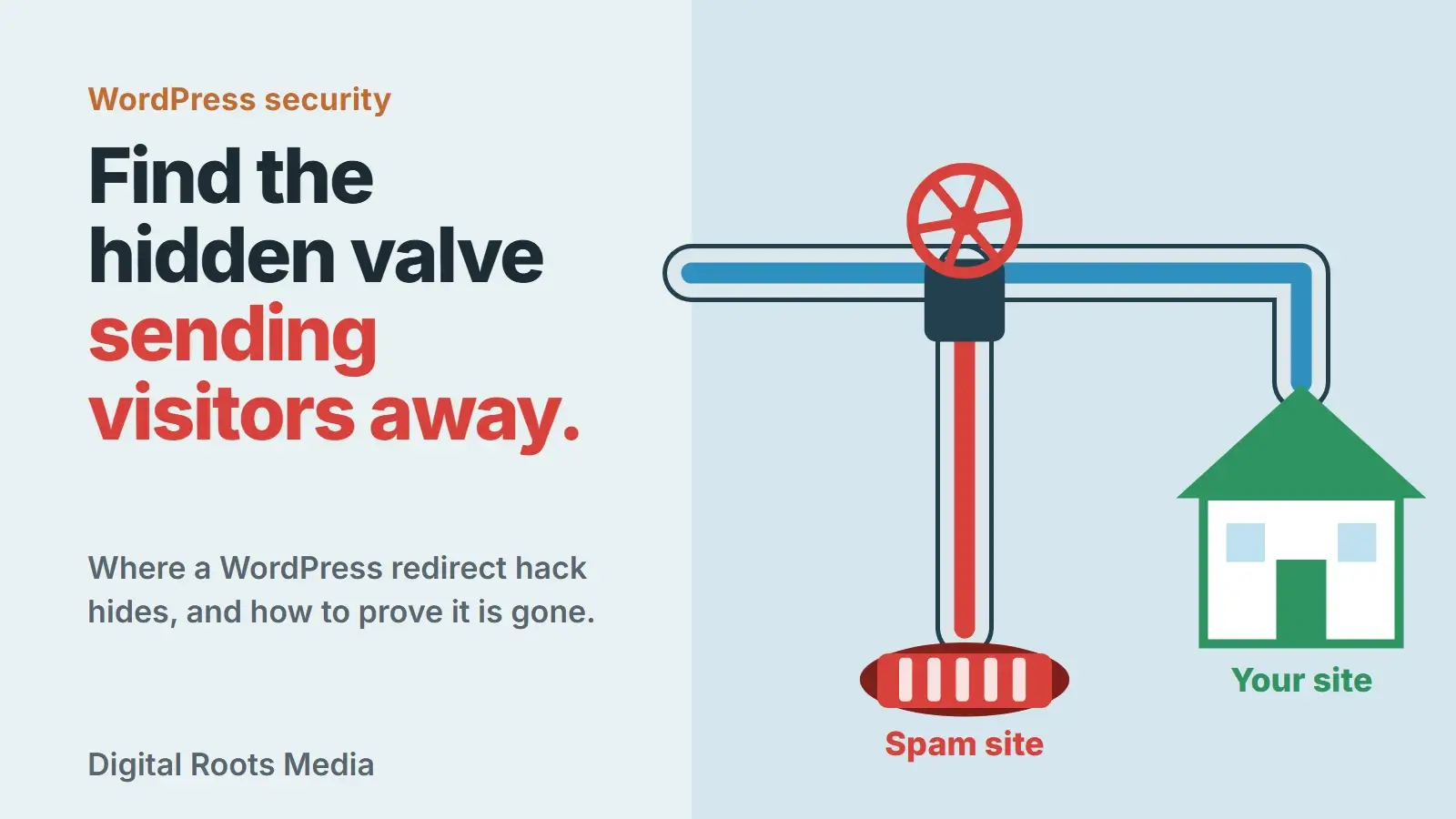
A WordPress hacked redirect is malicious code that sends some or all of your visitors to another website, such as a spam, scam or malware page. The places to check are the .htaccess file, the database (the siteurl and home settings, posts and widgets), theme files, a fake or vulnerable plugin, and modified core files. To remove it, take a backup, lock down every login, replace WordPress core files, clean each hiding place, update everything, and then prove the redirect is gone with four checks: file checksums, a test request that pretends to come from Google, Search Console’s URL Inspection and its Security Issues report.
This guide is for the moment you or a customer clicks your site in Google and lands somewhere you have never seen. It covers how to confirm the redirect without infecting your own computer, where to look, a sensible clean-up order, and how to get Google’s warning removed. If the site shows other signs of a hack, start with our broader guide on what to do when a WordPress site is hacked.
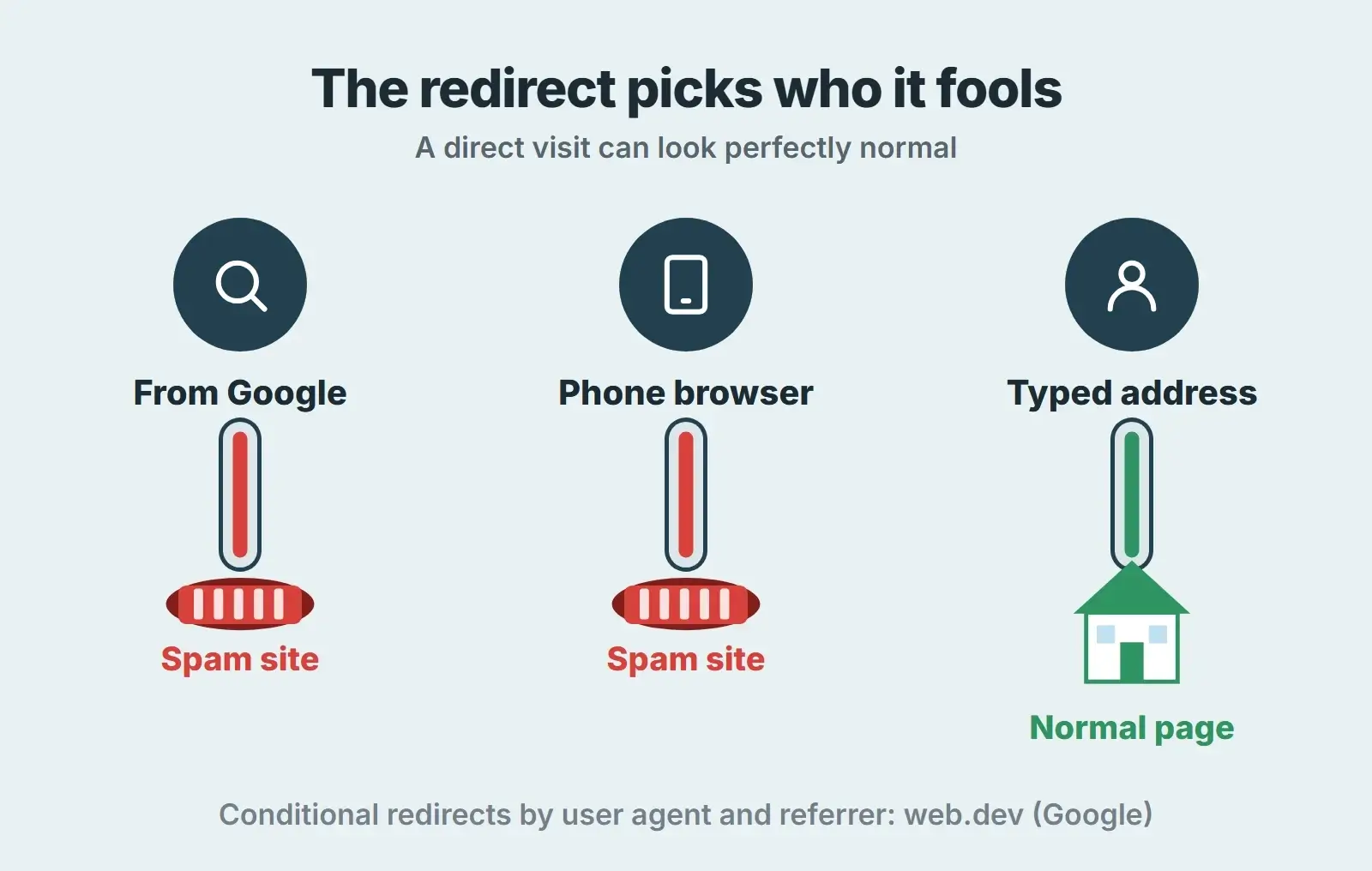
- Redirect hacks can be conditional: they can depend on the user agent, time of day or referrer, so the site can look fine to you.
- Test with a command-line request that sets a Google referrer instead of opening the infected page in your browser.
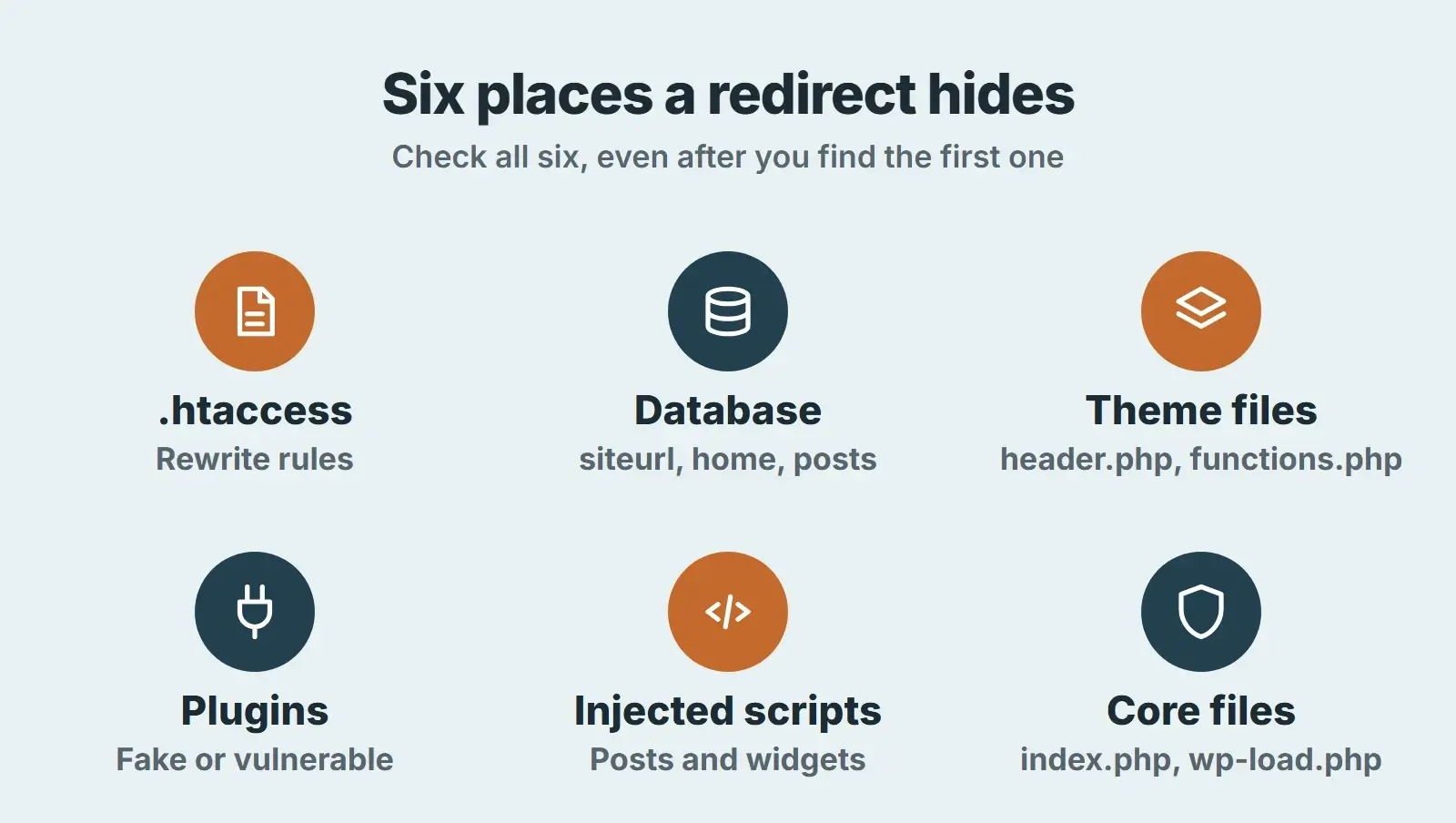
- Check six places: .htaccess, the database, theme files, plugins, injected scripts and core files.
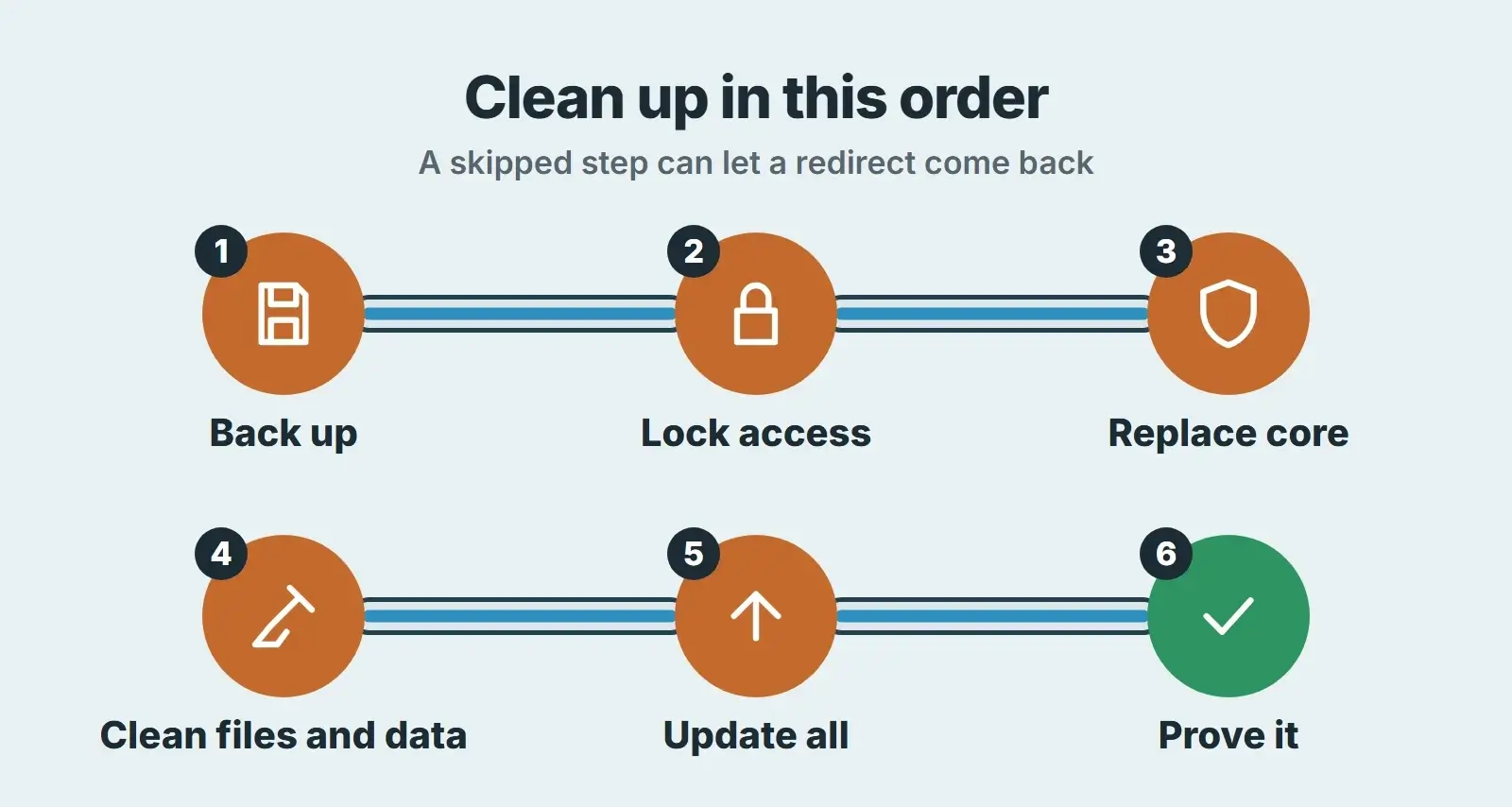
- Clean in order: back up, lock access, replace core, clean files and data, update, then prove it.
- Google’s review of a site hacked with spam can take up to several weeks, so clean fully before you ask.
Signs your WordPress site is redirecting to another site
The obvious sign is landing on a site you do not own. Less obvious signs to watch for:
- Customers say your site sent them to a prize, pharmacy, crypto or adult page, but it works when you try.
- Google results for your brand show strange titles or foreign-language snippets under your domain.
- Your browser shows a warning page, or Search Console’s Security Issues report lists a problem.
- Analytics shows an unexplained drop in session length or a spike in exits from your homepage.
- Your host suspends the account or warns you about outgoing spam.
- New administrator users, plugins or files appear that nobody on your team added.
If you cannot reproduce it, that may be because the code is built to hide. Google’s own guide to sites hacked with malware explains that hackers create conditional redirects based on the user agent, the time of day or the referrer, and that some malware only activates when people arrive from Google Search. So typing the address straight into your own browser may show you nothing wrong.
Confirm the redirect without infecting your own computer
Do not keep clicking the infected page in your everyday browser. The destination may try to install something or harvest details. Use a request that shows you the server’s answer without running the page.
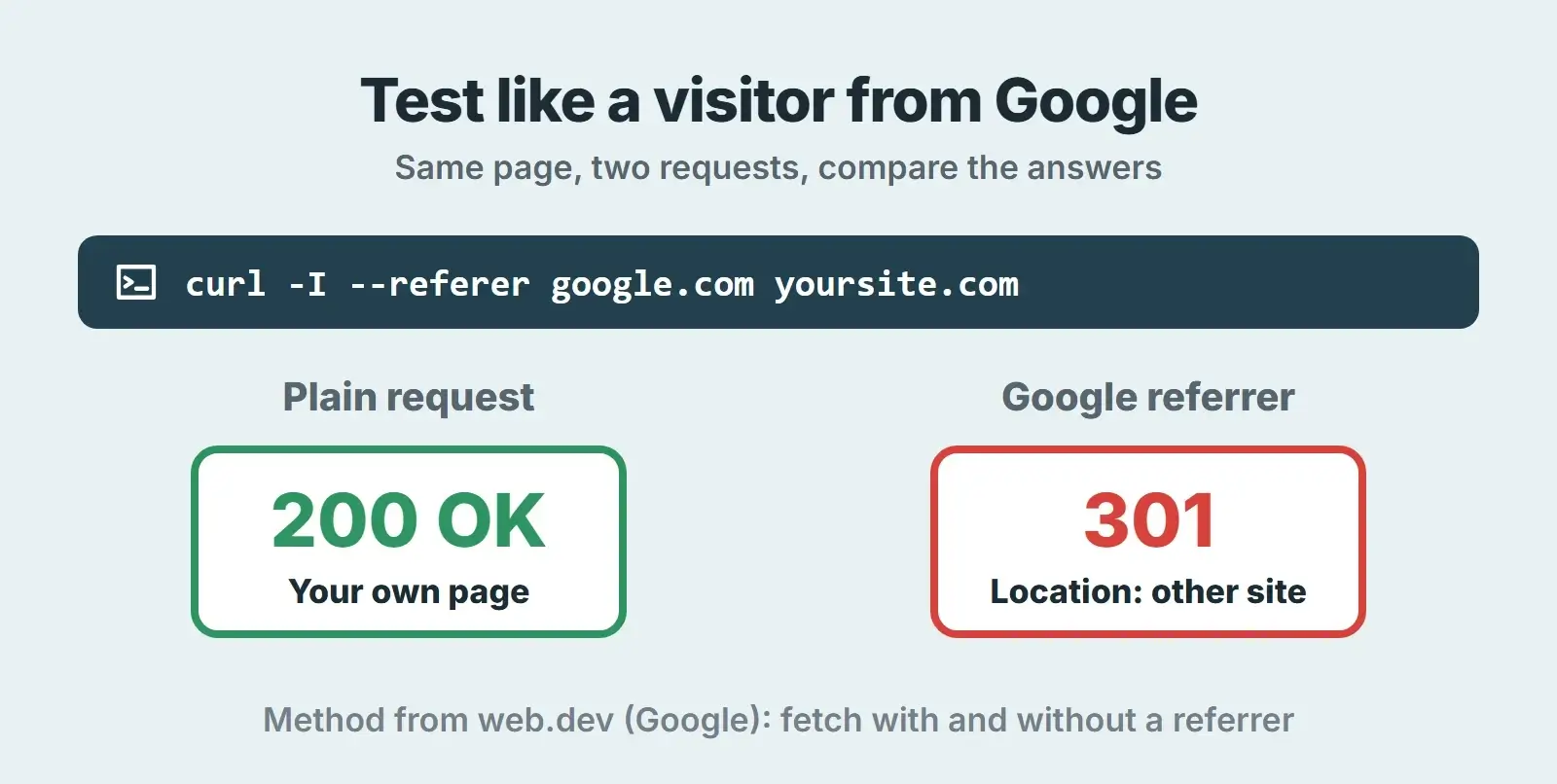
Google’s guide recommends cURL for exactly this. Open a terminal on your computer (Windows users can type curl.exe; if it is missing, curl.se has downloads) and run a plain request first, then the same request pretending to arrive from Google:
curl -I https://yoursite.com/shows the status code and headers for a direct visit.curl -I --referer "https://www.google.com/" https://yoursite.com/does the same as a visitor clicking from Google.curl -I -A "Mozilla/5.0 (iPhone)" https://yoursite.com/pretends to be a phone.
A clean page answers the same way each time, for example with 200 OK. If one request returns a 301 or 302 with a Location header pointing at a domain you do not recognise, you have found a server-side redirect, so check .htaccess and PHP first. If every request returns 200 but visitors are still redirected, the redirect is probably JavaScript in the page, which runs in the browser after the HTML loads.
| What you see | Where the redirect probably lives | Look first at |
|---|---|---|
| 301 or 302 only with a Google referrer | Server rules or PHP that read the referrer | .htaccess, index.php, wp-load.php |
| 301 for every visitor, every page | The site address itself was changed | siteurl and home options, wp-config.php |
| 200 OK, but browsers still jump away | JavaScript added to pages | Posts, widgets, theme header and footer |
| Only some pages redirect | Injected content or a plugin hook | Those posts in the database, recent plugins |
| Search Console shows pages you never made | Cloaked spam pages | .htaccess rewrite rules and the .php file they call |
Search Console helps too. The URL Inspection tool’s live test fetches the page as Google does, and Google’s cloaked keywords guide recommends it for spotting content that is hidden from normal visitors. Our Google Search Console guide walks through the tool if you have not used it before.
Where WordPress redirect malware hides
Do not stop at the first find. Google warns that hackers may leave a backdoor so they can get back in or re-inject code after you clean up. Check every place below, even after you find the first one.
1. The .htaccess file
On Apache servers, .htaccess can set redirects, and Google’s guides name it as a place to check for injected rewrite rules. The WordPress.org hacked site FAQ calls .htaccess one of the files most often changed in an infection, and notes copies can sit in several other folders too. A standard WordPress .htaccess holds a short block between # BEGIN WordPress and # END WordPress. A caching plugin may add its own block, but anything you cannot explain needs a reason. We would restore the default block from the WordPress documentation, then re-save Settings, Permalinks.
2. The database: siteurl, home, posts and widgets
WordPress stores its own address in two options, siteurl and home, which the WordPress documentation on changing the site URL explains. If either points at another domain, every visitor is sent there. Also check wp-config.php for WP_HOME and WP_SITEURL lines you did not add, because they hard-code the address so the General settings page can no longer change it. Beyond that, search the posts and options tables for <script, eval(, atob( and unfamiliar domains. Widgets, header and footer code boxes and page builder data can live in the database, so a file scan alone can miss them.
3. Theme files
WordPress.org names index.php, header.php, footer.php and functions.php as files to watch, because a change there affects every page. Look for a script tag before the opening of the page head, or a long unreadable string. Google’s guides show hidden code wrapped in functions such as base64_decode, rot13 or eval. The safest route is to replace the theme with a fresh copy from its source and reapply only changes you can account for, ideally in a child theme.
4. Plugins, real and fake
WordPress’s hardening guide names outdated plugins as a way in, and an attacker may add a plugin of their own with a believable name. Check wp-content/mu-plugins too. Must-use plugins load automatically and sit in a separate Must-Use section, not the main plugin list. Delete every plugin you do not use, reinstall the ones you keep from fresh downloads, and look at the folder names on the server rather than trusting the dashboard.
5. Injected scripts in posts and widgets
A redirect added to page content runs in the browser, which is why your cURL test can return 200 OK while visitors still bounce. Google’s guide shows an example that checks whether the visitor came from google.com before sending them away. Search post content and widgets for script tags you did not add.
6. Core files and stray PHP files
The cloaked keywords guide lists index.php, wp-load.php, 404.php and view.php among the files attackers inject. WordPress core should match the official release exactly, which you can test with wp core verify-checksums in WP-CLI. It compares your core files with WordPress.org’s checksums and lists any file that does not match. Also look for .php files inside wp-content/uploads, which we would expect to hold only media, and sort files by modification date to spot recent changes.
How to remove a WordPress redirect hack, step by step
Order matters. Cleaning files while the attacker still has a working password, or before you have a backup, risks a reinfected or broken site.
- Back up, including the infected copy. WordPress.org recommends one more snapshot of the environment before cleaning, even if it is infected, so you have a reference if something breaks. Note what you saw and when, and any recent changes, for your host or whoever helps you.
- Lock every access point. Change passwords for SFTP, the hosting panel, the database and every WordPress administrator. Generate new secret keys in wp-config.php, which logs everyone out. Remove administrator accounts nobody recognises. Scan your own computer too, because WordPress.org notes infections can begin there.
- Replace WordPress core. Upload fresh copies of the wp-admin and wp-includes folders over SFTP, using the same WordPress version you run. WordPress.org advises against the dashboard reinstall button here, because it only overwrites existing files and does not remove files the attacker added.
- Clean files and data. Restore a clean .htaccess, reinstall the theme and plugins from fresh copies, delete unknown plugins and mu-plugins, remove PHP files from uploads, then clean the siteurl and home options, injected scripts and unknown users in the database.
- Update everything and close the hole. Update WordPress, the theme, every plugin and PHP. Find how they got in, such as an outdated plugin or a stolen password. Our PHP2Shell update shows why the server’s PHP version belongs on that list. Then change the passwords again, as WordPress.org advises, now that the site is clean.
- Prove it is gone, with the four checks in the next section.
Two hardening settings from the WordPress hardening guide help straight away: add define( 'DISALLOW_FILE_EDIT', true ); to wp-config.php so nobody can edit theme and plugin code from the dashboard, and delete plugins you are not using rather than leaving them deactivated.
Would you rather not do this yourself?
Our website maintenance plans include core, plugin and theme updates, off-site backups, security scans and uptime monitoring, to help catch problems early and keep a copy to go back to.
Get Google’s warning removed
If Google flagged the site, Search Console’s Security Issues report lists the problem and sample URLs. Google’s request a review guide says to request a review only after you have verified ownership, cleaned the site, fixed the vulnerability and brought the clean site back online, with nothing blocking Googlebot. It also warns that asking too early extends the time the site stays flagged. If the review fails, warnings stay in search results and browsers, and the report may show more sample URLs to investigate.
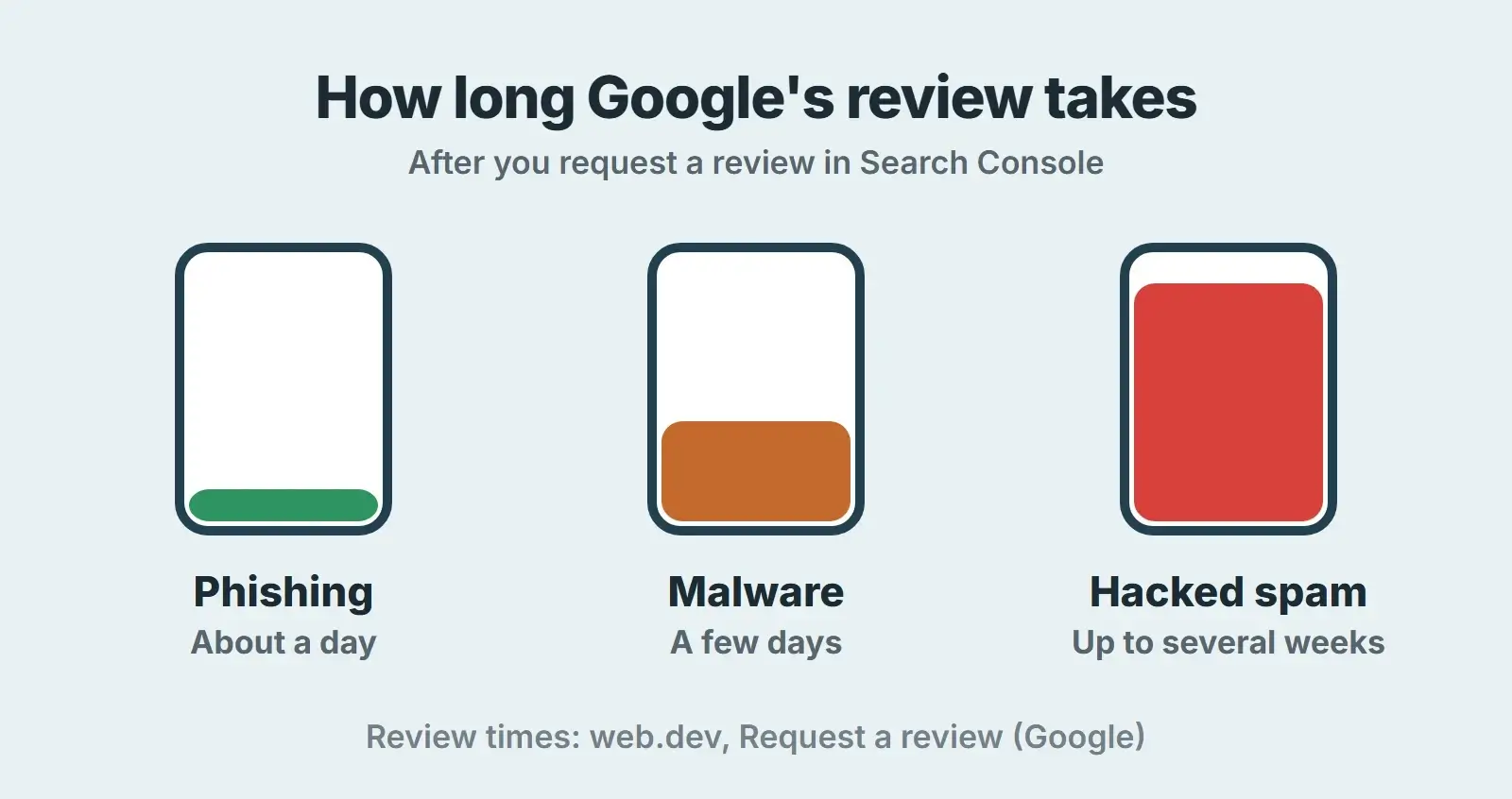
Expect the wait to match the type of problem. Google says phishing reviews take about a day, malware reviews a few days and reviews for sites hacked with spam up to several weeks (checked November 2026). That is one more reason to be thorough the first time.
How to confirm the redirect is really gone
A redirect that disappears for a day and comes back suggests a backdoor may still be in place. Treat the site as clean only when all four checks pass, and repeat them a week later.
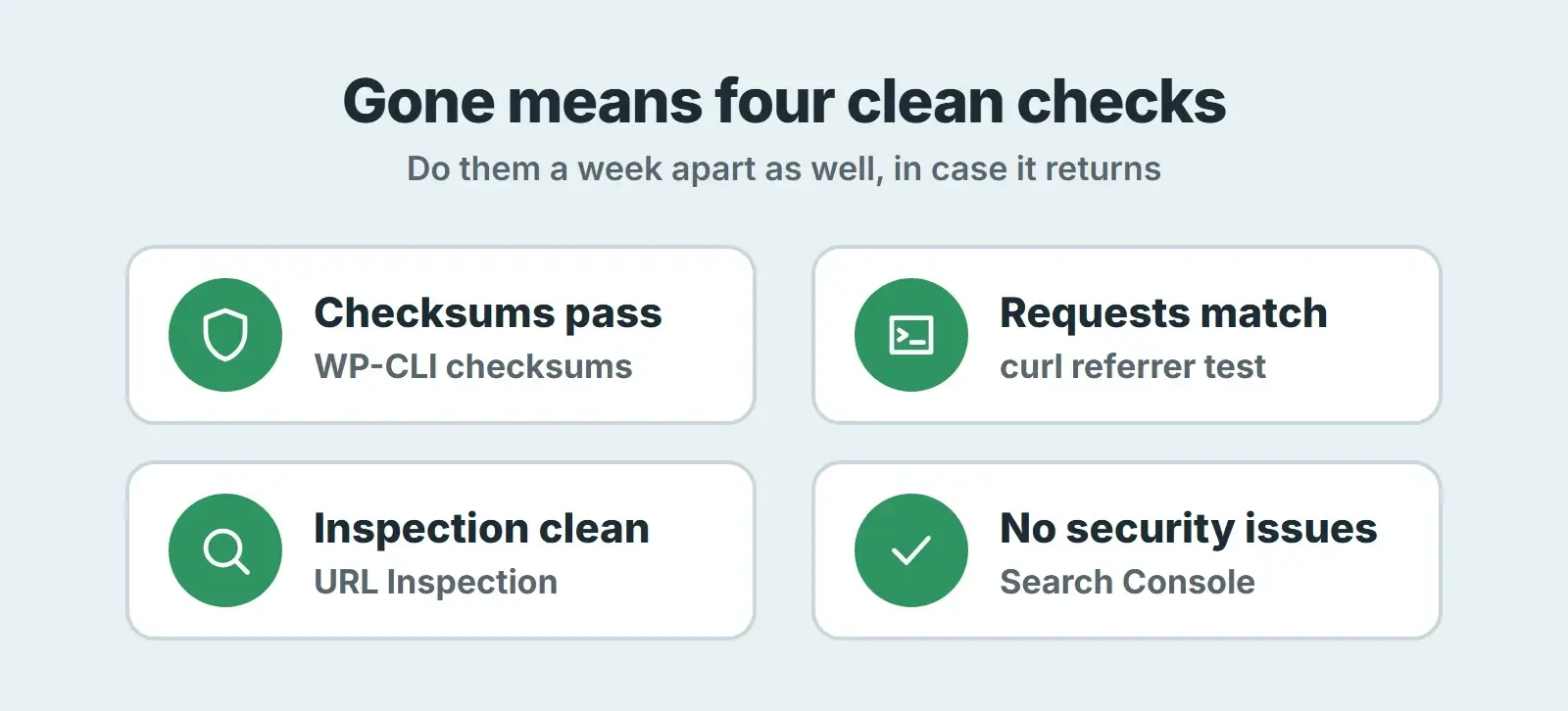
| Check | How | Clean result |
|---|---|---|
| Core checksums | wp core verify-checksums | Success: WordPress installation verifies against checksums. |
| Request comparison | cURL with and without a Google referrer and a phone user agent | Same status code and no outside Location header |
| Google’s view | URL Inspection, Test live URL, on the homepage and a few posts | Your own content, no unknown links or scripts |
| Security Issues | Search Console, Security and Manual Actions | No issues detected, or the review approved |
Why redirects come back, and how to stop them
If a redirect returns, we would look at three causes first: a backdoor file that was missed, a password that was not changed, or the original weak point still open, such as an outdated plugin. Close all three. Keep plugins and themes updated, remove what you do not use, use unique passwords with two-step login for every administrator, and keep backups somewhere off the server. Our WordPress maintenance checklist turns that into a monthly routine.
WordPress redirect clean-up checklist
- Confirm the redirect with cURL, with and without a Google referrer.
- Take a full backup of files and database, including the infected state.
- Change SFTP, hosting, database and WordPress passwords; generate new secret keys.
- Remove administrator users nobody recognises.
- Replace wp-admin and wp-includes with fresh copies of the same version.
- Restore the default .htaccess block and re-save Settings, Permalinks.
- Check siteurl, home, WP_HOME and WP_SITEURL.
- Search posts, options and widgets for script tags and unknown domains.
- Reinstall the theme and plugins from fresh copies; delete unused and unknown ones, including mu-plugins.
- Delete PHP files from wp-content/uploads.
- Update WordPress, plugins, themes and PHP; change passwords again.
- Run wp core verify-checksums, repeat the cURL tests and use URL Inspection.
- Request a review in Search Console only when everything is clean.
- Repeat the checks a week later.
Frequently asked questions
Why is my WordPress site hacked and redirecting to another site?
Someone has added code that sends visitors elsewhere, perhaps after getting in through an outdated plugin or theme, a stolen password or an insecure server. It may target only visitors from Google or on certain devices, which is why you may not see it yourself. The fix is to clean every hiding place and close the original weak point.
How do I detect a WordPress hacked redirect?
Ask a customer exactly what they clicked and what they saw, then test with cURL: one plain request and one with a Google referrer. Different answers mean a conditional redirect. Also use URL Inspection in Search Console, check the Security Issues report, run wp core verify-checksums and look for recently modified files, unknown plugins and new administrator users.
Will a security plugin remove a WordPress redirect hack?
A scanner is a good first step, but WordPress.org says no one solution is best, and a scanner may miss code stored in the database, mu-plugins or files it does not recognise. Use it alongside the manual checks in this guide, replace core files with fresh copies, and do not treat the site as clean until all four proof checks pass, ideally twice a week apart.
Can I just restore a backup to fix the redirect?
Restoring a backup from before the infection can be a quick route, but only if you know when the infection started and you close the weak point first. Otherwise the attacker can get back in the same way. After restoring, change every password, update everything, and run the same checks you would after a manual clean-up.
Will a hacked redirect hurt my Google rankings?
It can. Google may show warnings in search results and in Chrome, and spam pages added to your site can be indexed under your name. We cannot promise how rankings will move after a clean-up, and the review alone can take up to several weeks for spam, so we would act quickly and clean thoroughly.
Final thoughts
A WordPress hacked redirect looks frightening, but there is a pattern to follow: check a handful of places, test as a visitor who is not you, and remember it can come back when a backdoor or weak point is left behind. Test like Google, clean in order, and prove it is gone before you relax. If you would like a team to keep watch, our website maintenance and support plans cover updates, backups and security scans, our WordPress development team can rebuild a theme that has been tampered with, and our technical SEO service can help with spam pages left in Google afterwards.