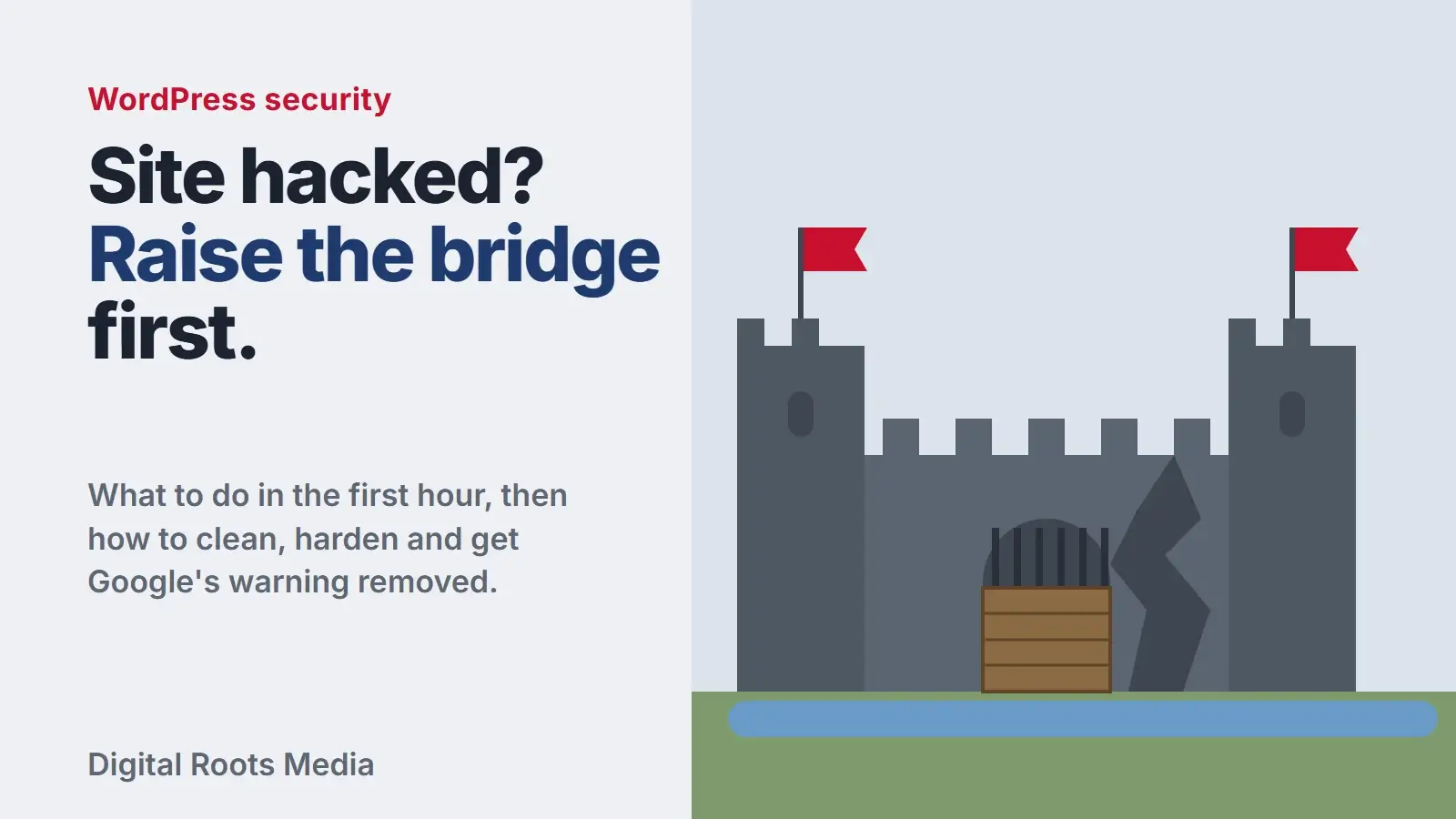
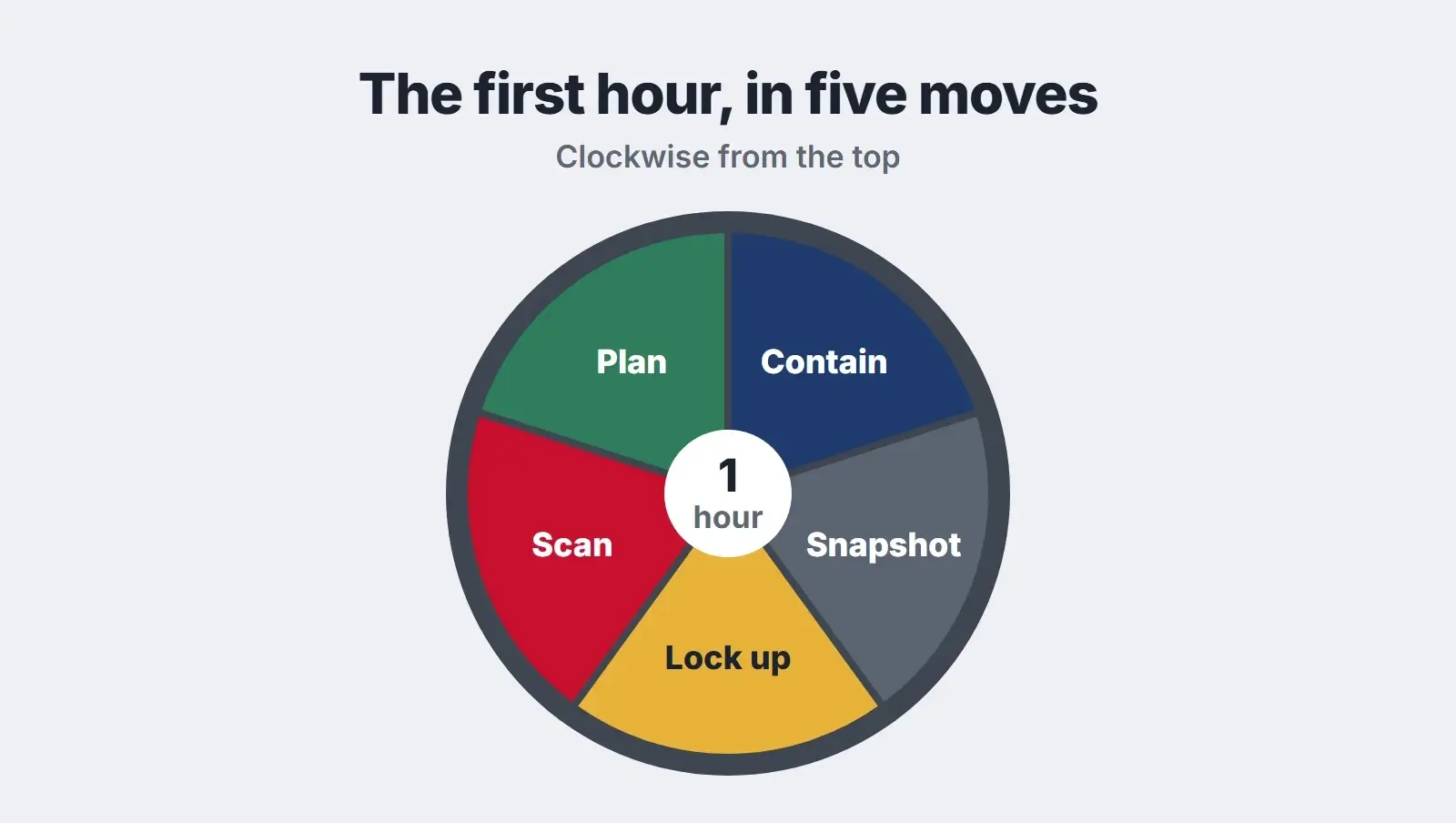
If you are searching WordPress site hacked how to fix, start with the first hour, and the first hour is about control, not cleaning. Contain the damage (maintenance mode or ask your host to take the site offline), take a snapshot of everything as it is, change every password and log every user out, scan the site and your own computer, and then decide whether to restore a clean backup or clean the site in place. Only after that do you clean, update, harden and ask Google to remove any warning.
Finding your WordPress website hacked is stressful, so this plan keeps it simple. It follows WordPress.org’s own guidance for hacked sites and Google’s process for lifting security warnings. It is written for business owners who need a calm order of steps, not a forensics course. If you would rather hand it over, skip to the end.
- Do not delete files in a panic. Take a snapshot first, even of the infected site.
- Change every key: WordPress logins, hosting panel, SFTP and FTP, and the database password.
- Replace the secret keys in wp-config.php to log everyone out, including the attacker.
- Clean by replacing core files with fresh copies of the same version, not by reinstalling from the dashboard.
- Ask Google for a review only when every page is clean. Reviews take a few days to a few weeks.
How to tell your site has been hacked
WordPress.org’s hacked site FAQ calls signs like these indicators of compromise. In our view, any one of them is enough to start the plan below:
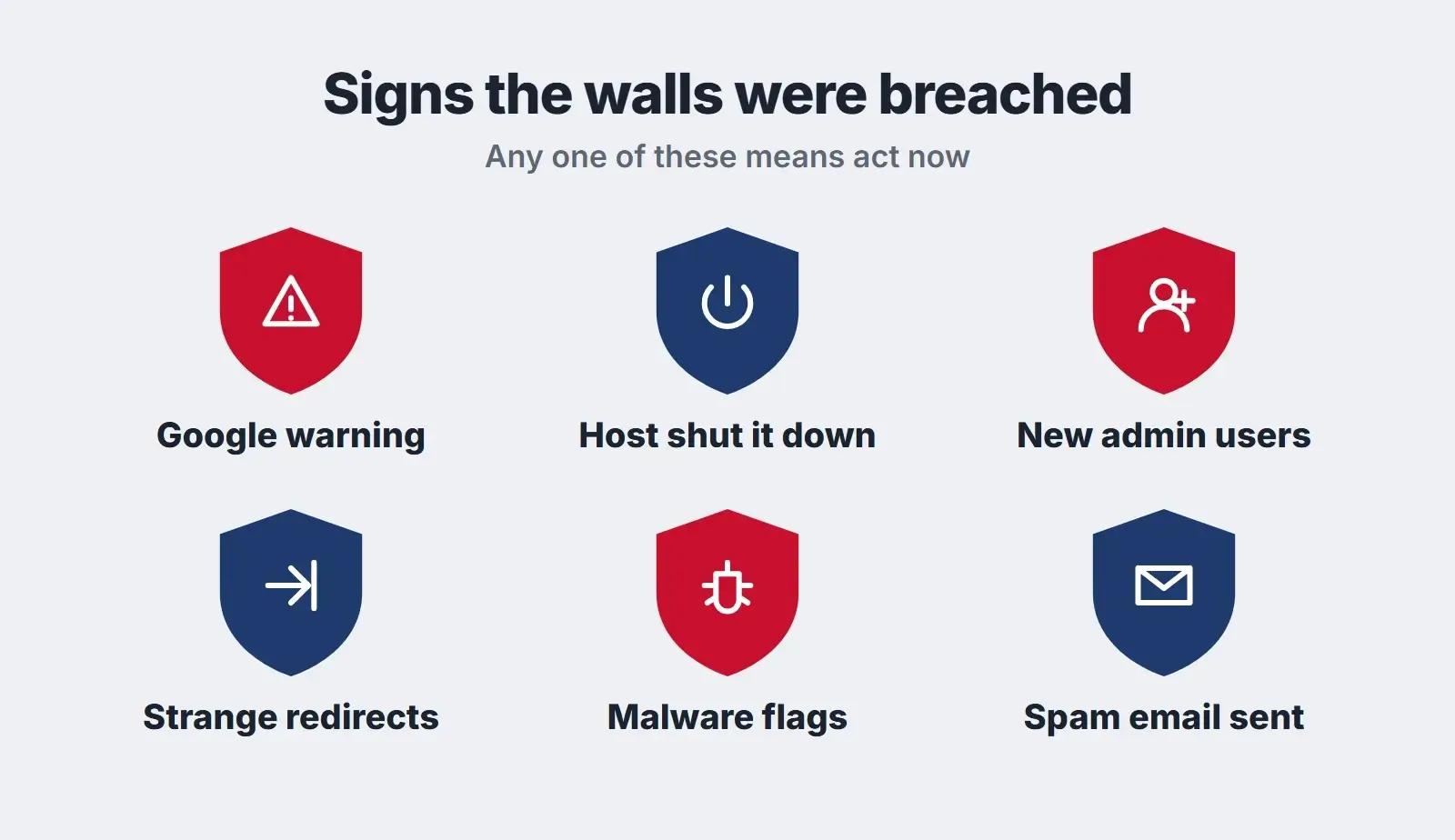
- Google or another search engine shows a warning on your site or in results.
- Your host has suspended or disabled the site.
- Visitors say their antivirus flags your site, or it is listed for distributing malware.
- There are admin users, pages or plugins you did not create.
- Some visitors are redirected to other sites. Google explains that hackers can make redirects depend on the user agent, time of day or referrer.
- Your host or someone else reports spam email or attacks coming from your site.
The first hour: five moves, in order
1. Contain the damage
Stop visitors and search engines from seeing infected pages. Put the site in maintenance mode if you can still log in, or ask your host to take it offline. Then breathe. WordPress.org’s advice starts with “Stay calm”, and we agree: rushed deletions can destroy the evidence you need to find how the attacker got in.
Start a short incident note at the same time: what you saw, when you noticed it (with time zone), and what changed recently, such as a new plugin, a theme edit or a new user. WordPress.org calls this the baseline for an incident report, and says it will prove invaluable.
2. Take a snapshot, even of the infected site
Back up the files and the database exactly as they are now. It feels wrong to save an infected copy, but if a clean-up goes badly you need something to go back to, and the infected copy shows what was changed. Ask your host what backups they hold and how far back they go. In our view, a clean backup from before the hack is the first route to consider.
3. Lock every door
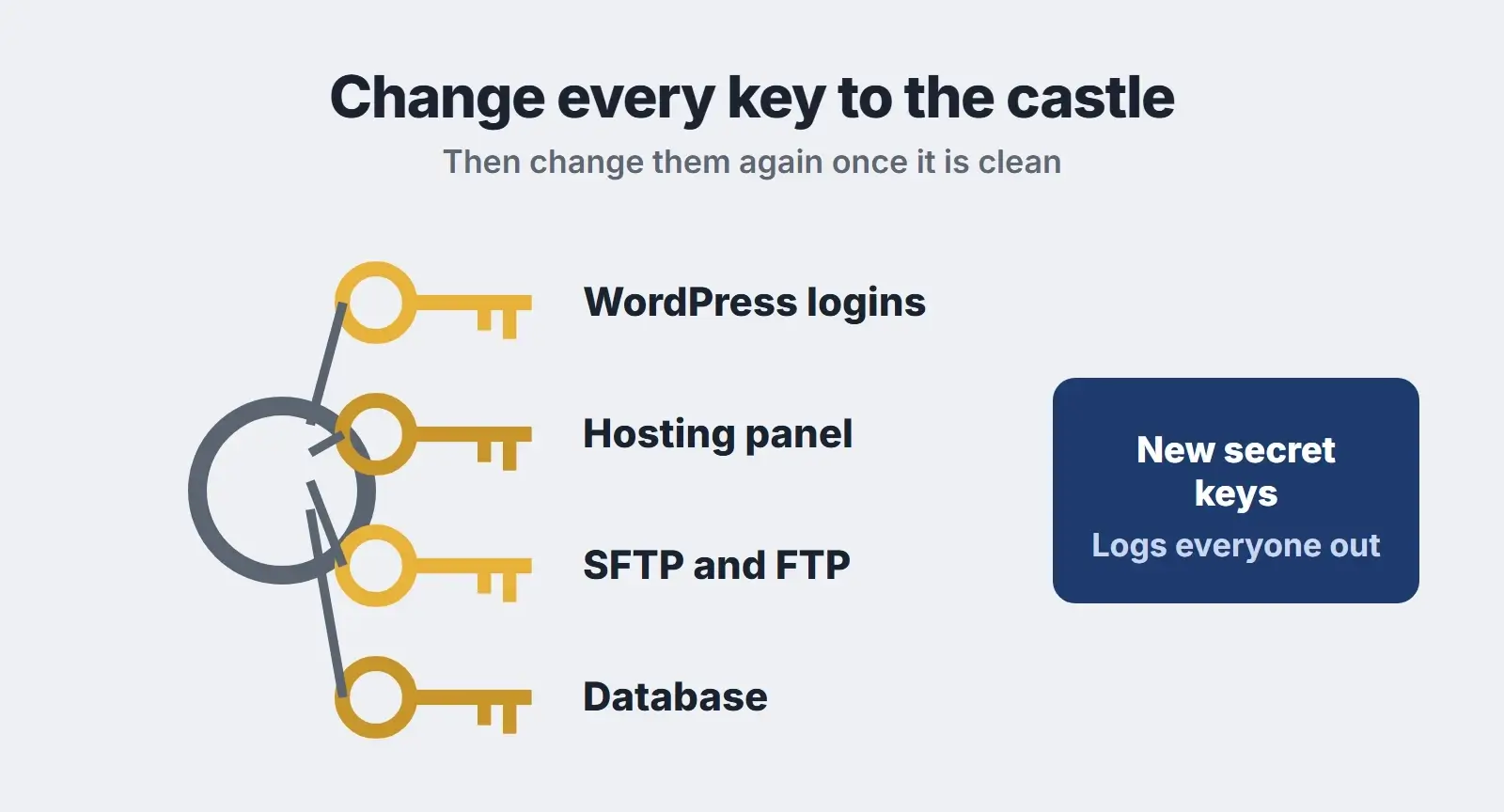
Change the passwords for every way into the site, not just your WordPress login:
- WordPress: force a password reset for every user, starting with administrators.
- Hosting control panel and SFTP or FTP accounts.
- The database user password (update wp-config.php to match).
- The secret keys in wp-config.php. Generate a new set from WordPress’s secret key service and replace the old ones. This logs out everyone still signed in, including the attacker.
Use long, unique passwords from a password manager, and turn on two-step login for administrators. While you are in Users, look for administrator accounts you do not recognise and note them before removing them.
4. Scan the site and your own computer
WordPress.org recommends two kinds of scan, because they find different things: a security plugin that checks files inside WordPress, and a remote scanner that looks at the site from outside like a visitor would. It also recommends a full antivirus scan of the computers used to log in, and says that in many instances the infection starts on the owner’s own machine, where trojans can capture login details. Ask your host to check the server too. WordPress.org notes a hack may affect more than your site, especially on shared hosting.
5. Decide: restore or clean
| Situation | Route we would take | Watch out for |
|---|---|---|
| You have a backup from before the hack | Restore it, then update everything | The hole is still there: update and harden before going live |
| No clean backup, small site | Clean in place, file by file | Hidden backdoors that reinfect the site |
| Store, members or bookings | Get professional help | Customer data and payment pages |
| You cannot log in at all | Reset your user via the host’s database tool, then decide | Unknown admin users left behind |
After the first hour: clean the site
WordPress.org calls finding and removing the hack the most daunting part. An order that fits its guidance:
- Replace WordPress core. Download the same version you run and replace the /wp-admin and /wp-includes folders by SFTP. WordPress.org warns against the dashboard reinstaller here, because it overwrites existing files and leaves new files that a hack added.
- Reinstall plugins and themes from their original source, and delete any you do not use. Do not keep a plugin or theme from an unofficial download site.
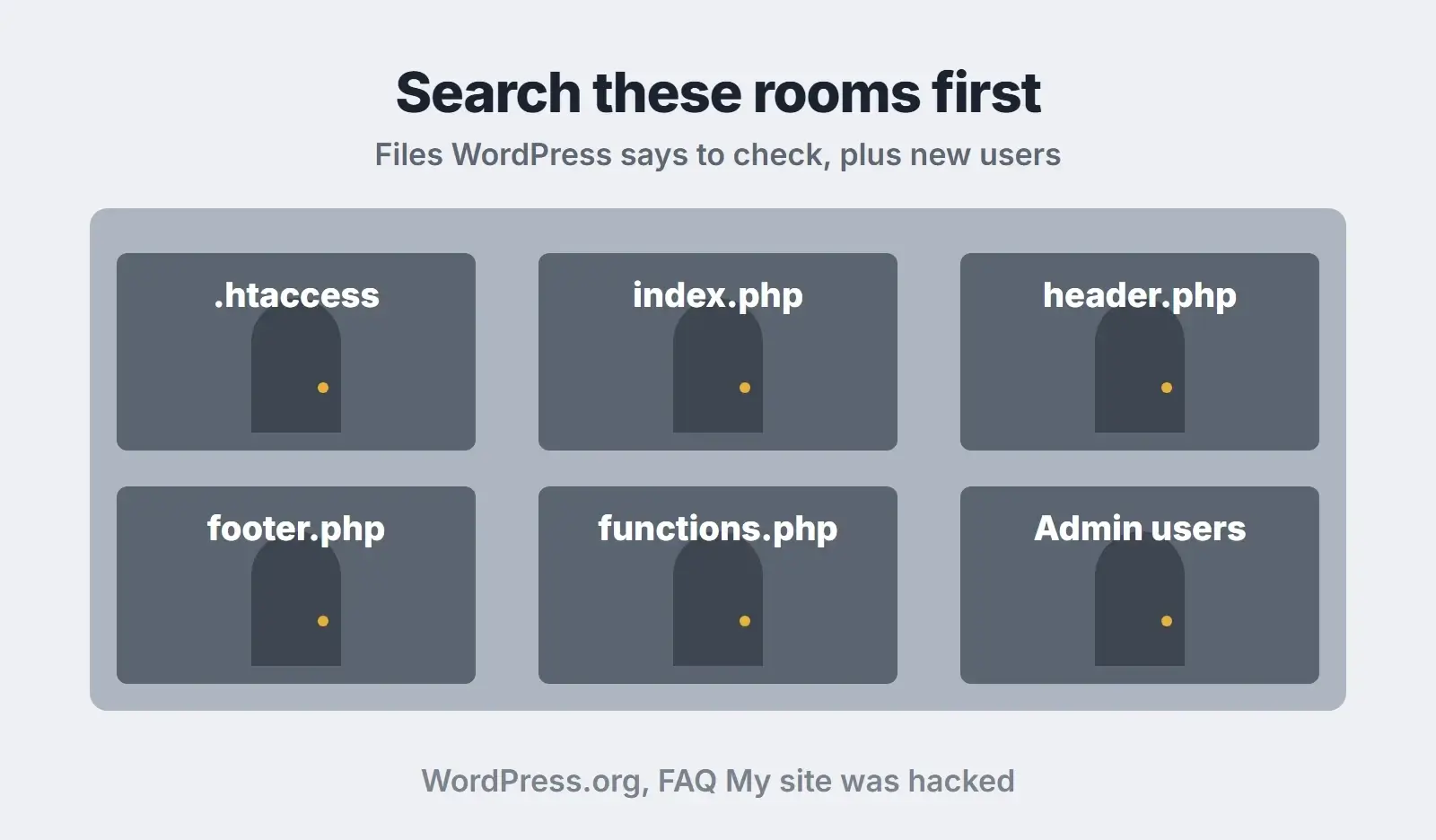
- Check the usual hiding places. The .htaccess file is the one most often modified, and can exist in several folders. Then index.php, header.php, footer.php and functions.php.
- Check the uploads folder for PHP files. We would expect it to hold media, not code.
- Remove unknown users, scheduled tasks and plugins you did not add.
Then update WordPress, every plugin and every theme to the latest version, and change all passwords again. WordPress.org is specific about this: change passwords after you are sure the site is clean, not only when you discovered the hack. It also says older versions are more prone to hacks, which is why updates such as the October 2026 PHP security update matter.
Rebuild the walls stronger
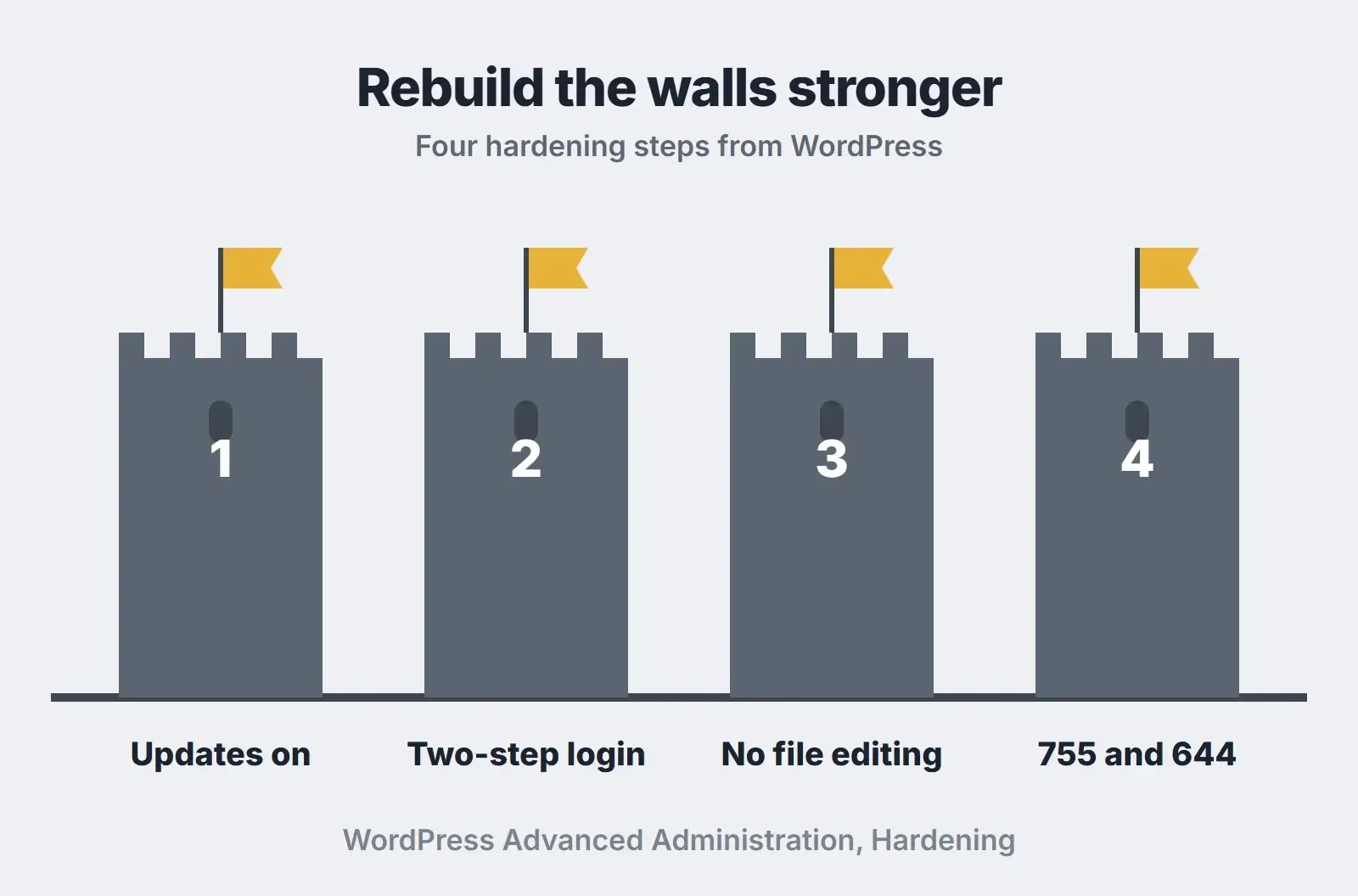
WordPress’s hardening guide lists the basics:
| Hardening step | What to do |
|---|---|
| Keep everything updated | WordPress core, plugins, themes and PHP. Old versions stop getting security fixes. |
| Strong passwords and two-step login | Unique passwords from a password manager, two-step login for every administrator. |
| Turn off file editing | Add DISALLOW_FILE_EDIT set to true in wp-config.php, so nobody can edit plugin and theme code from the dashboard. |
| Correct file permissions | 755 for folders, 644 for files, and 400 or 440 for wp-config.php. |
| Regular backups | Files and database, stored away from the server, tested now and then. |
Hiding the login page or renaming the admin account can help a little, but WordPress itself calls obscurity “generally an unsound primary strategy”. We would put updates, passwords and backups first.
Get Google’s warning removed
If Google flagged your site, open the Security Issues report in Search Console. Google’s Security Issues help page groups problems into hacked content, malware and social engineering such as phishing pages. Fix every issue on every affected page, not just the examples listed, then select Request Review.
In the request, explain exactly what the issue was, the steps you took to fix it and the result. Google says a review “can take from a few days to a few weeks”, and asks you not to resubmit until you have a final decision. If you are new to the tool, our Google Search Console guide shows where the report lives.
A note on customer data: if the site holds personal data, payment details or account logins, a hack may trigger legal duties to tell customers or regulators. This guide is not legal advice; check with your counsel about what applies to you.
Hacked WordPress site checklist
- Put the site in maintenance mode or ask your host to take it offline.
- Write down what you saw, when, and what changed recently.
- Back up files and database as they are now; ask your host about older clean backups.
- Change WordPress, hosting, SFTP and FTP, and database passwords.
- Replace the secret keys in wp-config.php to log everyone out.
- Scan the site with a security plugin and a remote scanner; scan your own computer.
- Restore a clean backup, or replace core files and reinstall plugins and themes from source.
- Check .htaccess, index.php, header.php, footer.php, functions.php and the uploads folder.
- Remove unknown users and plugins; update everything; change passwords again.
- Harden: two-step login, DISALLOW_FILE_EDIT, correct permissions, off-site backups.
- Request a review in Search Console once every page is clean.
Want us to take it from here?
Our website maintenance and support team handles updates, backups and security checks every month, which lowers the risk of a breach and gives you something to recover from.
Frequently asked questions
How do I fix a hacked WordPress website?
Contain it first with maintenance mode or your host, take a full backup as it is, change every password and the secret keys, and scan the site and your computer. Then restore a clean backup or replace core files and reinstall plugins and themes from source, check .htaccess and theme files, update everything, harden the site and request a Google review.
Should I just restore a backup?
A backup from before the hack can be a quick fix, but restoring alone leaves the original hole open. Update WordPress, plugins and themes, remove anything you do not use and change all passwords straight after restoring. Also make sure the backup really predates the hack, because an infection may have been in place for some time before anyone noticed it.
How did my WordPress site get hacked?
WordPress’s docs name outdated plugins and software, guessed or weak passwords, themes from untrusted sources and infected computers that leak login details. Your host’s access logs and the dates on changed files can show where it started. Finding the route matters, because cleaning without closing it invites a repeat.
How long does it take Google to remove a hacked site warning?
Google says a security review can take from a few days to a few weeks. Fix every issue on every affected page before you request it, explain what you found and what you did, and do not send another request until you have a final decision. If the review fails, find what is left, fix it everywhere and ask again.
Can my host fix a hacked WordPress site for me?
Ask. Find out whether your host offers malware removal, whether it costs extra, and whether it can confirm the infection, restore backups and check the server. Also ask whether the work includes finding how the attacker got in and hardening WordPress afterwards, because that is the part that helps stop it happening again.
Final thoughts
When a WordPress site is hacked, how you fix it depends on doing things in the right order: contain, snapshot, lock up, scan and plan in the first hour, then clean, update, harden and ask Google for a review. Our website maintenance and support plans, from $199 a month, keep updates, backups and security checks running to lower the odds you need this guide. If the site needs rebuilding after a bad hack, our WordPress development team can help, and our technical SEO team can check how the site looks in Search afterwards. For the routine side, see our WordPress maintenance checklist.